Managing workflows
A workflow chains your agents into a multi-stage sequence with branches, approvals, and delivery.
Creating a workflow
The following requirements are met:
- ☑ Your user account has the Create and run own workflows permission.
- ☑ Your administration has switched on the workflows for the workspace.
Proceed as follows to create a workflow:
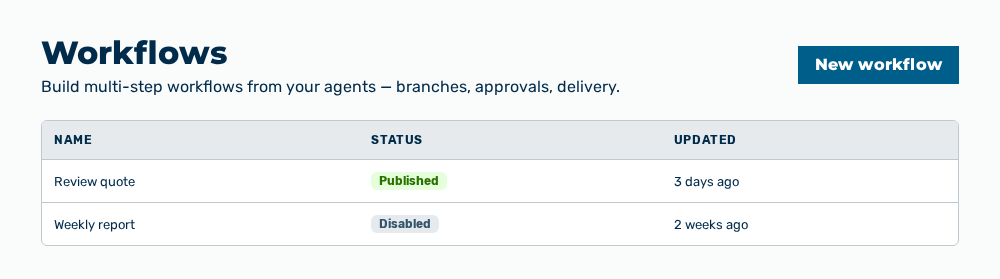
Workflows view
- ► On the start page, open the Workflows view in the Workspace work area.
- ► Click on the New workflow button.
- ↳ The New workflow dialog opens.
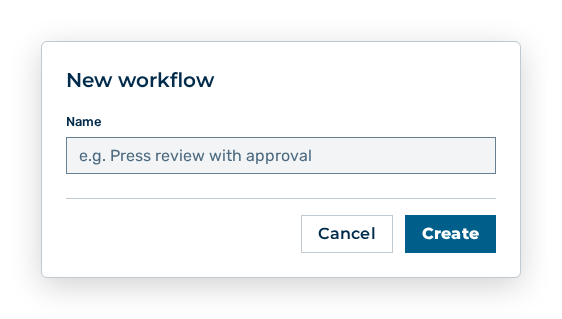
New workflow dialog
- ► In the Name text field, enter the name.
- ► Click on the Create button.
- ➔ Myra AI Workspace creates the workflow and opens the editor.
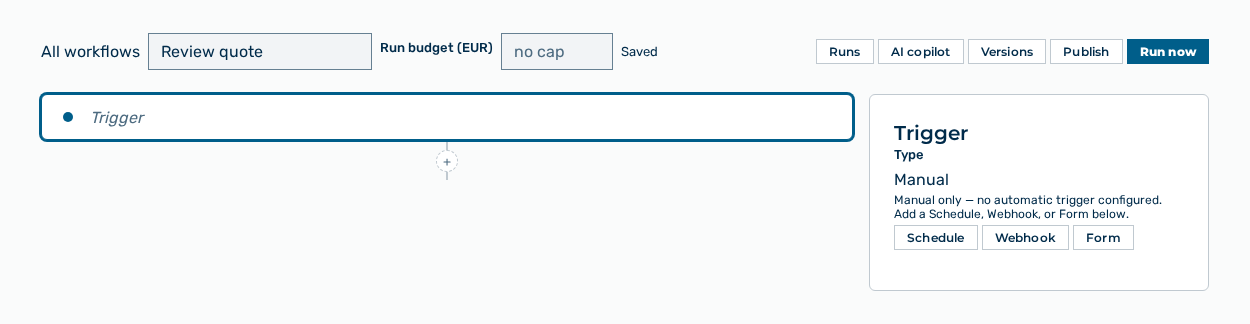
Editor of a workflow
Entries in the New workflow dialog
New workflow dialog
You set the following entries when you create the workflow:
| Entry | Description |
|---|---|
| Name * | Name of the workflow in the list of the workflows, for example Press review with approval. The entry is mandatory. |
The following options are available in the dialog:
| Option | Description |
|---|---|
| Create button | Creates the workflow and opens its builder. The button is locked while the Name input field is empty. |
| Cancel button | Closes the dialog without creating the workflow. |
Note
Myra AI Workspace creates the workflow on the access tier that is selected in the Workflows view. An agent step uses only agents of the same access tier. If the creation fails, the dialog shows The workflow could not be created.
Note
A new workflow carries the Draft status and does not run yet. Only the Publish button in the builder makes it runnable.
Editing a workflow
Proceed as follows to edit a workflow:
Workflows view
- ► On the start page, open the Workflows view in the Workspace work area.
- ► Open the workflow.
- ↳ The editor of the workflow opens.
Editor of a workflow
- ► Click on the Add step button.
- ► Select the step type.
- ► Connect the steps.
- ► Set the settings of the steps.
- ➔ The editor shows the save state as Saved.
Editor of a workflow
Note
If the editor shows Changed in another tab, click on the Reload button. If you do not, the save operation writes over the change of the other tab.
Entries for the workflow
You change the following entries in the toolbar of the builder:
| Entry | Effect of the change |
|---|---|
| Name | Changes the name in the list of the workflows. The builder saves the change automatically. |
| Run budget (EUR) | Limits the cost of a single run. If the run exceeds the budget, Myra AI Workspace stops it. If the field stays empty, no limit applies. |
Entries per step type
You set the following entries on the selected step:
| Step | Entries |
|---|---|
| Trigger | Type: Manual, Schedule, Webhook or Form. Form fields: label, key, type (Text, Number, Select, File upload) and Required for each field. For a file field also Allowed file types (PDF, PNG, JPEG, WebP, Text, Word (DOCX), Excel (XLSX)) and Max size per file (MB, 0 = default 10 MB). At most five file fields are allowed per form. |
| Agent step | Agent: the agent that runs the step. Input for this step: the task the agent receives. The task may reference earlier steps. The system prompt of the agent is set on the agent, not here. |
| Condition | Value, Comparison (equals, not equal, contains, greater than, less than, is empty) and Compare with. The result leads into the If true branch or into the Otherwise branch. |
| Loop | Iterate over: the list whose items run through the For each item branch once each, up to ten items per run. |
| Approval | Approver: the user account that decides. The approver finds the request in the My Approvals view. If not decided in time: End the run (nothing goes out) or Continue automatically (auto-approve). Timeout (hours): period until the decision. |
| Deliver | Channel: Mattermost with the Mattermost channel ID (26 characters), Webhook with the Webhook URL (https) or Email with a Subject. The email goes to the recipient configured for the workspace. Message: the text to deliver. An empty message delivers nothing. |
Error handling of a step
Editor of a workflow
You set the following entries in the Error handling area:
| Entry | Effect of the change |
|---|---|
| If this step fails | Stop the run (default) ends the run. Continue without this step's result continues the run without the result. Run the error branch runs the steps in the On error branch. |
| Attempts (1–5) | Number of the attempts before the step counts as failed. |
| Seconds between attempts (0–30) | Waiting time between two attempts. |
Entries in the Schedule dialog
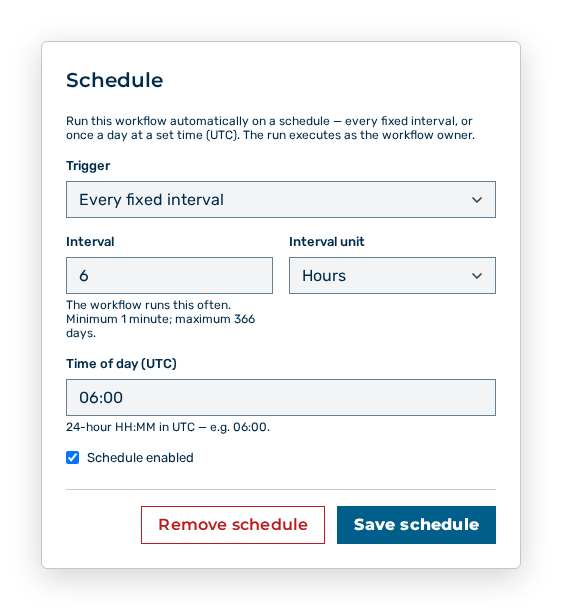
Schedule dialog
You set the following entries in the dialog:
| Entry | Effect of the change |
|---|---|
| Trigger | Every fixed interval runs the workflow at the selected interval. Once a day (UTC) runs it at a set time. |
| Interval and Interval unit | Distance between two runs. The value lies between one minute and 366 days. |
| Time of day (UTC) | Time of the daily run in the format HH:MM in UTC. The dialog shows the matching local time below it. |
| Schedule enabled | Switches the automatic run on and off. A switched-off schedule starts no run. The manual run stays available. |
The following options are available in the dialog:
| Option | Description |
|---|---|
| Save schedule button | Applies the schedule. While the schedule is saved, the button shows the label Saving…. |
| Remove schedule button | Deletes the schedule. The workflow then runs only manually or through another trigger. |
Note
If several scheduled runs fail in a row, Myra AI Workspace switches the schedule off and shows This schedule was turned off automatically. Fix the cause, switch the schedule back on and save — only the saving resumes the automatic runs.
Entries in the Webhook dialog
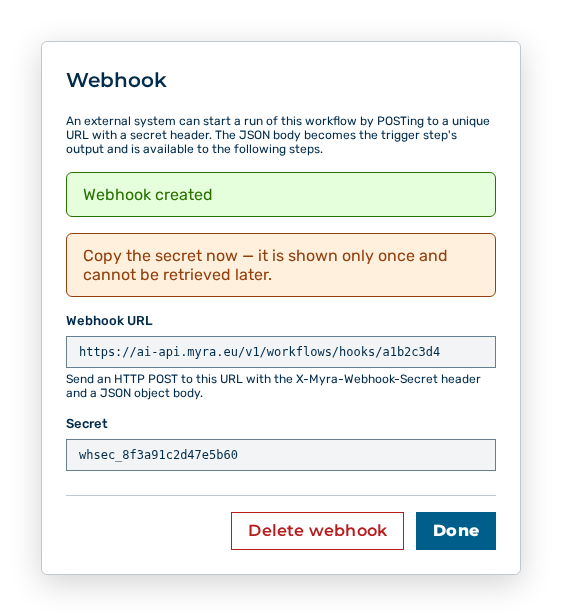
Webhook dialog
The following options are available in the dialog:
| Option | Description |
|---|---|
| Create webhook button | Creates the webhook. The dialog then shows the Webhook URL and the Secret. |
| Secret entry | Is shown only once and cannot be retrieved later. Copy the secret immediately. |
| Delete webhook button | Deletes the webhook. Calls to the address no longer start a run. |
Note
An external system starts a run by POSTing to the webhook URL with the secret header. The JSON body becomes the output of the trigger step and is available to the following steps.
Entries in the Form dialog
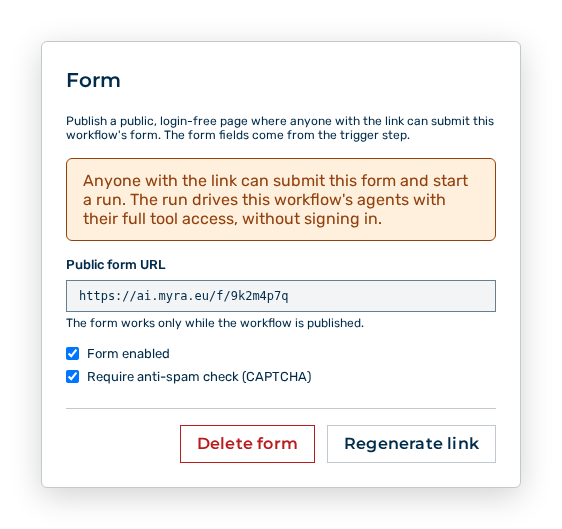
Form dialog
You set the following entries in the dialog:
| Entry | Effect of the change |
|---|---|
| Form enabled | Switches the public form page on and off. The form works only while the workflow is published. |
| Require anti-spam check (CAPTCHA) | Requires a check against automated input before the form is submitted. |
The following options are available in the dialog:
| Option | Description |
|---|---|
| Create form button | Creates the public form page and shows the Public form URL. |
| Regenerate link button | Assigns a new address. The previous address then leads nowhere. |
| Delete form button | Deletes the public form page. |
Note
Anyone with the link submits the form without signing in and thereby starts a run that drives the agents of this workflow with their full tool access. Only enable the form on a workflow you trust with anonymous input.
Deleting a workflow
Proceed as follows to delete a workflow:
Workflows view
- ► On the start page, open the Workflows view in the Workspace work area.
- ► Click on the Delete button at the workflow.
- ↳ The Delete this workflow and all its runs? query opens.
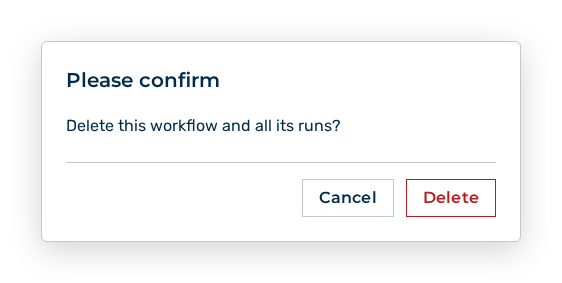
Delete workflow query
- ► Confirm the query.
- ➔ Myra AI Workspace deletes the workflow with all its runs.
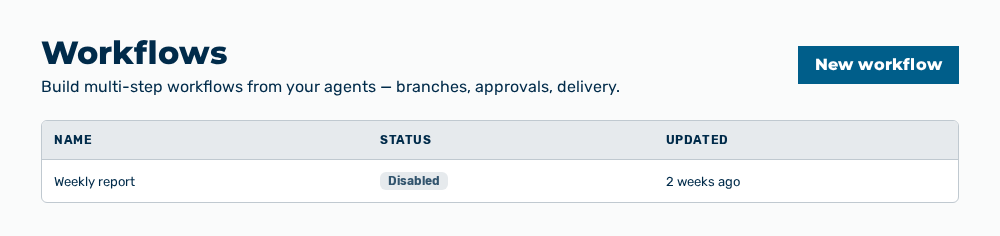
Workflows view without the workflow
Effects of the deletion
The deletion has the following effects:
| Object | Effect |
|---|---|
| Workflow | Myra AI Workspace removes the workflow from the list of the workflows. The builder is no longer available. |
| Runs | Myra AI Workspace deletes all runs of the workflow with their history and their cost. |
| Versions | The published versions are removed. A roll back to an earlier version is no longer possible. |
| Triggers | Schedule, webhook and public form are removed. Calls to the webhook address and to the form address no longer start a run. |
| Open approvals | Approvals that wait for a decision are removed. These approvals no longer appear in the My Approvals view. |
| Agents | The agents of the steps stay. The deletion of the workflow deletes no agent. |
Note
If the deletion fails, the view shows The workflow could not be deleted.
Note
The Viewer and Demo User roles create no workflows. The Workflows view does not appear for them.