Choose a model dialog
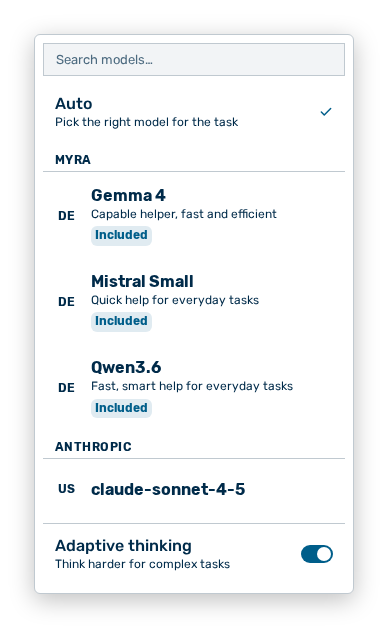
Choose a model dialog
The dialog lists the models available on your gateway, grouped by provider.
The following information is available per model:
| Information | Description |
|---|---|
| Provider | Heading of the group, for example Myra, Anthropic, OpenAI, or Other. |
| Name | Name of the model and, below it, a short description of its strengths. |
| Processing location | Icon in front of the name with the note Hosted by Myra (Germany), Data processed in the EU, Data processed in the US, Data processed in China, or Processing region varies. |
| Included | Label for a model provided by Myra, with the note Provided by Myra — usage is billed to your Myra budget (no own API key needed). |
The following options are available:
| Option | Description |
|---|---|
| Search models… input field | Filters the list by the name of the model. If no model matches, the dialog shows No matches for " |
| Auto entry | Leaves the choice to Myra AI Workspace and carries the description Pick the right model for the task. This is the default value. |
| Binds the conversation to this model. The selected model carries a check mark. | |
| Adaptive thinking toggle | Lets the model think longer about complex tasks and carries the description Think harder for complex tasks. |
Note
While loading, the dialog shows Loading models…, on an error Couldn't load models, and with no model available No models available.
Note
If a model does not support adaptive thinking, the toggle carries the note This model does not support adaptive thinking. If a model always reasons, it carries the note This model always reasons and can't turn it off.
Note
As soon as the first message is sent, the model is locked for that conversation. The button then carries the note Model is locked for this chat (data security). With the New chat from here row action on a reply you switch the model. If a project prescribes a model, it carries the note
Note
On a gateway with the EU-only setting, the dialog shows the EU-only gateway — models are limited to EU-hosted, approved providers. hint and lists only models of EU-hosted providers.