Managing tokens
A personal access token uses the inference API outside the interface.
Creating a token
The following requirements are met:
- ☑ At least one gateway exists for your tenant.
Proceed as follows to create a token:
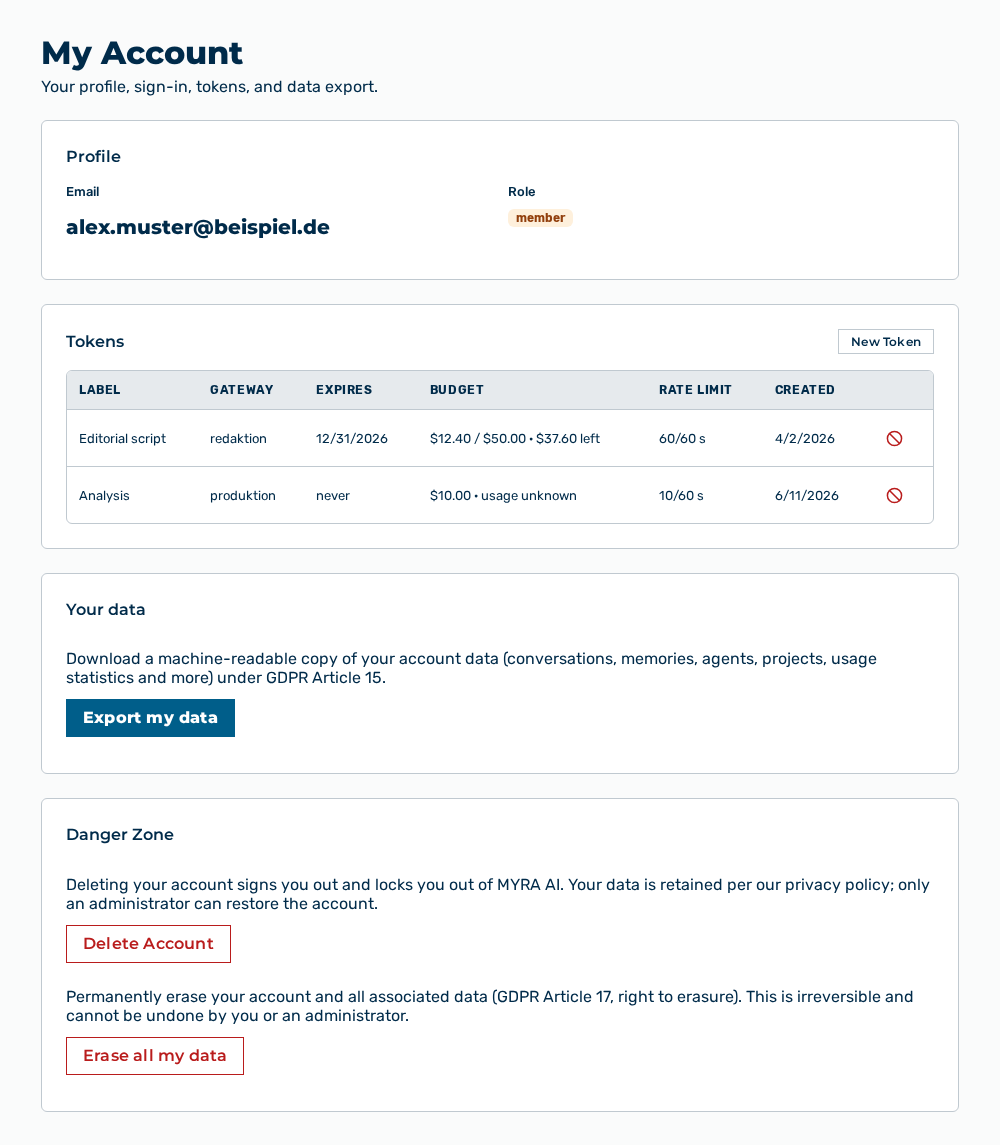
My Account view
-
► In the Account area, open the Profile tab.
- ▷ On the start page, click on your name at the bottom of the navigation bar.
- ↳ The user menu opens.
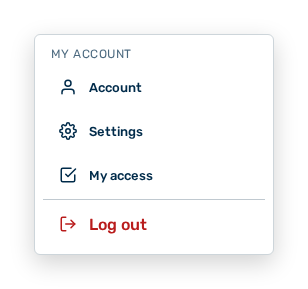
User menu
- ▷ In the My Account group, click on the Account entry.
- ↳ The navigation bar shows the Account area. The Profile tab is open.
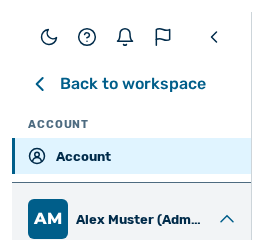
Navigation bar in the Account area
-
► In the Tokens section, click on the New Token button.
- ↳ The New Token dialog opens.
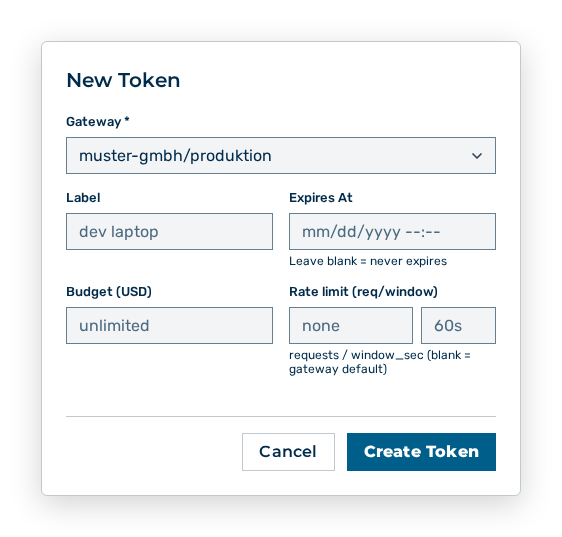
New Token dialog
- ► Select the gateway.
- ► Enter the label.
- ► If necessary, set the expiry date, the budget, and the rate limit.
- ► Click on the Create Token button.
- ➔ Myra AI Workspace creates the token and shows it one time.
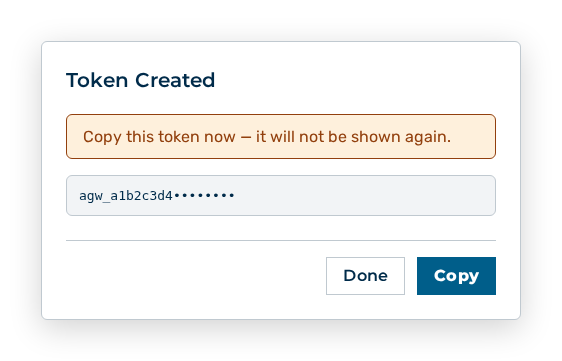
Token Created dialog
Note
A token always applies to exactly one gateway. If no gateway exists, Myra AI Workspace shows No gateways available and creates no token.
Data in the New Token dialog
New Token dialog
You set the following data at creation:
| Item | Description |
|---|---|
| Gateway * | Gateway that the token applies to. A token always applies to exactly one gateway. The item is mandatory. |
| Label | Label of the token, for example dev laptop. The label appears in the Label column of the list. The item is optional. |
| Expires At | Date on which the token loses its validity. An empty field means: never expires. |
| Budget (USD) | Amount in USD that requests with this token may consume. An empty field means: unlimited. |
| Rate limit (req/window) | Number of the requests per window seconds. An empty field applies the default of the gateway. |
The following options are available in the dialog:
| Option | Description |
|---|---|
| Create Token button | Creates the token and shows it once. During the creation, the button shows Creating…. |
| Cancel button | Closes the dialog without creating the token. |
Note
Myra AI Workspace shows the token only immediately after the creation. Copy it before you close the dialog. For the Viewer role, the area shows Viewer users cannot make inference requests.
Revoking a token
In the My Account view, a token cannot be edited. You revoke it and create a new one. The administration changes the spend cap, the rate limit, and the expiry of a token in the detail view of the gateway.
Proceed as follows to revoke a token:
My Account view
-
► In the Account area, open the Profile tab.
- ▷ On the start page, click on your name at the bottom of the navigation bar.
- ↳ The user menu opens.
User menu
- ▷ In the My Account group, click on the Account entry.
- ↳ The navigation bar shows the Account area. The Profile tab is open.
Navigation bar in the Account area
-
► In the Tokens section, click on the Revoke button at the token.
- ↳ The Revoke this token? query opens.
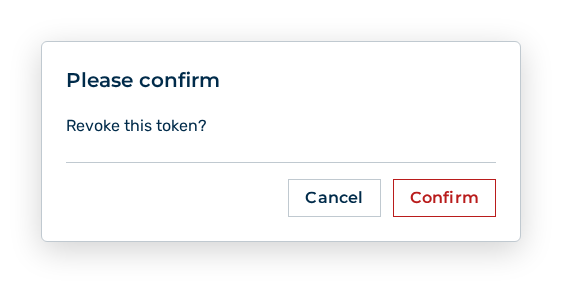
Revoke token query
- ► Confirm the query.
- ➔ The token loses its validity. The gateway answers requests with this token with Missing or invalid gateway token.
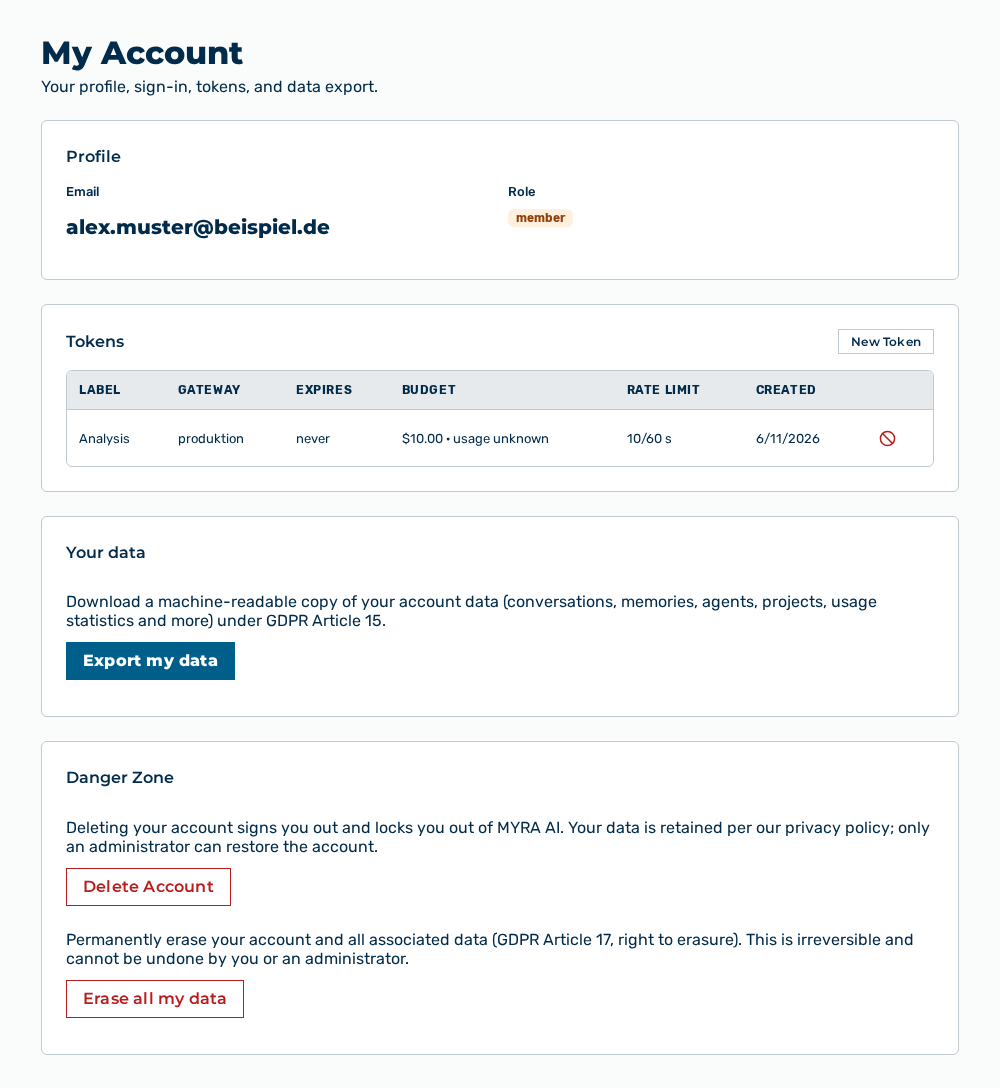
My account view without the token
Effects of the revocation
The revocation has the following effects:
| Object | Effect |
|---|---|
| Token | Myra AI Workspace removes the token from the list. The revocation cannot be undone. |
| Requests | The gateway answers requests with this token with Missing or invalid gateway token. |
| Budget and rate limit | The data of the token ends with the token. A new token receives its own data. |
The following options are available in the confirmation:
| Option | Description |
|---|---|
| Revoke button | Revokes the token. |
| Cancel button | Closes the confirmation without revoking the token. |
Note
The Viewer and Demo User roles create no tokens. For the Viewer role, the Tokens section shows the Viewer users cannot send inference requests. hint.