Chat
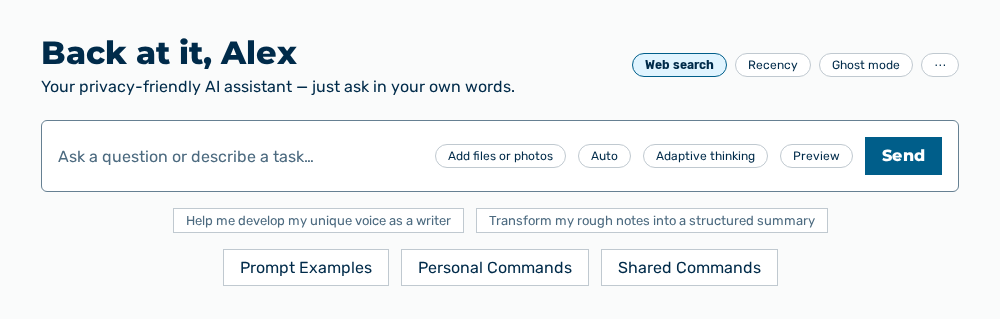
Chat view
The Chat view opens a conversation with the AI. The view greets you with your first name and the time of day, for example Good morning,
The following options are available in the header:
| Option | Description |
|---|---|
| Web search button | Lets the assistant search the web for this conversation. When it is on, the button carries the note Web search — on (the assistant may search the web for this chat), when it is off the note Web search — off (toggle to let the assistant search the web). |
| Web search recency button | Opens the Recency drop-down list and limits the web search in time: Any time, Past 24 hours, Past week, Past month, or Past year. The button appears with the web search switched on only. |
| Ghost mode button | Keeps the next conversation private. Myra AI Workspace does not log it. When it is on, the button carries the note Ghost mode — on (this chat won't be logged), when it is off the note Ghost mode — off (toggle to keep the next chat private). The button appears before the first message only, because ghost mode belongs to the conversation and cannot be switched later. In the Demo user role it does not appear. |
| More options button | Opens the menu with the new chat, the memories, the export, and the sharing. In a conversation the button carries the number of your memories as a badge. See the More options menu section. |
The following options are available in the input area:
| Option | Description |
|---|---|
| Data goes to a third-party provider without PII protection. note | Stands above the input field as long as the next message goes to a third-party provider without masking. Below it stands Sensitive content (names, emails, IDs) leaves Myra unmasked. The Protect automatically button changes to a protected route if one exists. A click on the close symbol hides the note. The note appears only after you select a model explicitly; under Auto it does not appear. |
| How can I help you today? input field | Takes your input. In a running conversation the input field carries the text Write a message…. |
| Add files, photos, or options button | Opens the menu with the attachments, the project assignment, and the answer styles. |
| Dictate button | Records your voice and writes what you say into the input field. While recording, the button carries the note Recording — tap to stop, afterwards Transcribing…. |
| Privacy label | Shows how the next message is protected: Local model, Local + masking, Privacy on, or Privacy off. A click switches the masking. |
| Preview button | Shows what goes to the model after the masking. The button appears on a gateway with an active privacy filter only. |
| Choose a model button | Opens the Choose a model dialog. The button carries the name of the selected model, Auto by default. A dot in front of it shows the protection level of the route. |
| Send message button | Sends the request to the selected model. While a dictation is running, the button carries the label Stop & Send. |
| Stop generation button | Cancels the running answer. The button takes the place of Send message while the answer arrives. |
Before the first message, the following tiles stand below the input field:
| Tile | Description |
|---|---|
| Prompt Examples | Opens the prompt examples of the tenant and puts the selected example into the input. If none is stored, the tile shows No prompt examples yet. |
| Personal Commands | Opens your own slash commands and puts the selected command into the input. If none exists, the tile shows No personal commands yet. |
| Shared Commands | Opens the commands others have shared with you. If none exists, the tile shows No shared commands yet. |
Note
The first prompt examples are also available as buttons directly above the tiles. If the suggestions cannot be loaded, the view shows Couldn't load suggestions. Try again in a moment.
Note
Whether the Enter key sends or starts a new line is set in the preferences. If the Enter key starts a new line, the input area carries the hint Ctrl/Cmd+Enter to send · Enter for newline.
Note
You attach 10 files per message at most, each file 104 MB at most. Myra AI Workspace reports "<name>" is too large to attach (limit:
Note
If no gateway is set up for your tenant yet, the view shows Chat isn't available yet — your admin needs to set up a gateway for your tenant. With the Manage gateways permission it shows No gateway is configured yet. Create one to enable chat for everyone on this tenant. instead and offers the Create a gateway link.
Note
For the Demo User role, the input shows neither Add files or photos nor Adaptive thinking, and the Prompt Examples, Personal Commands, and Shared Commands tiles do not appear. After the fifth input, the demo ends with the That's the demo dialog.
The following sections describe the view in detail: