Share conversation dialog
The dialog creates a public link to the conversation. The dialog carries the hint This creates a public link anyone can open without signing in. Nothing is shared until you create the link.
Proceed as follows to share a conversation:
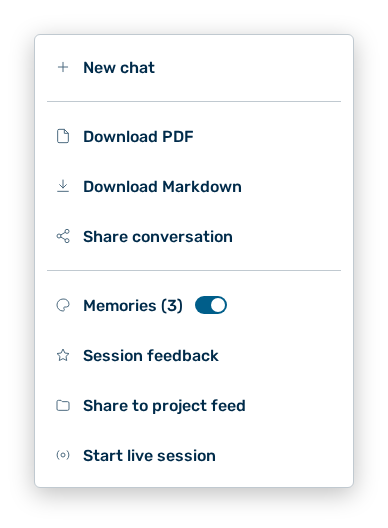
More options menu
- ► In the header of the view, click on the More options button.
- ▷ On the start page, open the Chat view in the Workspace work area.
- ► Click on the Share conversation entry.
- ↳ The Share conversation dialog opens.
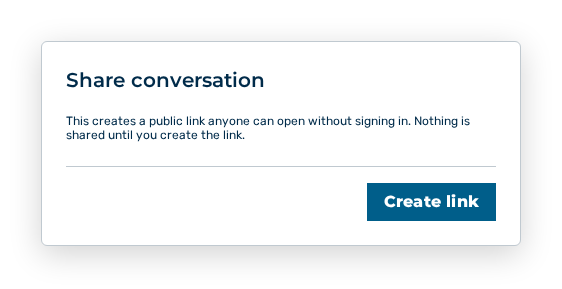
Share conversation dialog
- ► Click on the Create link button.
- ➔ Myra AI Workspace creates the link and shows it in the dialog.
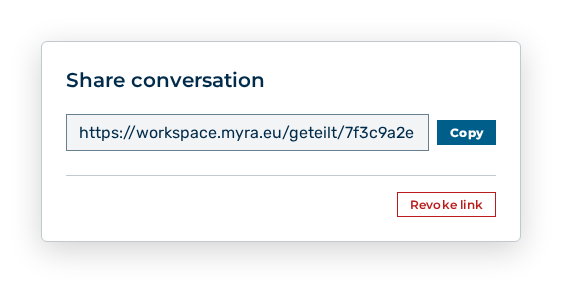
Share conversation dialog with the link
The following options are available in the dialog:
| Option | Description |
|---|---|
| Create link button | Creates the public link. During the generation the button carries the Generating link… label. |
| Copy button | Puts the created link on the clipboard. |
| Revoke link button | Cancels the link. Before that the dialog asks Revoke this share link? Anyone you sent the URL to will lose access. |
Note
After the revocation the dialog states Share link revoked. The URL no longer works. If the link cannot be created, the dialog states Failed to generate share link. If it cannot be revoked, the dialog states Couldn't revoke the link — it is still active. Please try again.
Note
In ghost mode the sharing is not available. As long as the conversation holds no message, the Share conversation entry is not available.