Actions on a response
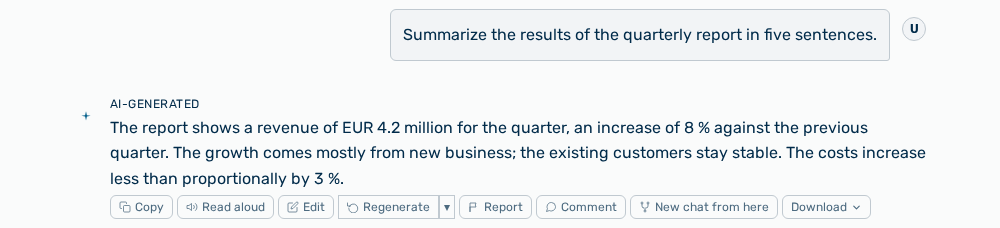
Actions on a response
Every response of the AI carries the AI-generated marker above the text and the Message actions toolbar below it. The marker stands on every response and cannot be switched off.
The following actions are available:
| Action | Description |
|---|---|
| Copy | Copies the text of the response to the clipboard. The button briefly changes to Copied!. The button is available during the response as soon as the first text exists. |
| Read aloud | Reads the response aloud. During the playback the button carries the Stop label. |
| Edit | Corrects the text of the response in the display. The changed response carries the edited marker and the Revert to original action. The correction does not go to the model. The correction only applies to the display. |
| Regenerate | Generates the response again with the same request. The action only appears on the last response of the conversation. |
| ▾ next to Regenerate | Opens the Regenerate with reason menu. |
| Report | Opens the Report this response dialog. |
| Comment | Opens the Comments area for this message. You write a comment, mention other members, and set a comment to Resolve. |
| New chat from here | Branches a new conversation. Myra AI Workspace copies the conversation and the files up to this response. The model stays switchable in the new conversation. |
| Download ▾ | Opens the menu with the file formats. |
The Regenerate with reason menu contains the following entries:
| Entry | Effect |
|---|---|
| Try again | Generates the response again without a further requirement. |
| Too long | Requests a shorter response. The new response carries the Adjusted · shorter marker. |
| Too short | Requests more detail. Marker Adjusted · more detailed. |
| Too formal | Requests a more casual, conversational tone. Marker Adjusted · more casual. |
| Too casual | Requests a more formal, professional tone. Marker Adjusted · more formal. |
| Off topic | Requests a response to what was actually asked. Marker Adjusted · on-topic. |
| Inaccurate | Requests a more careful and more precise response. Marker Adjusted · more accurate. |
The Download menu offers the following formats in three groups:
| Group | Formats |
|---|---|
| Finished file | Download as PDF |
| Microsoft Office | Download as Word, PowerPoint, Download as Excel |
| OpenDocument and text | OpenDocument Text, OpenDocument Presentation, OpenDocument Spreadsheet, TXT, Download as CSV |
Note
If your tenant has a letterhead template, the entry for Word additionally carries the Word (using
Note
Which actions appear depends on the state of the response. During the response only Copy is available. Regenerate only appears on the last response, Edit only on a settled response of plain text without an image and without a generated file, and Download only if the response contains text or an image. On a response whose conversation exceeds the context window of the model, Regenerate does not appear.