Connect connector dialog
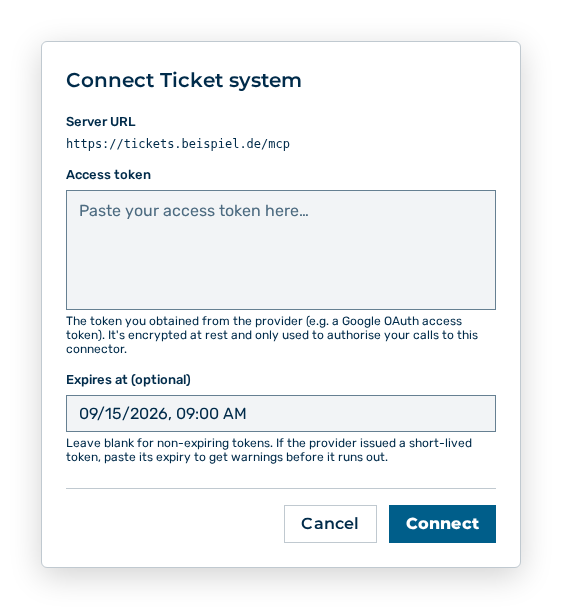
Connect connector dialog
The Connect
You set the following entries in the dialog:
| Entry | Description |
|---|---|
| Server URL | Address of the MCP server. The entry is read-only and comes from the connector. |
| Access token | The token you obtained from the provider, for example a Google OAuth access token. Myra AI Workspace stores it encrypted and uses it for your own calls to this connector only. The entry is mandatory. |
| Expires at (optional) | Date and time at which the token expires. If you leave the field blank, Myra AI Workspace treats the token as non-expiring. For a short-lived token, the view warns you before the expiry and then sets the status to Reconnect needed. |
The following options are available in the dialog:
| Option | Description |
|---|---|
| Connect button | Stores the access token and shows Connector connected. While it stores, the button carries the Connecting… label. |
| Cancel button | Closes the dialog without storing the access token. |
Note
If an entry is missing or not valid, the dialog shows Access token is required or Expires at must be a valid future date.
Note
If the connection fails, the view shows one of these messages, depending on the cause: Connection expired — please reconnect., This connector's OAuth configuration is invalid. Contact an admin., Couldn't save the connection. Please try again., You can't connect this connector. or Connecting failed. Please try again.