Scheduled
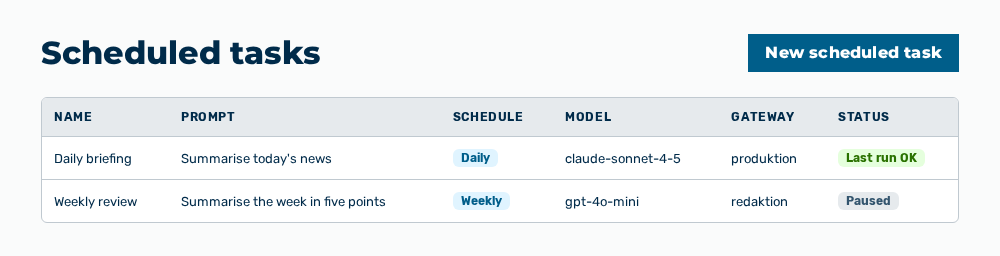
Scheduled tasks view
The Scheduled tasks view runs a prompt on a schedule. The results arrive in a conversation, and by email if you like. Each task is shown as its own area in the list.
The following information is available:
| Entry | Description |
|---|---|
| Active schedules | Number of the tasks that currently run. |
| Next run | Time of the next run, as a distance from the present. If no run is due, the tile shows —. |
| Name of the task | Name you assigned when you created the task. |
| Schedule and model | Schedule of the task, for example Daily at 06:00, Monday, 06:00 or Every 2 h, followed by the model. If the task also delivers by email, the line carries the addition and email. |
| State marker | Scheduled before the first run, Last run OK after a successful run, Last run failed or Retrying after an error, and Paused for a task that is held. |
| Error message | For a failed run, the reason is shown below the schedule. |
The following options are available:
| Option | Description |
|---|---|
| New scheduled task button | Opens the New scheduled task dialog. The button is locked if no gateway is available or if the limit of your plan is reached. |
| Edit row action | Opens the Edit scheduled task dialog with the entries of the task. |
| Pause row action | Holds the task. The task then carries the Paused marker and no longer runs. |
| Resume row action | Resumes a paused task. |
| Delete row action | Opens the Delete the scheduled task “ |
| × button | Closes the view and leads back to the conversation. |
Note
If no task exists yet, the view shows No scheduled tasks yet. Create one to get a prompt answered on a schedule. If the list cannot be loaded, the view shows Scheduled tasks could not be loaded.
Note
Your plan limits the number of the active tasks. If the limit is reached, the view shows Limit reached: at most
Note
The Scheduled view does not appear for the Viewer and Demo User roles.