Builder of a workflow
Builder of a workflow
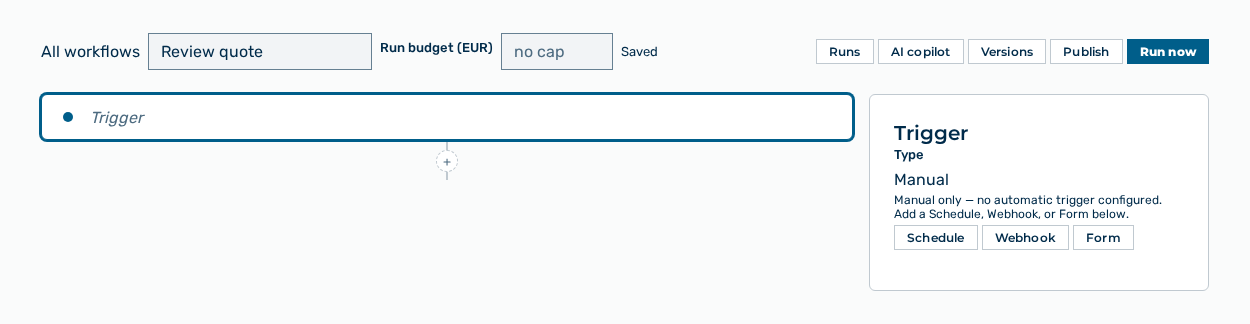
The builder assembles the sequence from steps. The chain of the steps is on the left, the settings of the selected step are on the right.
The following options are available in the toolbar:
| Option | Description |
|---|---|
| All workflows link | Leads back to the Workflows view. |
| Name input field | Renames the workflow. |
| Run budget (EUR) input field | Limits the cost of a single run. If the field stays empty, no limit applies. The field then shows no cap. |
| Save-state marker | Shows Saved, Saving…, Unsaved changes, Changed in another tab with the Reload button, or Save failed with the Retry button. |
| Runs button | Opens the Runs view of the workflow. |
| AI copilot button | Opens the Workflow copilot dialog. |
| Versions button | Opens the Versions dialog. |
| Publish button | Publishes the draft as a new version. While the draft is published, the button shows the label Publishing…. |
| Run now button | Starts a run. The button is locked while the workflow is not published. |
| Unpublished changes marker | Appears if the draft differs from the published version. The run still uses the last published version. |
The Add step button inserts the following steps:
| Step | Description |
|---|---|
| Trigger | Starts the workflow: manually, on a Schedule, through a Webhook or through a Form. The trigger is the first step of the chain. |
| Agent step | Runs one of your agents against an input. |
| Condition | Compares a value and runs the If true branch or the Otherwise branch. |
| Loop | Runs the For each item branch once per item of the selected list, up to ten items per run. |
| Approval | Holds the run until the named approver decides in the My Approvals view. |
| Deliver | Delivers the result through Mattermost, through a Webhook or by Email. |
The following options are available on a step:
| Option | Description |
|---|---|
| Add step button | Opens the Choose a step type selection and inserts the selected step at this position. |
| Delete step button | Removes the step. The Step deleted message offers the Undo button. |
| Insert a value button | Opens the Insert a value from an earlier step selection. If no earlier step produces a value yet, the selection shows No earlier step produces a value yet. |
| Test this step button | Runs an agent step on its own against sample input. The test run is not saved and does not appear in the run history. |
Note
If a step is incomplete, the builder shows the message Fix