Preview masking dialog
Before the send, the dialog shows which personal data Myra AI Workspace masks out of your draft.
Proceed as follows to check the draft:
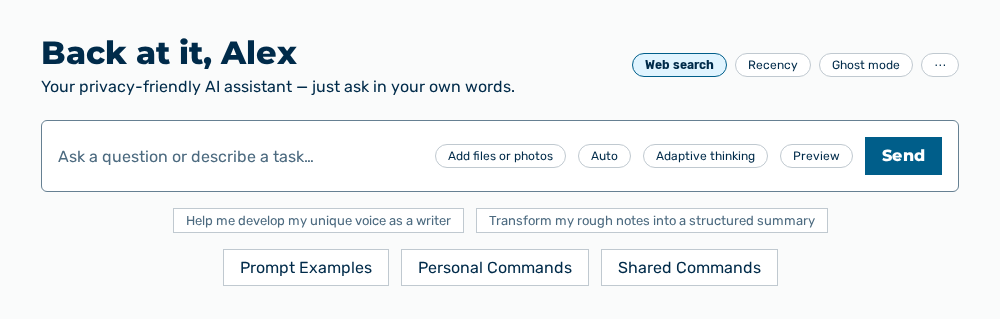
Chat view
- ► Write your message in the input field.
- ▷ On the start page, open the Chat view in the Workspace work area.
- ► Below the input field, click on the Preview button.
- ↳ The Preview masking dialog opens.
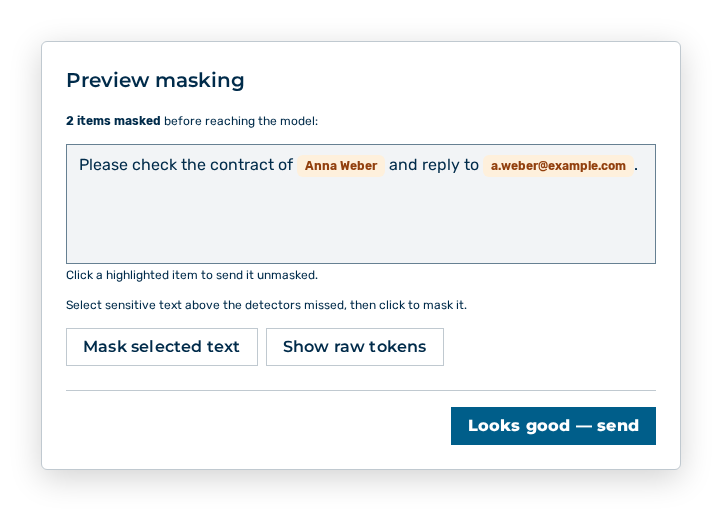
Preview masking dialog
- ► Check the highlighted items.
- ► Click on the Looks good — send button.
- ➔ Myra AI Workspace sends the message masked to the model.
Chat view
The following options are available in the dialog:
| Option | Description |
|---|---|
| Highlighted item | Takes the item out of the masking. A further click masks it again. Below it stands Click a highlighted item to send it unmasked. |
| Mask selected text button | Masks the text you selected in the draft. Below it stands Select sensitive text above the detectors missed, then click to mask it. |
| Show raw tokens button | Shows the placeholders the model receives. The button then carries the Show pretty labels label. |
| Looks good — send button | Closes the dialog and sends the message. |
Note
During the preparation the dialog states Preparing preview…, during the check Running detectors…. With an empty draft it states Type a message in the chat to see how it'll be masked before reaching the model. If the dialog detects nothing, it states No PII detected in this draft. The model will receive your text unmodified.
Note
If a guardrail rejects the message, the dialog states ⛔ This message will be rejected and Edit your draft, or contact your tenant admin if this is a false positive. If a detection service cannot be reached, the dialog states PII detection incomplete.
Note
On a gateway with active PII detection the check is mandatory. The input area then carries the note Preview masking is required before sending on a PII-active gateway.