Configuring guardrails
A guardrail detector examines the requests and the responses of a gateway for content and blocks, scrubs, or flags them. A gateway can have any number of detectors. The sequence of the detectors controls the order in which they examine the data.
Adding a guardrail detector
The following requirements are met:
- ☑ Your user account has the Manage gateways and routing permission.
- ☑ The tenant has a gateway.
Proceed as follows to add a guardrail detector:
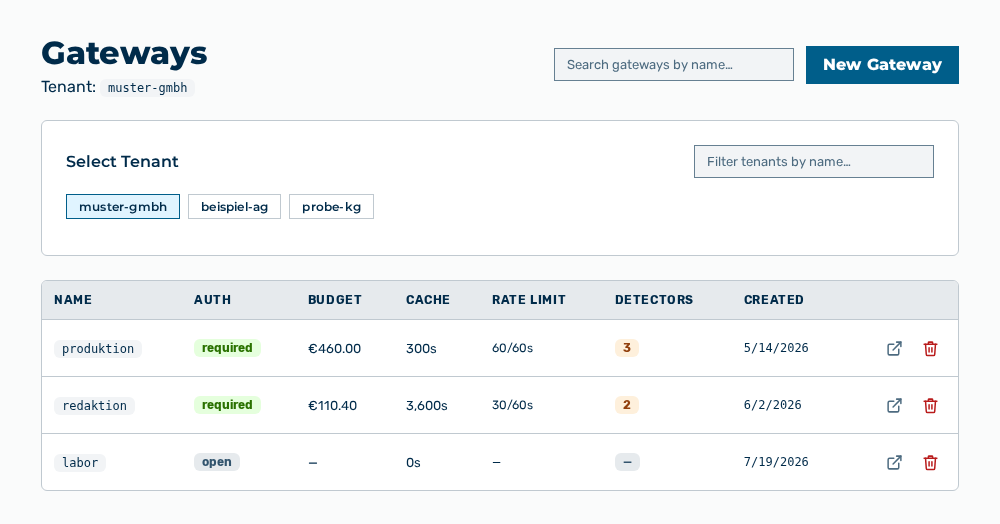
Gateways view
-
► In the Settings area, open the Gateways entry.
- ▷ On the start page, click on your name at the bottom of the navigation bar.
- ↳ The user menu opens.
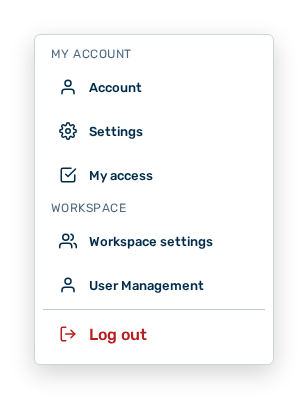
User menu
- ▷ In the My Account group, click on the Settings entry.
- ↳ The navigation bar shows the Settings area. The Gateways entry is open.
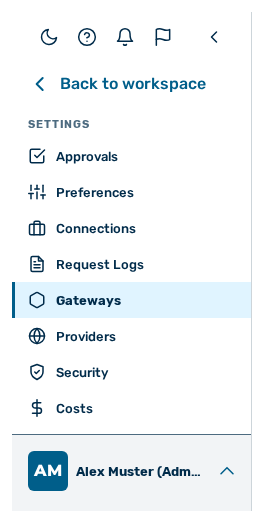
Navigation bar in the Settings area
-
► In the row of the gateway, click the Open → row action.
- ↳ The detail view of the gateway opens.
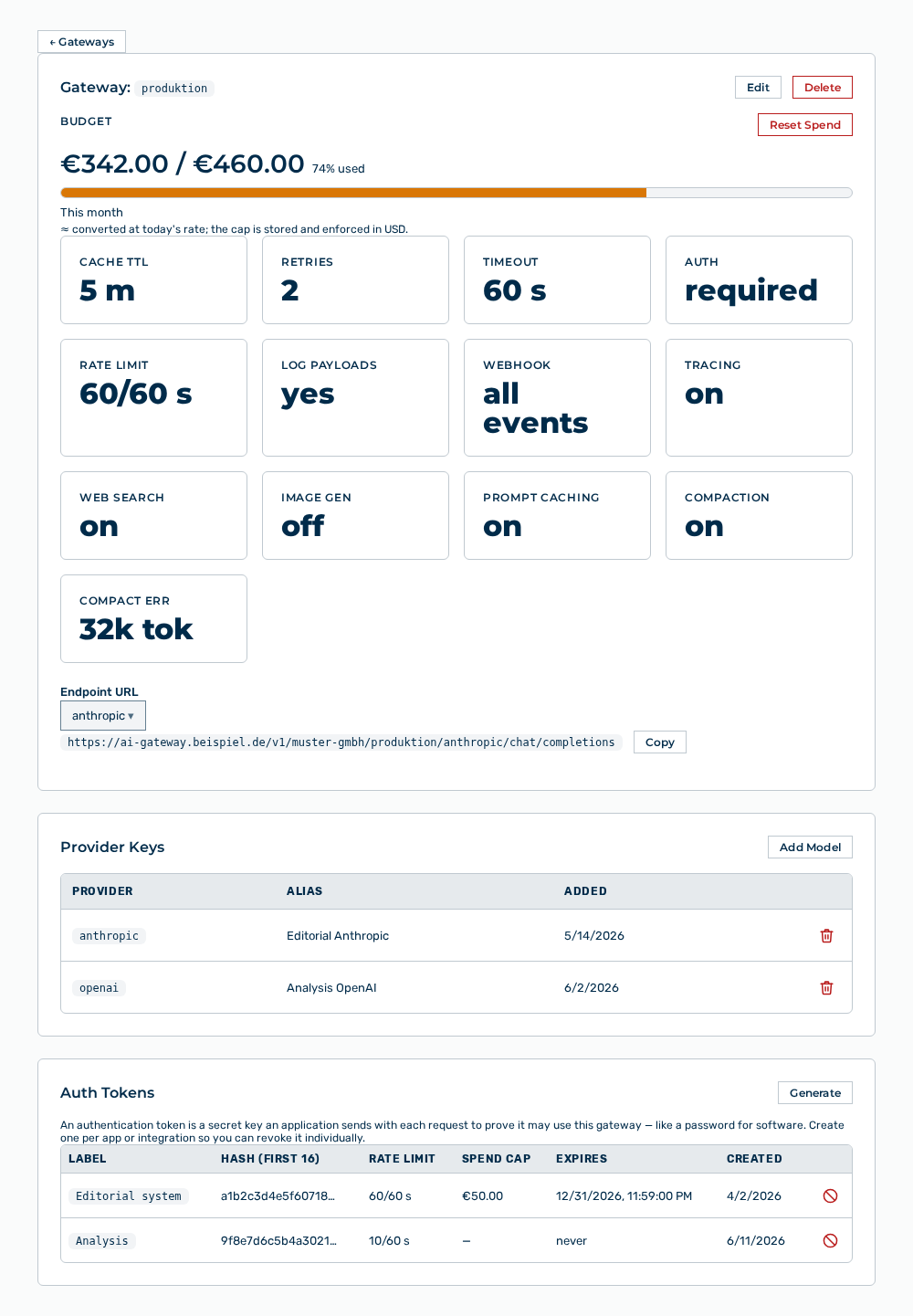
Detail view of a gateway
- ► In the Guardrails area, click the button of the necessary detector type, for example PII Protector.
- ↳ Myra AI Workspace adds the area of the detector to the end of the list.
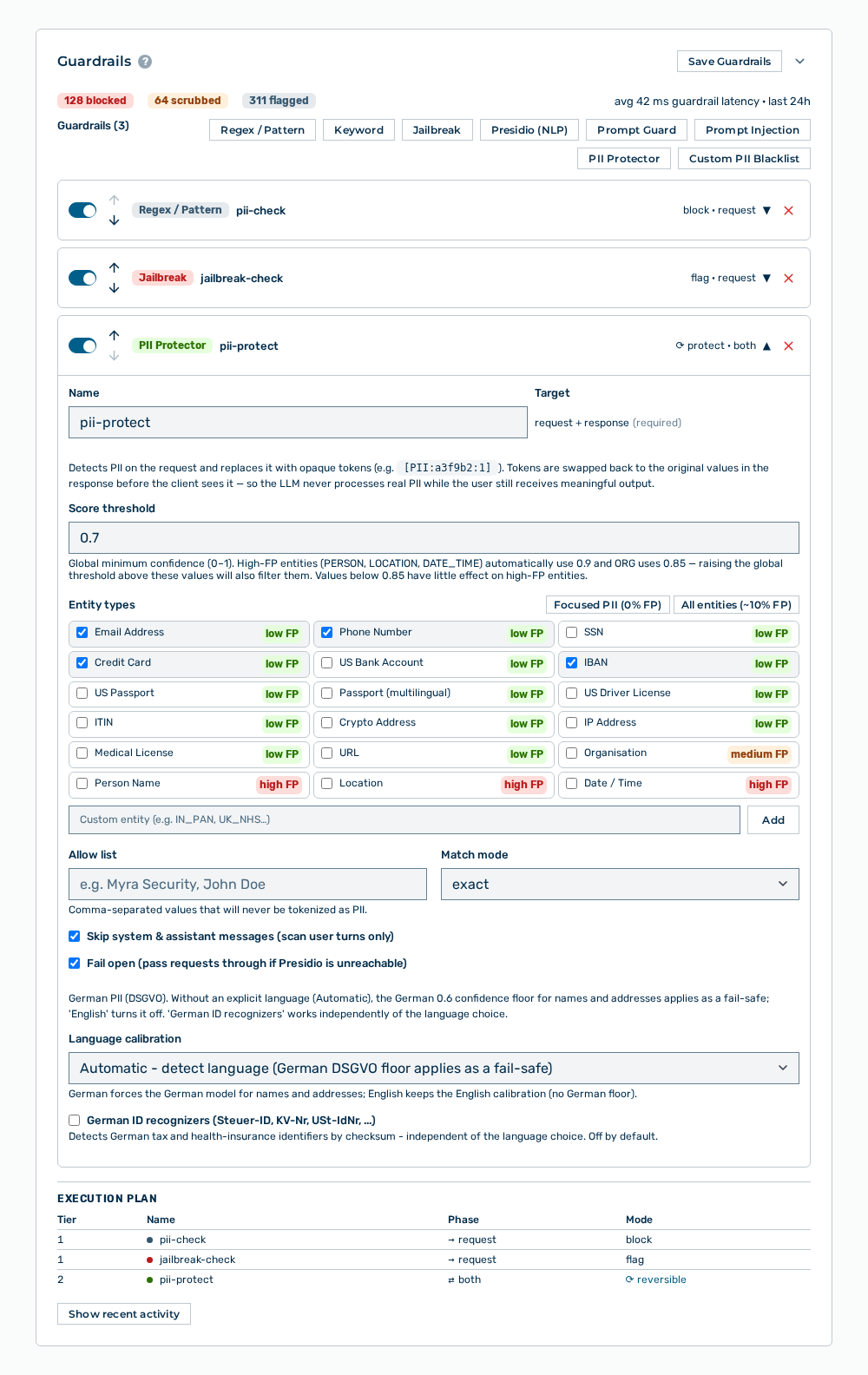
Guardrails area
- ► Expand the area of the detector.
- ► Change the data of the detector.
- ► Click the Save Guardrails button.
- ➔ Myra AI Workspace shows the Saved message.
Guardrails section
Note
You specify the detectors of a new gateway in the New Gateway dialog. The builder there is the same as in the detail view. See the Creating a gateway section.
Detector types
The following detector types are available in the toolbar:
| Detector type | Tier | Default action and target | Description |
|---|---|---|---|
| Regex / Pattern | 1 | block, request | Examines the text against supplied pattern sets and against your own patterns. The detector operates fully in the gateway. The default name is pii-check. |
| Keyword | 1 | flag, request | Examines the text for a list of keywords. The default name is keyword-check. |
| Jailbreak | 1 | flag, request | Examines the text for phrases with which users try to bypass the instructions of the model. The default name is jailbreak-check. |
| Presidio (NLP) | 2 | block, request | Finds personal data with a language model and flags or removes the data. The detector needs the Presidio service. The default name is presidio-pii. |
| Prompt Guard | 2 | block, request | Rates the request with the Llama Guard classifier by safety category. The default name is prompt-guard. |
| Prompt Injection | 2 | block, request | Rates the request with a classifier and blocks or flags the request when the injection probability found is at or above the threshold. The default name is prompt-injection. |
| PII Protector | 2 | reversible, request and response | Replaces the personal data found with opaque tokens before the model and puts the data back into the response. The default name is pii-protect. |
| Custom PII Blacklist | 1 | reversible, request and response | Replaces the terms that you specify with opaque tokens before the model and puts the terms back into the response. The detector operates fully in the gateway. The default name is custom-pii. |
Note
The tier controls the sequence of the examination. Myra AI Workspace examines all detectors of tier 1 first and the detectors of tier 2 subsequently. In a tier, the sequence of the areas applies.
Data common to each detector
You specify the following data for each detector type:
| Data | Description |
|---|---|
| Name | Name of the detector, for example detector-name. The name is shown in the area, in the execution plan, in the Detectors column of the guardrail events, and in the request log. |
| Action | Treatment of a match: block rejects the request, scrub removes the text that matched, and flag lets the request continue and records the match. The PII Protector and Custom PII Blacklist detectors have no Action field. These two detectors always operate reversibly. |
| Target | Object of the examination: request examines the request, response the response, and both the request and the response. For the PII Protector and Custom PII Blacklist detectors, the target is permanently set to request and response. |
Data for the Regex / Pattern detector
You also specify the following data:
| Data | Description |
|---|---|
| Pattern sets | Supplied sets that group several patterns: pci_pan (credit card, CVV, expiry, IBAN, routing; less than 2 % false positives, safe for the block action), hipaa_structured (SSN, MRN, NPI, date of birth, phone, email, IP; up to 26 % false positives, use the scrub action), gdpr_structured (email, phone, IP, IBAN, national ID, passport; up to 26 % false positives, use the scrub action), credentials (API keys, JWTs; 0 % false positives, safe for the block action), and pii_basic (email, phone, SSN; up to 26 % false positives, use the scrub action). |
| Individual patterns | Patterns that you can select one by one: email, phone, ssn, dob, ip_address, cc, cvv, card_expiry, iban, routing_number, mrn, npi, national_id, passport_number, api_key, and jwt. |
| Custom patterns (Lua regex) | Your own patterns in the Lua notation, for example %d%d%d%d%-%d%d%d%d. Anchor a pattern at word boundaries to prevent false positives. Each pattern that you add is shown as a tag below the field, where you can also remove it. |
| Scrub placeholder | Text that Myra AI Workspace puts in the place of the match. The field is shown only for the scrub action. The default is [REDACTED]. |
Data for the Keyword detector
You also specify the following data:
| Data | Description |
|---|---|
| Keywords | Terms that the detector examines the text for, for example confidential. Each term that you add is shown as a tag below the field, where you can also remove it. |
| Block-safe example button | Sets the action to block, selects Whole words only, and enters unambiguous internal terms. These terms cause almost no false positives. |
| Flag-only example button | Sets the action to flag, selects Whole words only, and enters general sensitive terms. For the block action, these terms cause too many false positives. |
| Whole words only | If the check box is selected, a term matches only as a separate word. The setting is recommended and selected by default. Clear it only for substrings such as product codes. |
| Case-sensitive | If the check box is selected, a term matches only in exactly the notation that you entered. |
Note
For the block action, the detector shows the note that each match blocks the request fully. Use only unambiguous terms such as internal code names or product identifiers. General words cause high false-positive rates.
Data for the Jailbreak detector
You also specify the following data:
| Data | Description |
|---|---|
| Default phrases | Supplied phrases that the detector finds. The list is read-only and shows the note that your own phrases replace it. |
| Active phrases | Your own phrases. As soon as the list has a phrase, the detector shows the Custom list active message and examines the text only for your own phrases. If you remove all phrases, the default phrases apply again. |
| Whole words only | If the check box is selected, a phrase matches only with exact word boundaries. The setting is cleared by default, so that the detector also finds inflected forms. |
| Case-sensitive | If the check box is selected, a phrase matches only in exactly the notation that you entered. |
Data for the Presidio (NLP) detector
You also specify the following data:
| Data | Description |
|---|---|
| Entity types | Types of personal data that the detector examines the text for. The Focused PII (0% FP) button selects the 14 entities without false positives, the All entities (~10% FP) button the full catalog. In the field for custom entities, you add more entity types, for example IN_PAN. |
| Score threshold | Minimum confidence between 0 and 1 at which a match counts. Usual values are between 0.7 and 0.85. For the PERSON, LOCATION, and DATE_TIME entities, which cause many false positives, the gateway automatically sets 0.9 and for ORG the value 0.85. |
| Match mode | exact reports only full matches, partial also partial matches. |
| Allow list | Comma-separated values that the detector never flags as personal data. |
| Fail open | If the check box is selected, the gateway lets the requests continue while the Presidio service is not available. If you clear it, the gateway rejects the requests during this time. |
Note
The All entities mode shows a warning. PERSON, LOCATION, and DATE_TIME cause approximately 10 to 15 % false positives on usual text, also with the increased threshold. A threshold above 0.85 conversely no longer reports the less certain matches. This data then goes to the model unmasked.
Data for the Prompt Guard detector
You also specify the following data:
| Data | Description |
|---|---|
| Safety categories | Categories of the Llama Guard classifier from S1 to S14. Each category shows its false-positive risk as low FP, medium FP, or high FP. The Recommended block (~1.7% FP) button selects the S1, S3, S4, S9, S11, S12, and S14 categories, the All categories (~18.6% FP) button all fourteen. |
| Context prompt (optional) | Text that Myra AI Workspace puts before each user message, to tell the classifier the purpose of the application. The context decreases the false positives, for example for the S2 category from 14.5 % to 7.2 %. |
| Timeout (ms) | Time to wait for the classifier. The default is 3000 milliseconds. |
| Fail open | If the check box is selected, the gateway lets the requests continue while the classifier is not available. |
Data for the Prompt Injection detector
You also specify the following data:
| Data | Description |
|---|---|
| Injection threshold | Probability between 0 and 1 at which the detector blocks or flags. The default is 0.5. A higher value decreases the false positives, a lower value also finds the weaker attempts. |
| Fail open | If the check box is selected, the gateway lets the requests continue while the classifier is not available. If you clear the check box, the gateway rejects the requests during this time. The default is cleared. |
Note
The platform administration specifies the endpoint of the classifier and its credentials for the full system. In the detector you specify only the threshold and the behaviour during a malfunction.
Data for the PII Protector detector
You also specify the following data:
| Data | Description |
|---|---|
| Entity types | Types of personal data that the detector replaces. The selection is the same as for the Presidio (NLP) detector. |
| Score threshold | Minimum confidence between 0 and 1 at which a match counts. The default is 0.7. |
| Language calibration | Auto finds the language and keeps the German threshold 0.6 for names and addresses as a fallback, German enforces the German model, and English / Other deactivates the German threshold. |
| Find German ID and tax numbers | If the check box is selected, the detector finds the German tax identification number, the health insurance number, and the VAT identification number by their check digit. The setting operates independently of the language calibration and is cleared by default. |
| Skip system and assistant messages | If the check box is selected, the detector examines only the messages of the users. |
| Allow list | Comma-separated values that the detector never replaces with a token. |
| Fail open | If the check box is selected, the gateway lets the requests continue while the Presidio service is not available. |
Note
The detector replaces each match in the request with an opaque token in the form [PII:a3f9b2:1] and puts the initial value back before it sends the response. Thus, the model never processes the personal data, but the users still get a usable response.
Data for the Custom PII Blacklist detector
You also specify the following data:
| Data | Description |
|---|---|
| Sensitive terms | Your own terms that the detector masks, for example customer names, project code names, or employee names. Each term that you add is shown as a tag below the field. |
| Whole words only | If the check box is selected, the detector masks a term only as a separate word. The setting is cleared by default. The detector then also masks a term in longer strings. |
| Case-sensitive | If the check box is selected, the detector masks a term only in exactly the notation that you entered. Select the check box for names with umlauts or accents. |
Execution plan
Below the detector areas, the Execution plan section shows the detectors in the sequence in which the gateway examines the data.
The following information is available:
| Column | Description |
|---|---|
| Tier | Tier of the detector: 1 for the detectors in the gateway, 2 for the detectors with their own service. |
| Name | Name of the detector with a dot in the color of its type. |
| Phase | Object of the examination with an arrow: → request examines the request, ← response the response, and ⇄ both the request and the response. |
| Mode | Treatment of a match: block, scrub, flag, or ⟳ reversible for the two detectors that replace and restore data. |
Changing the sequence of the guardrail detectors
The sequence of the areas controls the order in which the detectors of a tier examine the data.
The following requirements are met:
- ☑ Your user account has the Manage gateways and routing permission.
- ☑ The gateway has a minimum of two detectors.
Proceed as follows to change the sequence:
Guardrails area
- ► Open the detail view of the gateway.
- ▷ On the start page, click on your name at the bottom of the navigation bar.
- ▷ In the user menu, click on Settings.
- ▷ Open the Gateways group.
- ▷ Open the gateway with the Open → row action.
- ► In the area of the detector, click the Move up or Move down icon.
- ► Click the Save Guardrails button.
- ➔ Myra AI Workspace shows the Saved message.
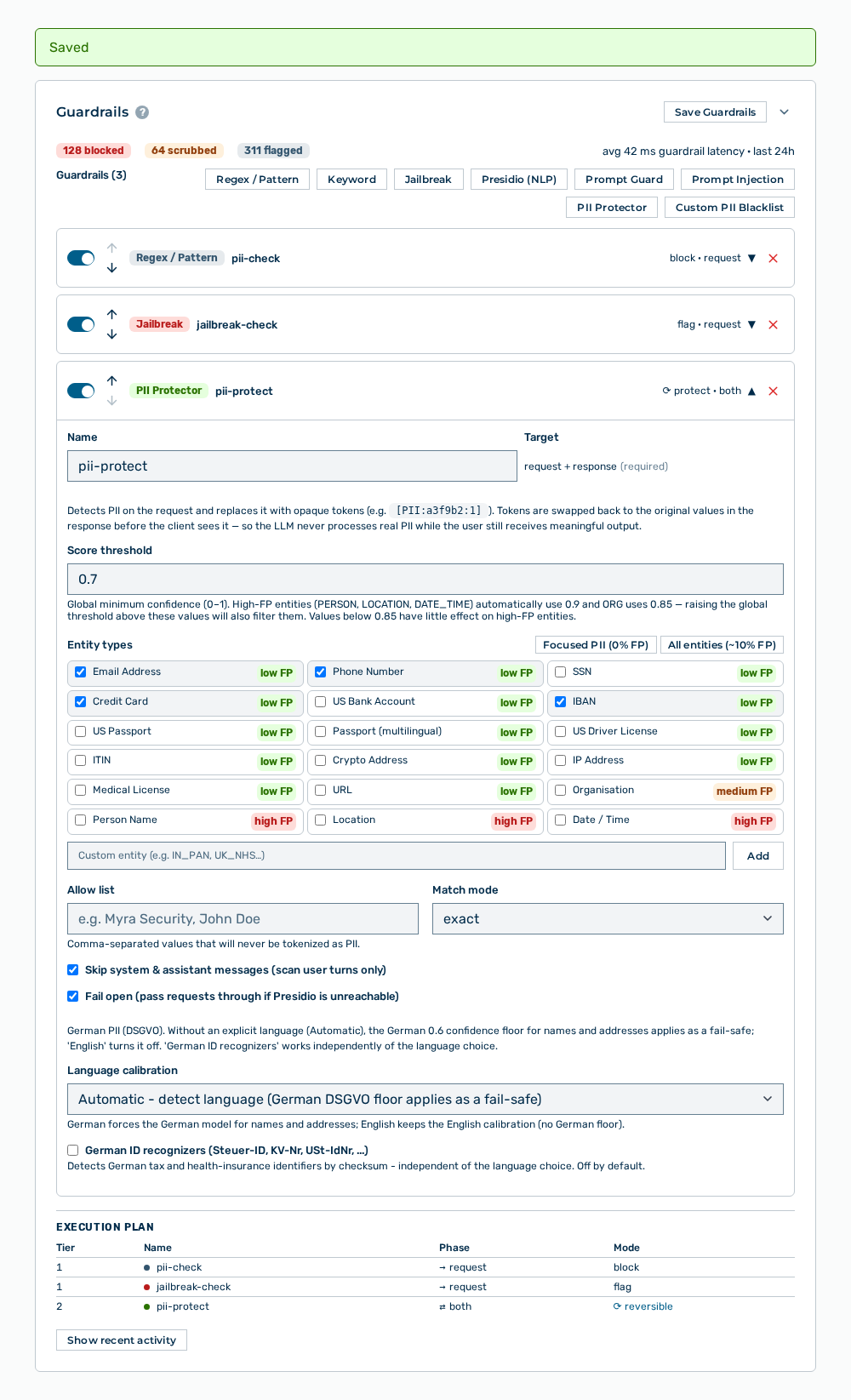
Guardrails section with the message
Note
The Move up icon is unavailable in the top area, the Move down icon in the bottom area. The tier is more important than the sequence of the areas. A detector of tier 2 examines the data subsequently also when its area is at the top.
Removing a guardrail detector
A detector that you removed no longer examines the requests of this gateway.
The following requirements are met:
- ☑ Your user account has the Manage gateways and routing permission.
Proceed as follows to remove a guardrail detector:
Guardrails area
- ► Open the detail view of the gateway.
- ▷ On the start page, click on your name at the bottom of the navigation bar.
- ▷ In the user menu, click on Settings.
- ▷ Open the Gateways group.
- ▷ Open the gateway with the Open → row action.
- ► In the area of the detector, click the icon to remove it.
- ↳ The Remove the <Name> detector from this guardrail? confirmation prompt opens.
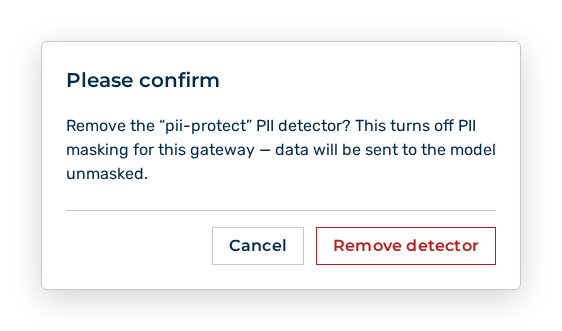
Confirmation prompt before the removal of a detector
- ► Confirm the prompt with the Remove detector button.
- ► Click the Save Guardrails button.
- ➔ Myra AI Workspace shows the Saved message.
Guardrails section with the message
Note
For the Presidio (NLP), PII Protector, and Custom PII Blacklist detectors, the prompt also warns that the removal deactivates the masking of personal data for this gateway and that the data subsequently goes to the model unmasked.
Effects of the removal
The removal has the following effects:
| Object | Effect |
|---|---|
| Requests | The requests to this gateway no longer go through the detector. Requests that it blocked before now get to the provider. |
| Guardrail events | The events recorded for the detector stay. The area records no new events for it. |
| Other gateways | The detectors of other gateways do not change. A detector always applies only to the gateway in which it is located. |
| Counter | The Detectors column of the Gateways view shows the remaining quantity. |