Members tab
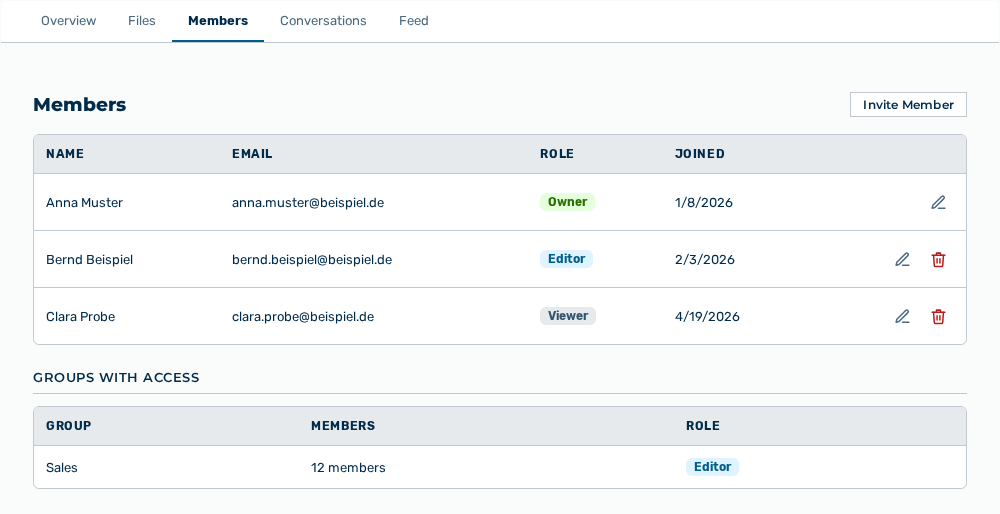
Members tab
The Members tab lists the users who have access to the project.
The following information is available:
| Column | Description |
|---|---|
| Name | Name of the member. |
| Email address of the member. | |
| Role | Project role of the member: Owner, Editor, or Viewer. |
| Joined | Time at which the member was added to the project. |
In addition, the Groups with access area lists the groups with the Group, Members, and Role columns.
The following options are available:
| Option | Description |
|---|---|
| Invite Member button | Opens the Invite Member dialog with the Email address field, the Role list, and the Share my existing conversations with the project check box. |
| Edit role icon | Opens the Change role — NAME dialog and changes the project role of the member. |
| Remove button | Removes the member from the project after the Remove this member? confirmation. |
Note
A project must have at least one owner. If you change the role of the last owner, the dialog shows A project must have at least one owner. If the project lists no further users yet, the tab shows No members yet.
Note
The Share my existing conversations with the project check box is cleared by default. If you select it, Myra AI Workspace adds all your current private conversations of this project to the Feed tab. The conversations are then visible to each member of the project, not only to the person that you invite. You can unshare each conversation later in the Feed tab. If the application adds the member but the sharing fails, it shows Member added, but sharing your existing conversations failed. You can share them individually from the Feed.