Managing the prompts of the library
A prompt of the library is available to the whole organization in the chat.
Creating a prompt of the library
The following requirements are met:
- ☑ Your user account has the Manage governance rules, prompts, and approvals permission.
Proceed as follows to create a prompt:
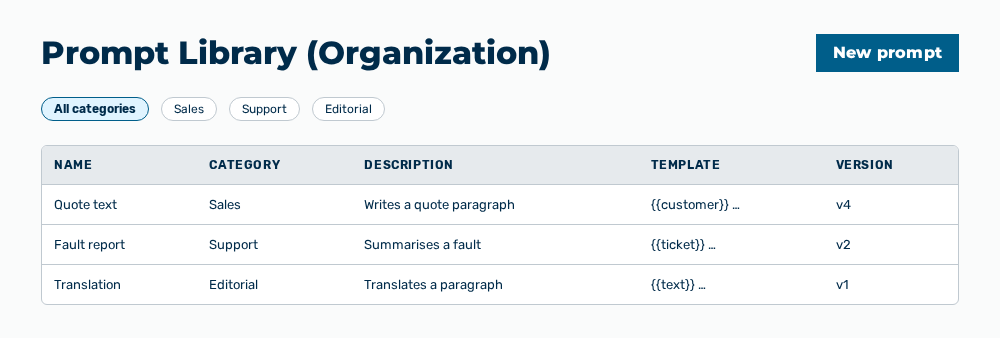
Library view
- ► On the start page, open the Library view in the Workspace work area.
- ► Click on the New prompt button.
- ↳ The New prompt dialog opens.
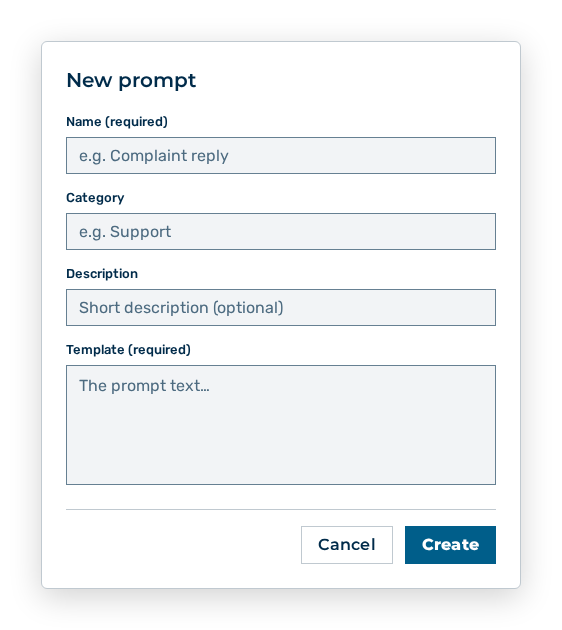
New prompt dialog
- ► Enter the name, the category, and the prompt text.
- ► Save the prompt.
- ➔ Myra AI Workspace creates the prompt and submits it for approval.
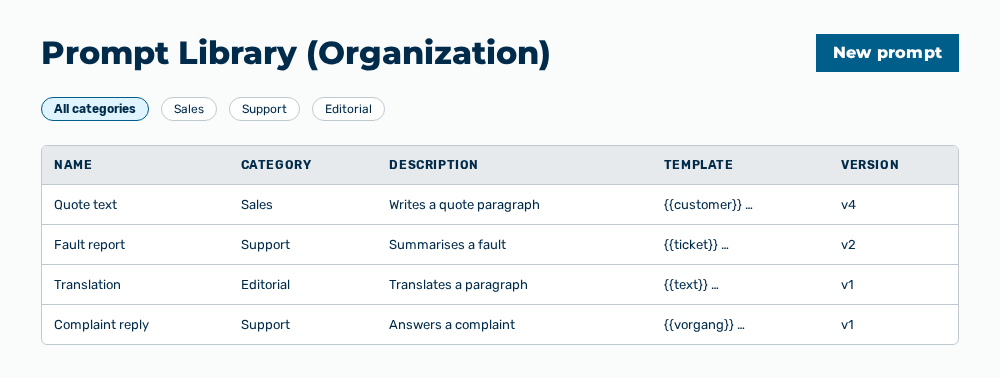
Prompt library view with the new prompt
Entries in the New prompt dialog
New prompt dialog
You set the following entries when you create the template:
| Entry | Description |
|---|---|
| Name (required) | Name of the template in the list of the library, for example Complaint reply. The name holds a maximum of 255 characters. |
| Category | Category of the template, for example Support. The category holds a maximum of 64 characters and supplies the Filter by category drop-down list. The entry is optional. |
| Description | Short description of the template. The description appears in the list of the library. The entry is optional. |
| Template (required) | Prompt text the users move into the chat with the Use in chat row action. |
The following options are available in the dialog:
| Option | Description |
|---|---|
| Create button | Creates the template. While the template is saved, the button shows the label Saving…. |
| Cancel button | Closes the dialog without creating the template. |
Note
If a mandatory entry is missing, the dialog shows Name is required. or Template is required.
Editing a prompt of the library
Proceed as follows to edit a prompt:
Library view
- ► On the start page, open the Library view in the Workspace work area.
- ► Open the prompt.
- ↳ The Edit prompt dialog opens.
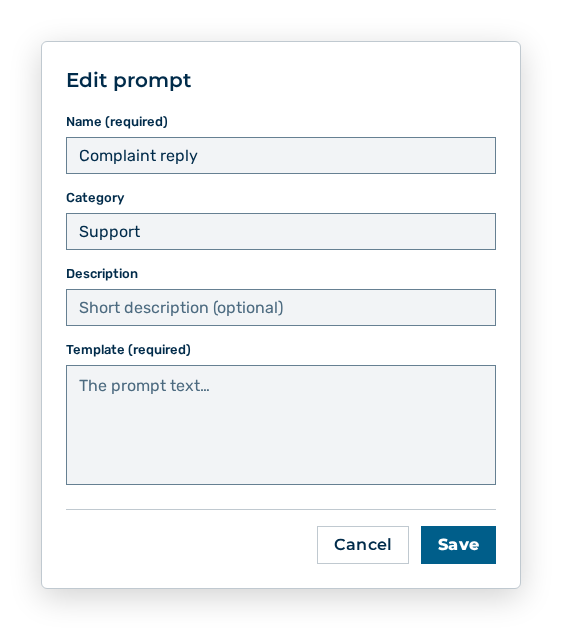
Edit prompt dialog
- ► Change the entries.
- ► Save the prompt.
- ➔ Myra AI Workspace creates a new version and submits it for approval.
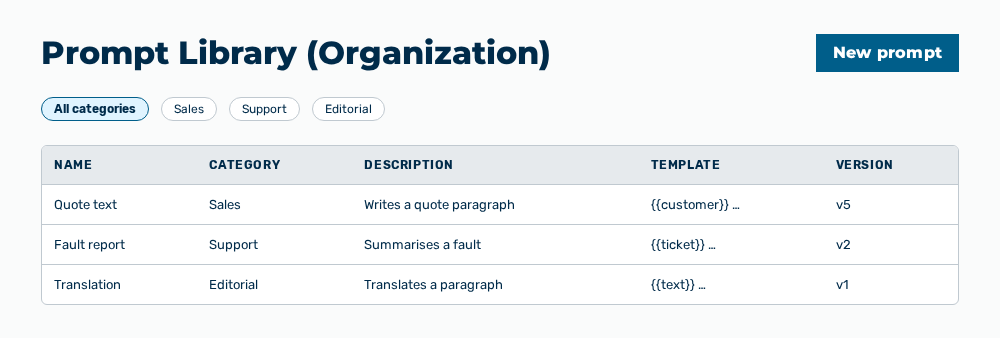
Prompt library view with the new version
Note
A change to the prompt library becomes effective only after the approval of a second person. The person who makes the request never approves their own change. The changes that are open are in the Settings area, in the Approvals group, in the Configurations tab.
Entries in the Edit prompt dialog
Edit prompt dialog
You change the following entries in the dialog:
| Entry | Effect of the change |
|---|---|
| Name (required) | Changes the name in the list of the library and in the Versions dialog. |
| Category | Assigns the template to a different category. If you clear the field, the Category column shows — and the template appears under All categories only. |
| Description | Changes the description in the list. If you clear the field, the Description column shows —. |
| Template (required) | Changes the prompt text. Each save creates a new version. The Version column counts up. Texts that were already used in the chat stay unchanged. |
The following options are available in the dialog:
| Option | Description |
|---|---|
| Save button | Applies the changes as a new version. While the template is saved, the button shows the label Saving…. |
| Cancel button | Closes the dialog without applying the changes. |
Note
The Restore row action in the Versions dialog puts an earlier version back in place. Myra AI Workspace creates a new version with the restored content. The versions in between stay available. A restore also needs the approval of a second person.
Deleting a prompt of the library
Proceed as follows to delete a prompt:
Library view
- ► On the start page, open the Library view in the Workspace work area.
- ► Delete the prompt.
- ↳ The Delete the prompt "
"? query opens.
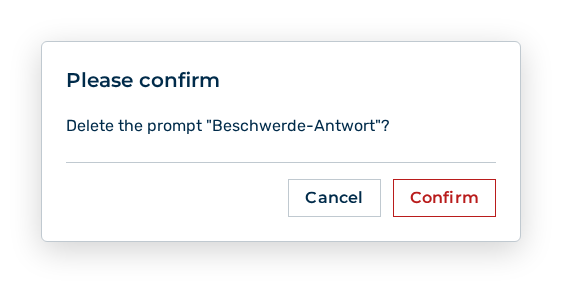
Delete prompt query
- ► Confirm the query.
- ➔ Myra AI Workspace shows Prompt deleted.
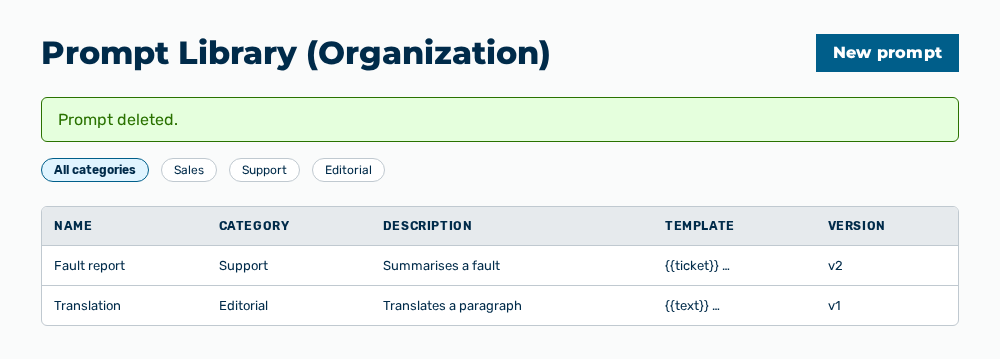
Prompt library view with the message
Effects of the deletion
The deletion has the following effects:
| Object | Effect |
|---|---|
| Template | Myra AI Workspace removes the template from the library. The users no longer find it in the chat. |
| Versions | Myra AI Workspace removes all versions of the template. A restore through the Versions dialog is no longer possible. |
| Conversations | The prompts that were already sent stay in the conversations. |
Note
A deletion also needs the approval of a second person. Until the approval, the view shows Change submitted for approval. and the template stays in the list.