Step 4: Set a budget and a rate limit
The budget caps the spend, the rate limit caps the load. Both prevent a single defect in an application from using up the cost or the quotas of the provider.
The following requirements are met:
- ☑ Step 3 is complete, see Enable a model.
Proceed as follows to set a budget and a rate limit:
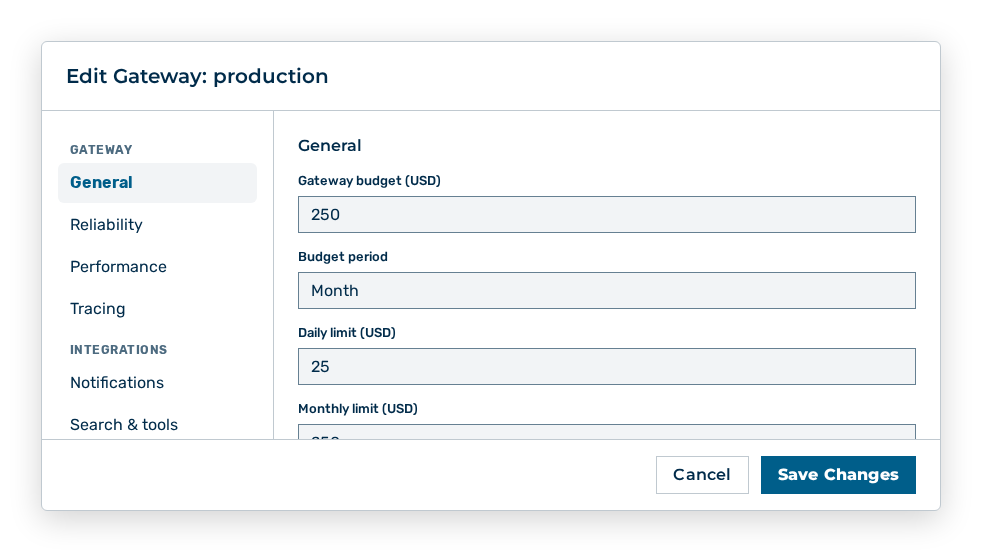
Edit Gateway dialog
- ► In the detail view of the gateway, click on the Edit button.
- ▷ On the start page, click on your name at the bottom of the navigation bar.
- ▷ In the user menu, click on Settings.
- ▷ Open the Gateways group.
- ▷ Open the gateway with the Open → row action.
- ► In the Gateway Budget (USD) field, enter the spend cap.
- ► In the Rate Limit (req) and Rate Window (s) fields, enter the permitted number of the requests per time window.
- ► Click on the Save changes button.
- ➔ The Budget and Rate Limit statistics of the detail view show the new values.
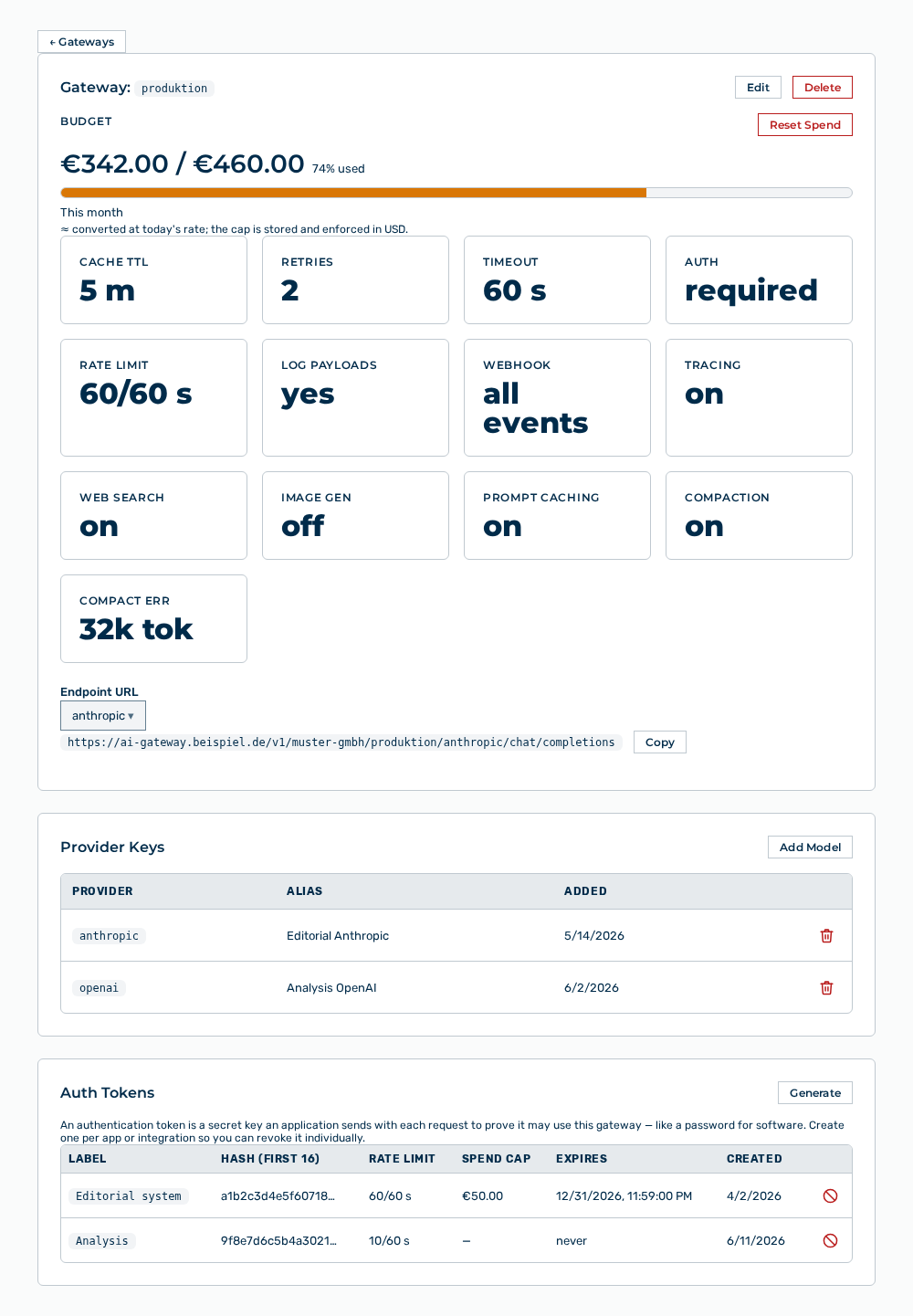
Detail view of a gateway
The Editing a gateway section describes which data the dialog contains and how the data takes effect.