My PII configuration tab
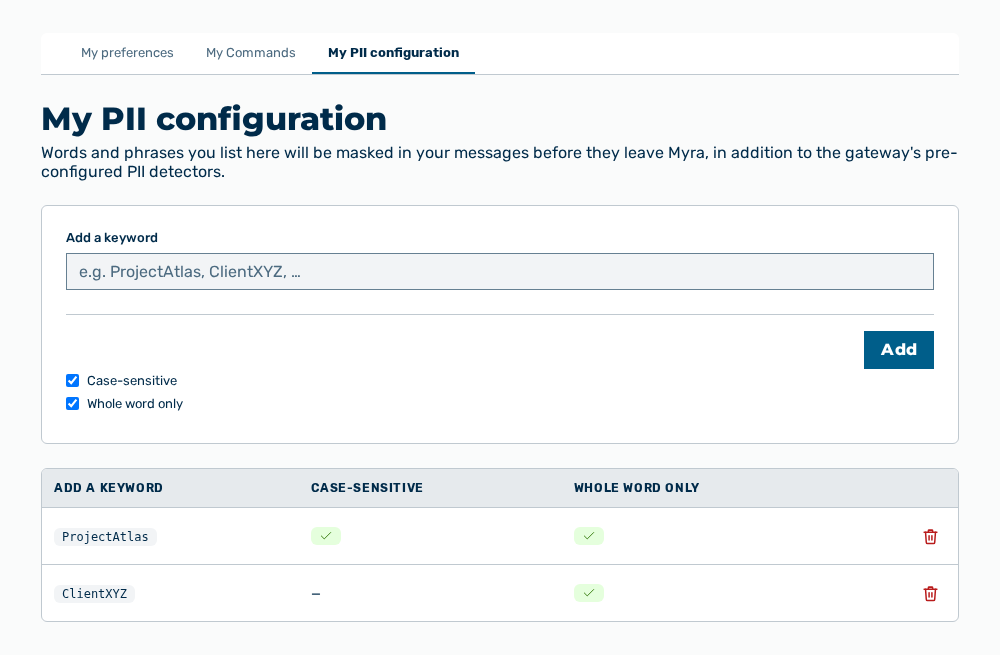
My PII configuration tab
The tab carries this note: Words and phrases you list here will be masked in your messages before they leave Myra, in addition to the gateway's pre-configured PII detectors.
The following options are available:
| Option | Description |
|---|---|
| Add a keyword input field | Takes the word or the phrase, at most 200 characters. |
| Case-sensitive checkbox | Masks the keyword only in the spelling that you entered. |
| Whole word only checkbox | Masks the keyword only as an independent word, not as part of a longer word. |
| Add button | Puts the keyword on the list. |
| Add a list input field | Takes up to 20 words, one word per line. The field appears for the Tenant administrator role only. |
| Add list button | Applies the entered words. While the words are applied, the button has the Adding… label. |
| Upload .txt file button | Reads a text file with one word per line. Myra AI Workspace scans the file for malware before it reads the file. |
| Delete row action | Removes the keyword from the list. |
The following information is available:
| Column | Description |
|---|---|
| Add a keyword | Word or phrase that Myra AI Workspace masks. |
| Case-sensitive | Check mark if the spelling must agree, otherwise —. |
| Whole word only | Check mark if only the whole word is masked, otherwise —. |
Note
If no keyword exists yet, the tab shows No personal keywords yet. Anything you add will be replaced with [MYRA-CUSTOM:…] tokens before the model sees your message.
Note
The list takes bare words only — no spaces, commands, or regular expressions. The punctuation @ . - _ is permitted. Myra AI Workspace reports each rejected entry with the reason, for example too long or contains a disallowed character.