My preferences tab
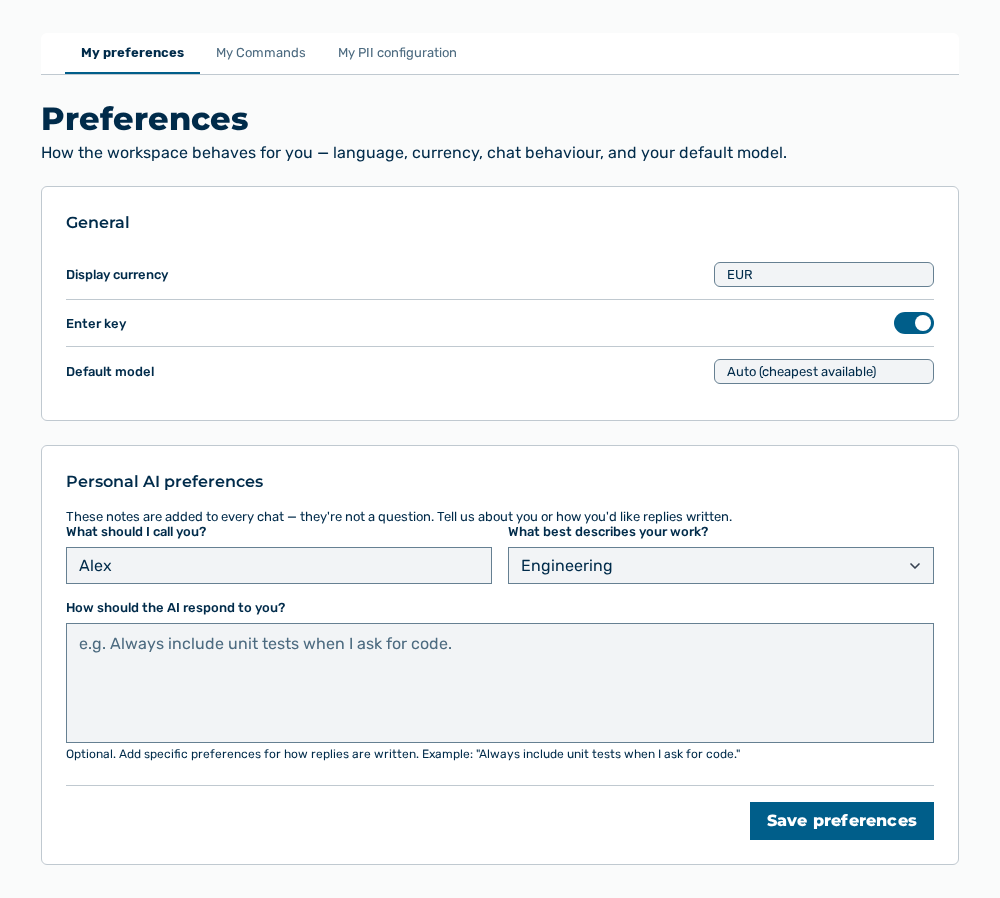
My preferences tab
The tab carries the General and Personal AI preferences areas.
The following options are available in the General area:
| Option | Description |
|---|---|
| Language drop-down list | Language of the interface: English or Deutsch. Myra AI Workspace changes the interface immediately and saves the choice in the user account, so that emails and notifications also follow this language. |
| Display currency drop-down list | Currency in which the app shows budgets and costs: USD $ or EUR €. The drop-down list carries this note: Budgets and costs are shown in this currency across the app. Independent of your language, and a display setting only — amounts are stored and enforced in USD. |
| Press Enter to send messages checkbox | Behavior of the Enter key in chat. If the checkbox is selected, the Enter key sends the message. If it is not selected, the Enter key adds a line break and the Ctrl+Enter key combination sends. |
| Default model button | Opens the model picker. Without a choice, the button shows Auto (cheapest available). The button carries this note: New chats start with this model unless a project or the message model picker overrides it. Falls back to the cheapest available model when unset or unavailable. |
The following options are available in the Personal AI preferences area:
| Option | Description |
|---|---|
| What should I call you? input field | Name that the AI uses for you, at most 64 characters. |
| What best describes your work? drop-down list | Field of work, for example Product Management, Engineering, or Legal. Without a choice, the drop-down list shows — Not set —. |
| How should the AI respond to you? input field | Permanent instructions for the style of the replies, at most 5,000 characters. Below the field, the |
| Save preferences button | Saves the three entries and shows Saved. New chats use these preferences. The button is disabled while no entry is changed or the instructions are too long. |
Note
The General area saves each entry immediately. The Personal AI preferences area saves only with the Save preferences button. The note of the area is: These notes are added to every chat — they're not a question. Tell us about you or how you'd like replies written.
Note
From 4,000 characters, the counter adds the long instructions may crowd out conversation context note. From 5,000 characters, the area shows Instructions exceed 5000 characters. and does not save.