Library
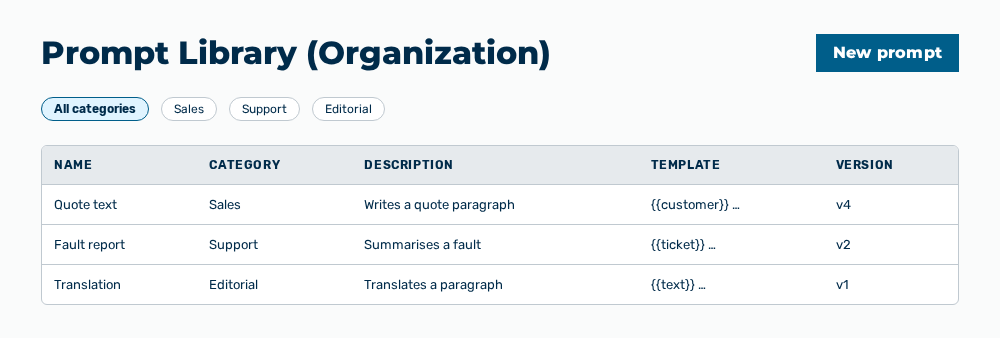
Prompt Library (Organization) view
The Prompt Library (Organization) view contains the central prompt templates that the administration maintains and that the organization reuses in the chat. The templates carry categories, are searchable, and are versioned.
The following information is available:
| Column | Description |
|---|---|
| Name | Name of the template. |
| Category | Category of the template. If no category is set, the column shows —. |
| Description | Short description of the template. If no description is set, the column shows —. |
| Template | Start of the prompt text. The column shortens long texts. |
| Version | Sequential number of the current version, for example v3. |
The following options are available:
| Option | Description |
|---|---|
| New prompt button | Opens the New prompt dialog. The button is disabled while no organization is selected. |
| Organization drop-down list | Selects the organization whose library the list shows. The drop-down list appears for the Administrator role only. All other roles see the library of their own organization. |
| Search prompts… input field | Searches the name, the description, and the prompt text of the templates. |
| Filter by category drop-down list | Limits the list to one category. The drop-down list shows the categories of the listed templates and the All categories entry. |
| Use in chat row action | Opens the chat with the template in the input field. The template stays editable there and is not sent immediately. |
| Edit row action | Opens the Edit prompt dialog. |
| Versions row action | Opens the Versions — |
| Delete row action | Opens the Delete the prompt " |
Note
If the library is empty, the view shows No prompts in the library yet. If a search finds nothing, the view shows No matches for "
Versions dialog
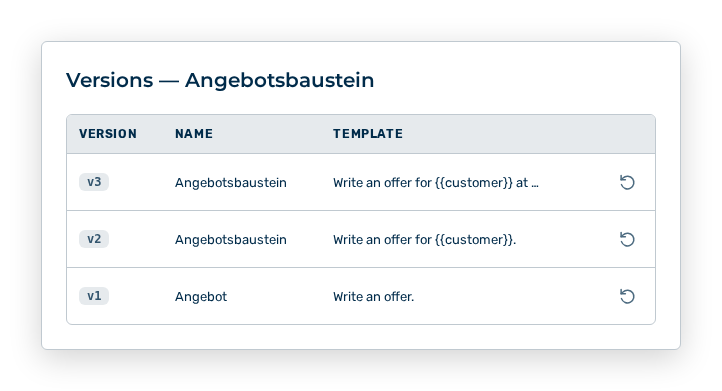
Versions dialog
The Versions —
The following information is available:
| Column | Description |
|---|---|
| Version | Sequential number of the version, for example v2. |
| Name | Name of the template at the time of this version. |
| Template | Prompt text of this version. |
The following options are available in the dialog:
| Option | Description |
|---|---|
| Restore row action | Opens the Restore version v |
Note
If no earlier version exists, the dialog shows No versions yet.
Note
Changes to the prompt library need the approval of a second person with the Manage governance rules, prompts, and approvals permission. The requesting person never approves their own change. If a change is submitted for approval, the view shows Change submitted for approval. and the list stays unchanged until the approval.