My Account
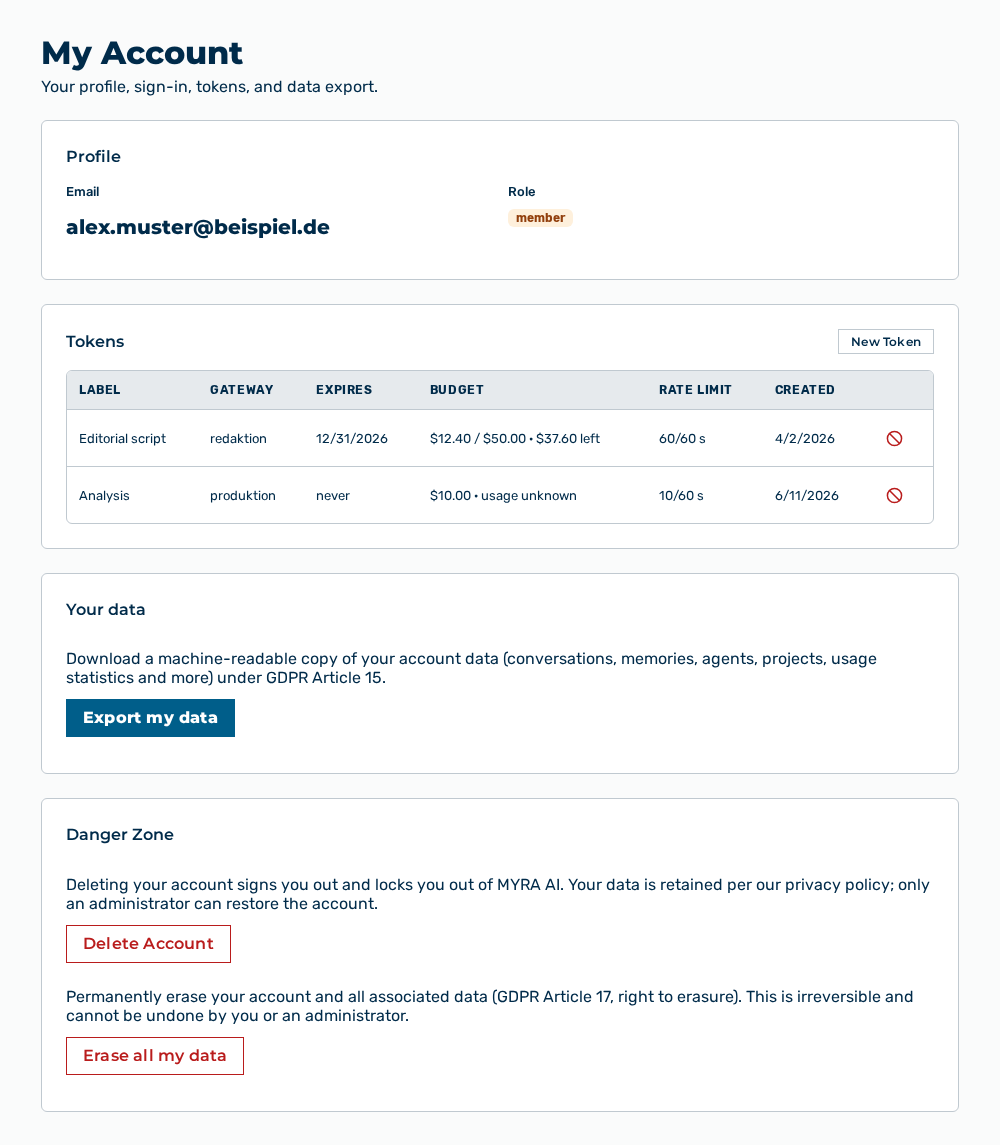
My Account view
The My Account view shows your profile, your sign-in, your tokens, and the data export. Below the heading, the Your profile, sign-in, tokens, and data export. note appears.
The Profile section shows the identity data of your user account.
The following information is available:
| Entry | Description |
|---|---|
| Email address of your user account. You sign in with this address. The address is also the confirmation for the permanent erasure of your data. The address is not editable in this view. | |
| Role | Role of your user account as a colored label, for example admin, tenant_admin, member, viewer, or finance. The role controls which views and options are available to you. Only users with the Administrator role can change the role. |
Note
You do not set the interface language, the behavior of the Enter key, and the personal AI preferences here, but in the Preferences view in the Settings area.
The Tokens section lists your personal access tokens for the inference API. A token applies to one gateway and always carries the inference scope.
The following information is available:
| Column | Description |
|---|---|
| Label | Name that you entered when you created the token. If you entered no name, the column shows —. |
| Gateway | Tenant and gateway of the token in the form |
| Expires | Date on which the token becomes invalid. If the token does not expire, the column shows never. |
| Budget | Spend budget and consumption of the token. If the consumption is known, the column shows |
| Rate Limit | Number of requests and length of the time window in the form |
| Created | Date on which the token was created. |
The following options are available:
| Option | Description |
|---|---|
| New Token button | Opens the New Token dialog. The button appears only for a role that can create tokens. |
| Revoke row action | Opens the Revoke this token? confirmation. After the confirmation, Myra AI Workspace makes the token invalid and removes it from the list. |
Note
If no token exists yet, the section shows No tokens yet. Create one to use the inference API. The Learn more link opens the documentation. While the list loads, the section shows Loading…. If the list cannot be loaded, the section shows Could not load. Please try again. and offers the Retry button.
Note
If no gateway is available, Myra AI Workspace shows the No gateways available warning when you click New Token and does not open the dialog.
The following sections describe the view in detail: