Managing chat integrations
A chat integration connects Mattermost, Slack, or Microsoft Teams to an agent. Your team then talks to the agent from the chat platform.
Creating a chat integration
The following requirements are met:
- ☑ Your user account has the Manage tenant connector-sync and chat-bridge permission.
- ☑ You have the credentials of the chat platform.
- ☑ The agent that answers exists.
Proceed as follows to create a chat integration:
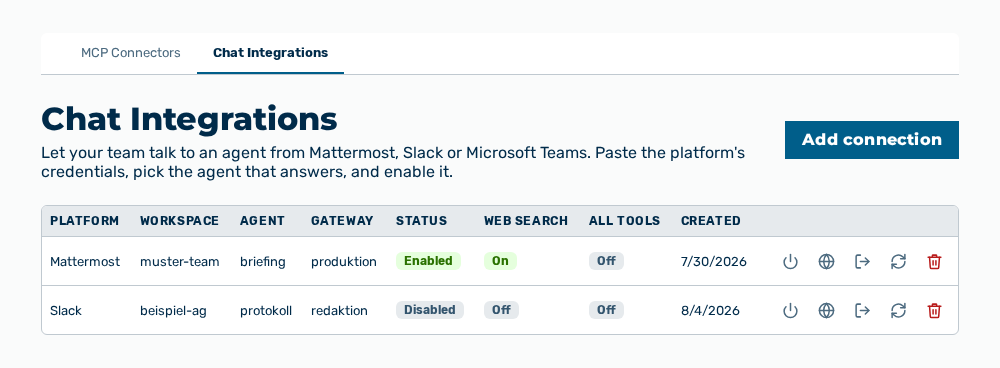
Chat Integrations view
-
► In the Settings area, open the Connections group.
- ▷ On the start page, click on your name at the bottom of the navigation bar.
- ↳ The user menu opens.
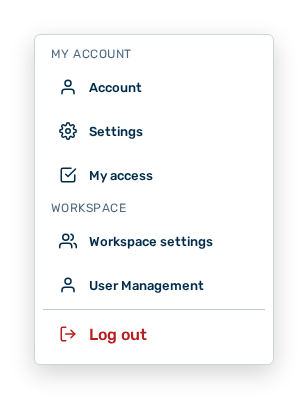
User menu
- ▷ In the My Account group, click on the Settings entry.
- ↳ The navigation bar shows the Settings area.
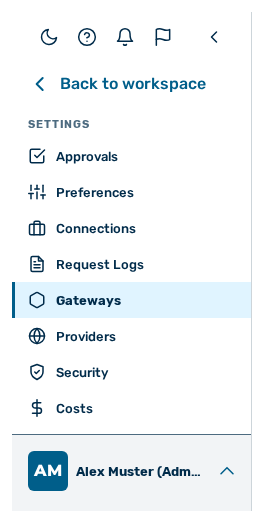
Navigation bar in the Settings area
- ▷ In the navigation bar, click on the Connections group.
- ► Open the Chat Integrations tab.
- ► Click on the Add connection button.
- ↳ The Add chat connection dialog opens.
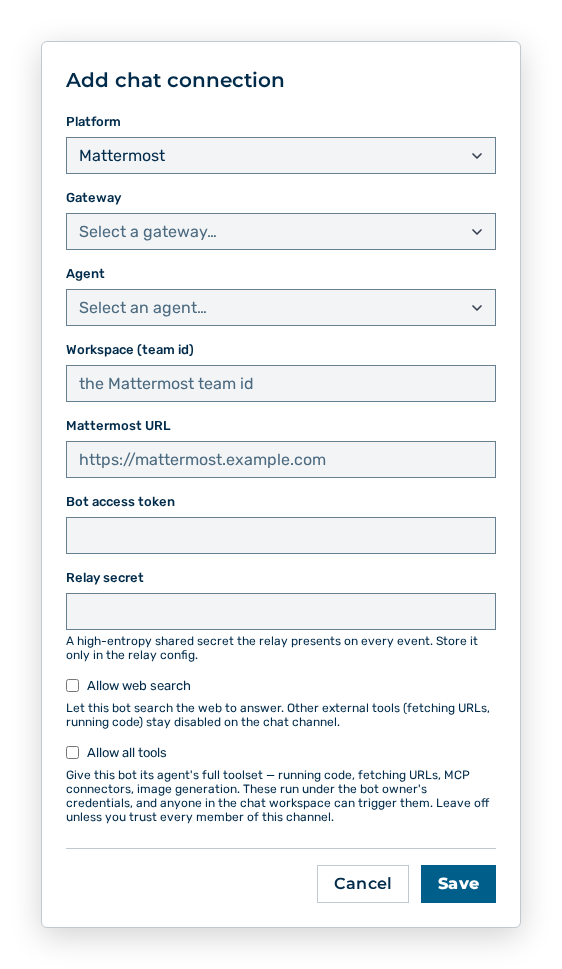
Add chat connection dialog
- ► Under Platform, select the chat platform.
- ■ The credential fields depend on this selection.
- ► Select the Gateway and the Agent that answers.
- ► Enter the identifier of the workspace and the credentials of the platform.
- ► If necessary, set the Allow web search and Allow all tools switches.
- ► Click on the Save button.
- ➔ Myra AI Workspace creates the connection with the Enabled status. Your team talks to the agent from the platform selected.
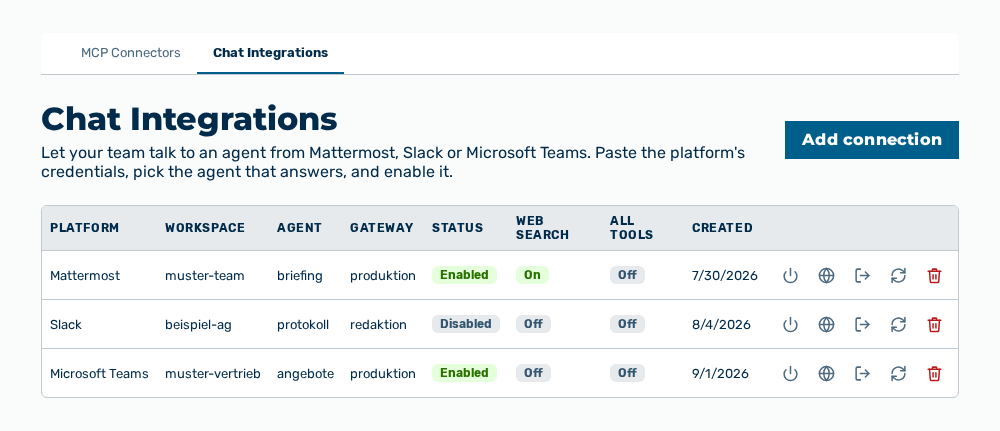
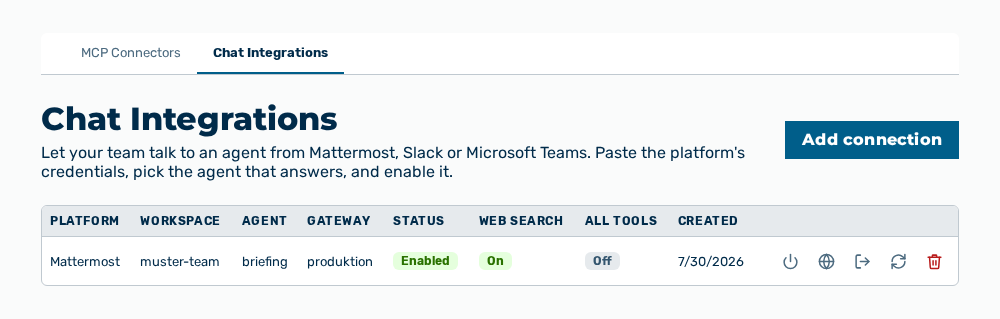
Chat integrations view with the new connection
Attention
Allow all tools gives the bot its agent's full toolset — running code, fetching URLs, MCP connectors, image generation. These run under the bot owner's credentials, and anyone in the chat workspace triggers them. Set the switch only if you trust every member of the channel.
Entries in the Add chat connection dialog
Add chat connection dialog
You set the following entries for every platform:
| Entry | Description |
|---|---|
| Platform | Chat platform of the connection: Mattermost, Slack, or Microsoft Teams. The selection decides which credential fields the dialog gives you next. |
| Gateway | Gateway through which the connection bills and enforces its requests. The drop-down list gives the gateways of the tenant. The entry is mandatory. |
| Agent | Agent that answers the messages from the chat. The drop-down list gives the agents of the selected gateway and is disabled while no gateway is selected. The entry is mandatory. |
| Workspace | Identifier of the workspace on the platform. For Mattermost, that is the team ID, for Slack, the team ID in the T0123ABCD form, for Microsoft Teams, the GUID of the Entra tenant. The entry is mandatory. |
| Allow web search | Lets the bot search the web for its answers. Other external tools — fetching URLs, running code — stay switched off on the chat channel. The check box is available when you create the connection only. |
| Allow all tools | Gives the bot the full toolset of its agent: running code, fetching URLs, MCP connectors, and image generation. The check box is available when you create the connection only. |
For the Mattermost platform, these entries come in addition:
| Entry | Description |
|---|---|
| Mattermost URL | Address of your Mattermost server, for example https://mattermost.example.com. The entry is mandatory. |
| Bot access token | Access token of the bot account from Mattermost. The entry is mandatory. |
| Relay secret | High-entropy shared secret that the relay presents on every event. Store it in the configuration of the relay only. The entry is mandatory. |
For the Slack platform, these entries come in addition:
| Entry | Description |
|---|---|
| Bot token (xoxb-…) | Bot token of the Slack app. The entry is mandatory. |
| Signing secret | Request-signing secret from Basic Information → App Credentials in Slack. Store it here only. The entry is mandatory. |
For the Microsoft Teams platform, these entries come in addition:
| Entry | Description |
|---|---|
| Bot app ID | Application identifier from your Azure Bot registration. The entry is mandatory. |
| Bot app type | Multi-tenant for an app that serves several Entra tenants, or Single-tenant for an app in your own tenant. |
| Home tenant ID (Entra GUID) | GUID of the Entra tenant that holds the bot registration. The entry is mandatory. |
| Service URL | Messaging endpoint from the bot registration, for example https://smba.trafficmanager.net/emea/. The entry is mandatory. |
| Client secret | Secret of the bot registration. The entry is mandatory. |
The following options are available in the dialog:
| Option | Description |
|---|---|
| Save button | Creates the connection. While it stores, the button carries the Loading… label. |
| Cancel button | Closes the dialog without creating the connection. |
Note
Myra AI Workspace never gives the credentials out again. The credentials appear neither in the list nor in the dialog. To change them, use the Rotate token row action.
Editing a chat integration
The platform, the workspace, and the agent that answers stay unchanged on an existing chat integration. You can change the status and the two tool switches in the row of the connection.
Proceed as follows to edit a chat integration:
Chat Integrations view
-
► In the Settings area, open the Connections group.
- ▷ On the start page, click on your name at the bottom of the navigation bar.
- ↳ The user menu opens.
User menu
- ▷ In the My Account group, click on the Settings entry.
- ↳ The navigation bar shows the Settings area.
Navigation bar in the Settings area
- ▷ In the navigation bar, click on the Connections group.
- ► Open the Chat Integrations tab.
- ► In the row of the connection, select Disable, Enable web search, or Enable all tools.
- ➔ Myra AI Workspace applies the change immediately and shows it in the Status, Web search, and All tools columns.
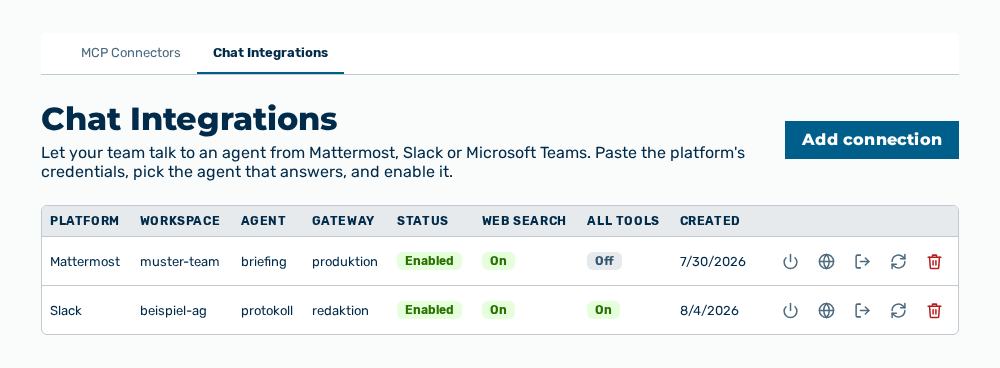
Chat integrations view with the connection changed
Effects of the changes
The changes in the row have the following effects:
| Change | Effect |
|---|---|
| Disable | The bot stops answering. The connection and its credentials stay. The Status column then shows Disabled. |
| Enable | The bot answers again. The Status column then shows Enabled. |
| Enable web search | The bot searches the web for its answers. The Web search column then shows On. |
| Disable web search | The bot answers from the knowledge of the model and the sources of its agent only. The Web search column then shows Off. |
| Enable all tools | The bot uses the full toolset of its agent. The All tools column then shows On. |
| Disable all tools | The bot uses no external tool other than the web search. The All tools column then shows Off. |
The following entries are no longer changeable after the connection is created:
| Entry | Description |
|---|---|
| Platform | The chat platform of the connection. For a different platform, create another connection. |
| Workspace | The identifier of the workspace on the platform. |
| Agent | The agent that answers. |
| Gateway | The gateway that bills. |
Note
The changes apply immediately to the next message. Myra AI Workspace does not stop an answer that is already running.
Rotating the credentials of a chat integration
You can change the credentials of the chat platform without creating the connection again.
Proceed as follows to rotate the credentials:
Chat Integrations view
-
► In the Settings area, open the Connections group.
- ▷ On the start page, click on your name at the bottom of the navigation bar.
- ↳ The user menu opens.
User menu
- ▷ In the My Account group, click on the Settings entry.
- ↳ The navigation bar shows the Settings area.
Navigation bar in the Settings area
- ▷ In the navigation bar, click on the Connections group.
- ► Open the Chat Integrations tab.
- ► In the row of the connection, select Rotate token.
- ↳ The Rotate bot token dialog opens.
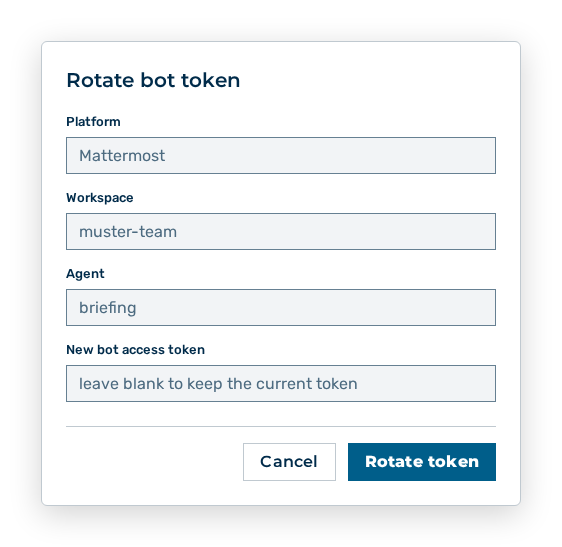
Rotate bot token dialog
- ► Under New bot access token, enter the new token.
- ■ An empty field keeps the current token.
- ► Click on the Rotate token button.
- ➔ Myra AI Workspace replaces the credentials of the connection. The bot continues to answer from the same workspace.
Chat integrations view
Entries in the Rotate bot token dialog
Rotate bot token dialog
The Rotate bot token dialog changes the credentials of a connection that exists. The fields follow the platform of the connection.
The dialog gives the following entries as read-only:
| Entry | Description |
|---|---|
| Platform | Chat platform of the connection. |
| Workspace | Identifier of the workspace on the platform. |
| Agent | Agent that answers. |
You change the following entries in the dialog:
| Entry | Effect of the change |
|---|---|
| New bot access token | Replaces the access token of the bot at Mattermost. The field appears for Mattermost. |
| New bot token | Replaces the bot token of the Slack app. The field appears for Slack. |
| New signing secret | Replaces the request-signing secret of the Slack app. The field appears for Slack. |
| New client secret | Replaces the secret of the Azure Bot registration. The field appears for Microsoft Teams. |
The following options are available in the dialog:
| Option | Description |
|---|---|
| Rotate token button | Takes over the credentials that you entered. While it stores, the button carries the Loading… label. |
| Cancel button | Closes the dialog without changing the credentials. |
Note
Every field carries the leave blank to keep the current token placeholder. A blank field leaves the related credential unchanged. If every field stays blank, the dialog changes nothing.
Note
Change the credentials at the platform first and enter them here afterwards. Between the two steps, the bot does not answer.
Deleting a chat integration
Proceed as follows to delete a chat integration:
Chat Integrations view
-
► In the Settings area, open the Connections group.
- ▷ On the start page, click on your name at the bottom of the navigation bar.
- ↳ The user menu opens.
User menu
- ▷ In the My Account group, click on the Settings entry.
- ↳ The navigation bar shows the Settings area.
Navigation bar in the Settings area
- ▷ In the navigation bar, click on the Connections group.
- ► Open the Chat Integrations tab.
- ► In the row of the connection, select Delete.
- ↳ The Delete this chat connection? The bot will stop answering and its access token is revoked. query opens.
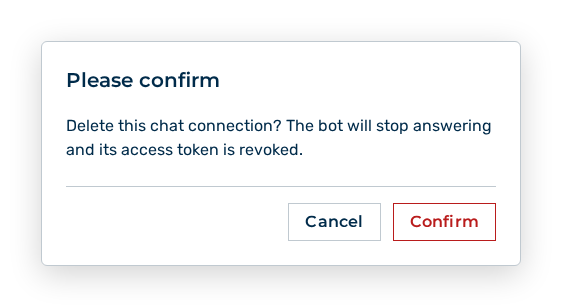
Delete chat connection query
- ► Confirm the query.
- ➔ Myra AI Workspace deletes the connection and revokes its access token. The platform does not reach the agent any more.
Chat integrations view without the connection
Effects of the deletion
The deletion has the following effects:
| Object | Effect |
|---|---|
| Connection | Myra AI Workspace removes the connection from the Chat Integrations tab. The connection cannot be restored. |
| Credentials | Myra AI Workspace revokes the access token of the bot. The bot registration on the platform stays. Remove it there if the bot is no longer to appear. |
| Chat platform | The bot no longer answers in the workspace. The messages so far stay in the channel. |
| Agent | The agent that answers stays and continues to work unchanged in Myra AI Workspace. |
| Gateway | The usage already billed stays in the report. |