Personal preferences
The personal preferences set how Myra AI Workspace behaves for your user account.
Proceed as follows to edit the personal preferences:
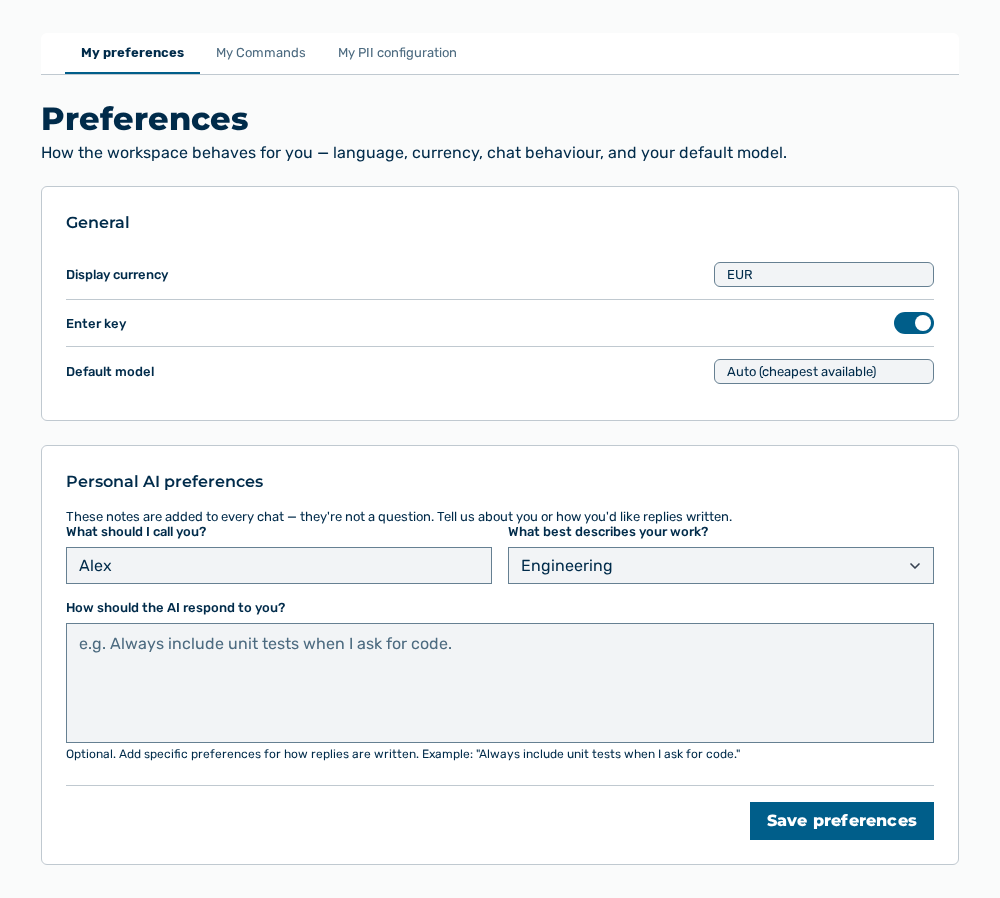
My preferences tab
-
► In the Settings area, open the Preferences group.
- ▷ On the start page, click on your name at the bottom of the navigation bar.
- ↳ The user menu opens.
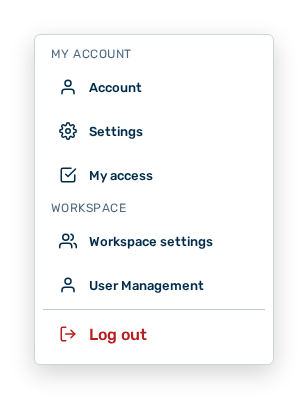
User menu
- ▷ In the My Account group, click on the Settings entry.
- ↳ The navigation bar shows the Settings area.
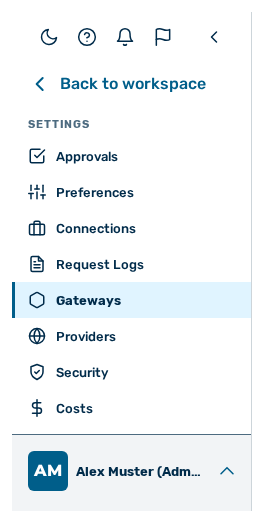
Navigation bar in the Settings area
- ▷ In the navigation bar, click on the Preferences group.
- ► Open the My preferences tab.
- ► In the General area, set the language, the Display currency, the behaviour of the Enter key, and your Default model.
- ↳ Myra AI Workspace saves each of these immediately.
- ► In the Personal AI preferences area, enter what the AI is to call you and what describes your work.
- ► Enter how the AI is to respond to you.
- ► Click on the Save preferences button.
- ➔ Myra AI Workspace shows Saved. New chats use these preferences.
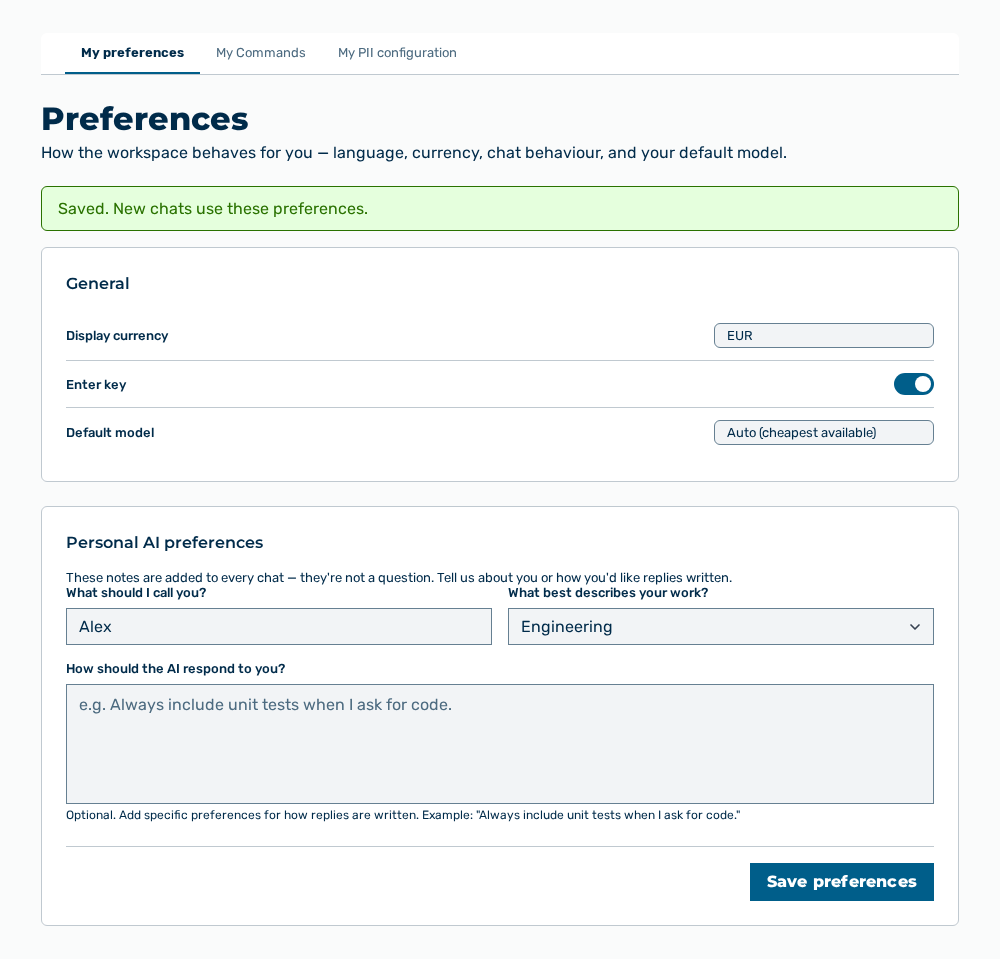
Preferences view with the message
Entries in the General area
My preferences tab
You set the following entries in the area:
| Entry | Effect of the change |
|---|---|
| Language drop-down list | Changes the interface to English or Deutsch. Myra AI Workspace applies the language immediately and saves it in the user account. Emails and notifications also follow it. |
| Display currency drop-down list | Shows budgets and costs in USD $ or EUR €. The entry applies to the display only. Myra AI Workspace stores each amount in USD and enforces each budget in USD. |
| Press Enter to send messages checkbox | Sets whether the Enter key in chat sends the message or adds a line break. If the checkbox is not selected, the Ctrl+Enter key combination sends. |
| Default model button | Sets the model with which a new chat starts. A project or the message model picker overrides it. Without a choice and with an unavailable model, Myra AI Workspace uses the cheapest available model. |
Note
The area saves each entry immediately. There is no button to save. If the save fails, Myra AI Workspace restores the previous value and shows Could not save your Enter-key preference. Please try again. or Your default model could not be saved. Please try again.
Entries in the Personal AI preferences area
My preferences tab
You set the following entries in the area:
| Entry | Effect of the change |
|---|---|
| What should I call you? input field | Sets the name that the AI uses for you. The field takes at most 64 characters. |
| What best describes your work? drop-down list | Sets your field of work, for example Product Management, Engineering, or Legal. The — Not set — entry sends no field of work. |
| How should the AI respond to you? input field | Sets permanent instructions for the style of the replies. The field takes at most 5,000 characters. |
The following options are available in the area:
| Option | Description |
|---|---|
| Save preferences button | Saves the three entries. While the entries are saved, the button has the Saving… label. The button is disabled while no entry is changed or the instructions exceed 5,000 characters. |
Note
If the instructions read like a question to the AI, the area asks back. The Cancel button returns to the input field, and the Save anyway button applies the text unchanged. The instructions are no chat — Myra AI Workspace adds them to each new conversation and does not answer them.
Note
If the instructions contain personal data, the area names the types detected and asks back. The Edit button returns to the input field, and the Save anyway button applies the text unchanged. The instructions go to the model with each new conversation.
Effects of the changes
The changes have the following effects:
| Object | Effect |
|---|---|
| New chats | A new chat starts with the default model and takes the name, the field of work, and the instructions into its context. |
| Ongoing conversations | A conversation already started keeps its model and its context. The changes apply from the next chat only. |
| Other users | The preferences apply to your user account only. No other user account and no shared project takes them over. |
| Budgets and costs | The Display currency changes the display only. A budget remains stored in USD and is enforced in USD. |