Managing vouchers
A voucher gives a new registration a one-time trial credit.
Creating a voucher
The following requirements are met:
- ☑ Your user account has the Manage vouchers permission.
Proceed as follows to create a voucher:
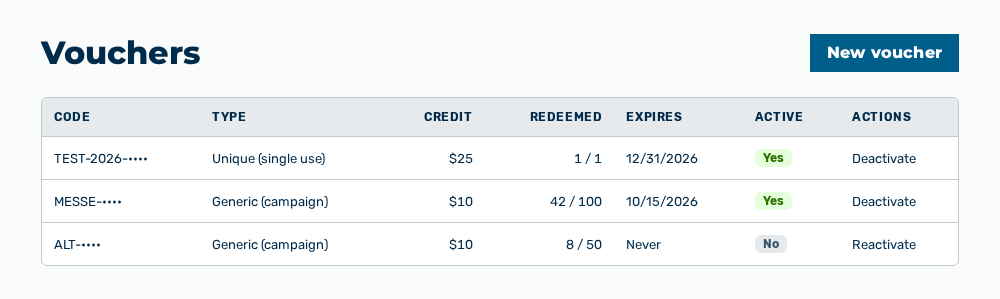
Vouchers view
-
► In the Account area, open the Vouchers tab.
- ▷ On the start page, click on your name at the bottom of the navigation bar.
- ↳ The user menu opens.
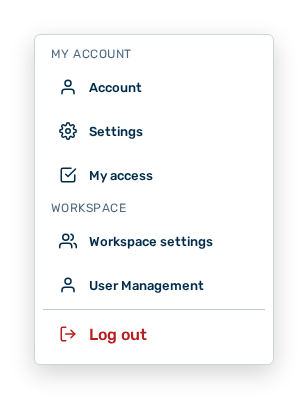
User menu
- ▷ In the My Account group, click on the Account entry.
- ↳ The navigation bar shows the Account area. The Profile tab is open.
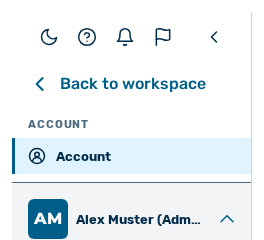
Navigation bar in the Account area
- ▷ Open the Vouchers tab.
- ► Click on the New voucher button.
- ↳ The New voucher dialog opens.
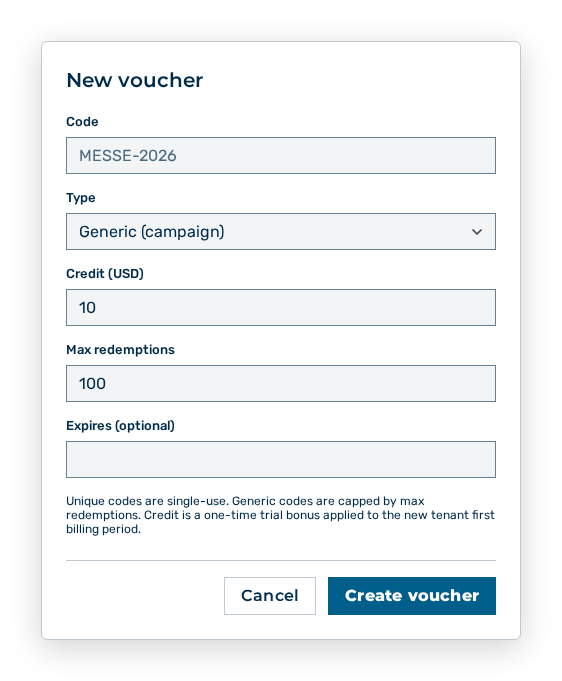
New voucher dialog
- ► Under Code, enter the code.
- ► Under Type, select the type.
- ► Under Credit (USD), enter the credit.
- ► If necessary, set an expiry date.
- ► Click on the Create voucher button.
- ➔ Myra AI Workspace creates the voucher. The credit applies once, to the first billing period of the new tenant.
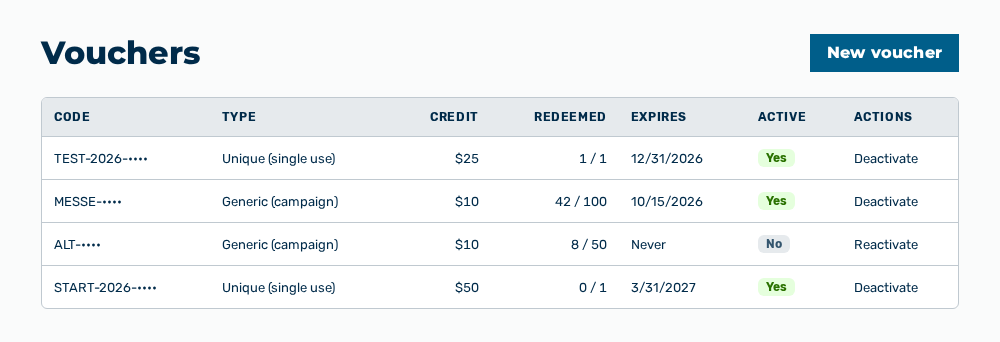
Vouchers view with the new voucher
Effects of the new voucher
The new voucher has the following effects:
| Object | Effect |
|---|---|
| Self-service signup | A new signup redeems the code and gets the credit. A unique code is redeemable once, a generic code up to the number under Max redemptions. |
| Billing | Myra AI Workspace applies the credit once to the first billing period of the new tenant. |
| Vouchers view | The voucher appears in the list. The Redeemed column shows 0 and the Active column shows Yes. |
Note
An expiry date applies until the end of the day selected. If you leave the Expires (optional) field empty, the Expires column carries the value Never.
Deactivating a voucher
A voucher cannot be deleted. You deactivate it and reactivate it if necessary.
Proceed as follows to deactivate a voucher:
Vouchers view
-
► In the Account area, open the Vouchers tab.
- ▷ On the start page, click on your name at the bottom of the navigation bar.
- ↳ The user menu opens.
User menu
- ▷ In the My Account group, click on the Account entry.
- ↳ The navigation bar shows the Account area. The Profile tab is open.
Navigation bar in the Account area
- ▷ Open the Vouchers tab.
- ► In the row of the voucher, select Deactivate.
- ↳ The Deactivate voucher
? It can no longer be redeemed.query opens.
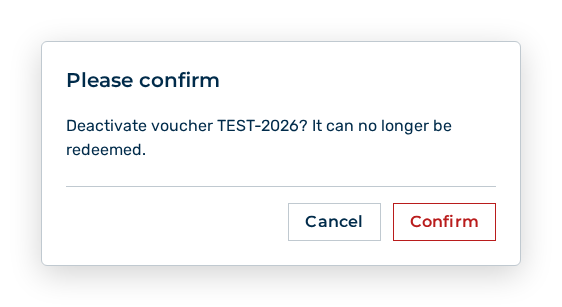
Deactivate voucher query
- ► Confirm the query.
- ➔ The voucher can no longer be redeemed. The Reactivate row action undoes the step.
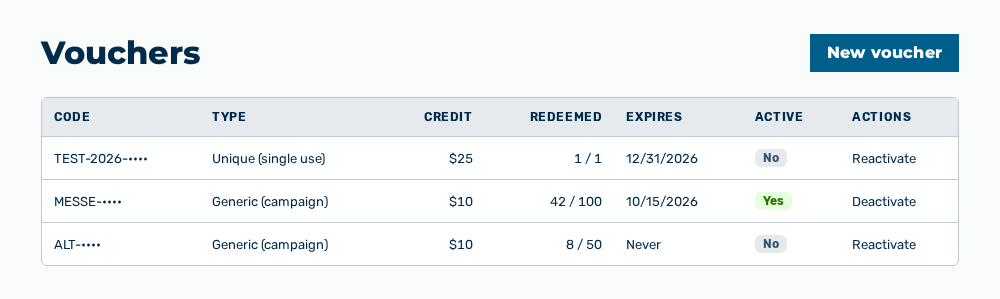
Vouchers view with the voucher deactivated
Effects of the deactivation
The deactivation has the following effects:
| Object | Effect |
|---|---|
| Voucher | The Active column shows No. The code can no longer be redeemed. |
| Redemptions so far | Credits already redeemed remain. The Redeemed column does not change. |
| Vouchers view | The voucher remains in the list. The Reactivate row action takes the place of the Deactivate row action. |
Note
These tasks need the Manage vouchers permission of the Platform module. The permission stays reserved for the Administrator role. A role of your own does not take the permission.