Managing PII entries
A PII entry masks a word or a phrase in your messages before Myra AI Workspace sends them to the provider. The entry applies in addition to the detectors configured on the gateway.
Proceed as follows to create a PII entry:
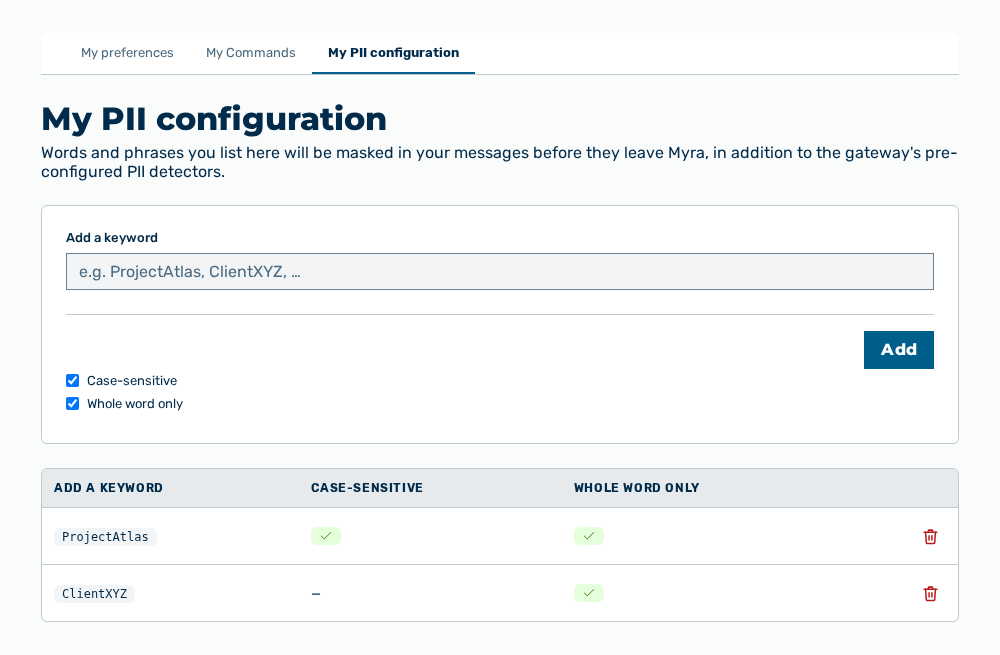
My PII configuration tab
-
► In the Settings area, open the Preferences group.
- ▷ On the start page, click on your name at the bottom of the navigation bar.
- ↳ The user menu opens.
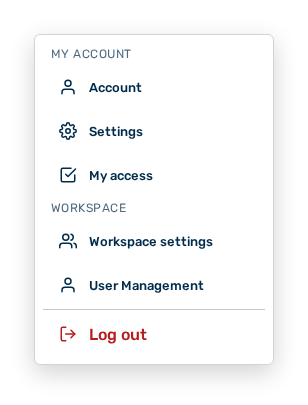
User menu
- ▷ In the My Account group, click on the Settings entry.
- ↳ The navigation bar shows the Settings area.
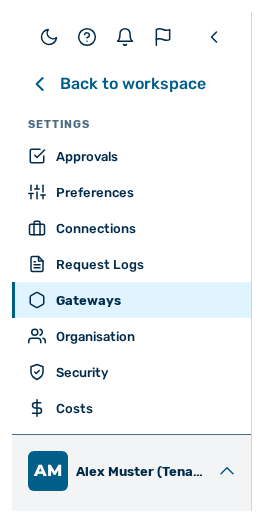
Navigation bar in the Settings area
- ▷ In the navigation bar, click on the Preferences group.
- ► Open the My PII configuration tab.
- ► In Add a keyword, enter the word or the phrase.
- ► If necessary, set the Case-sensitive and Whole word only switches.
- ► Click on the Add button.
- ➔ Myra AI Workspace replaces the keyword with a token of the form
[MYRA-CUSTOM:…]before it is sent.
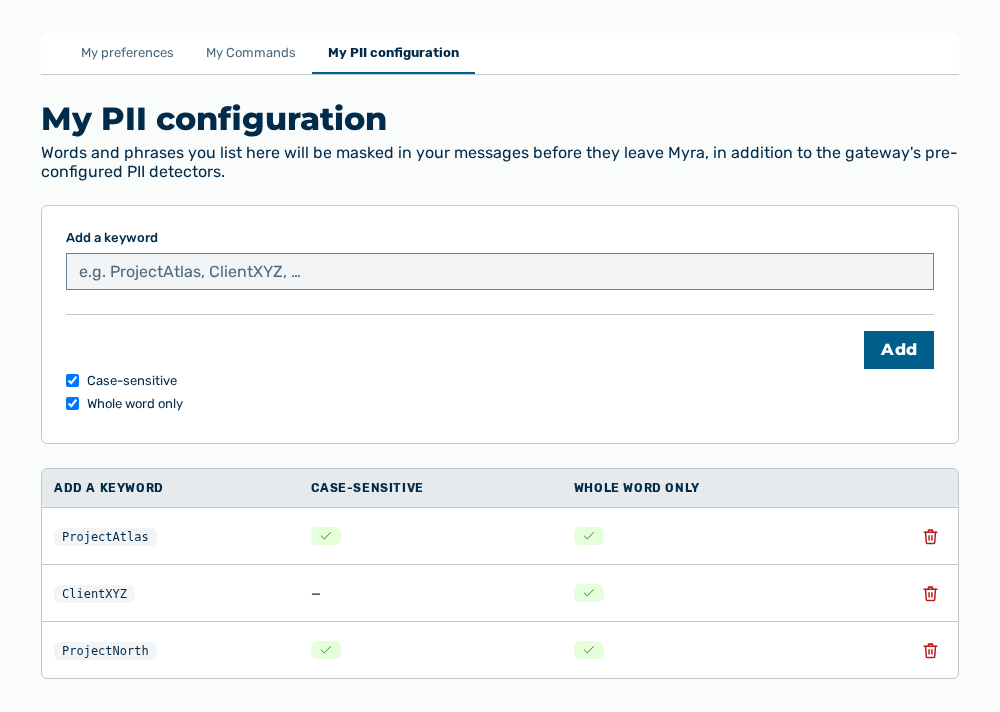
My PII configuration view with the new keyword
Entries for the PII entry
You set the following entries at creation:
| Entry | Description |
|---|---|
| Add a keyword | Word or phrase that Myra AI Workspace masks in your messages. The entry takes at most 200 characters and bare words only. The punctuation @ . - _ is permitted. |
| Case-sensitive | Sets that Myra AI Workspace masks the spelling entered only. Without the entry, Myra AI Workspace masks each spelling. |
| Whole word only | Sets that Myra AI Workspace masks the keyword as an independent word only. Without the entry, Myra AI Workspace also masks it as part of a longer word. |
The entry has the following effects:
| Object | Effect |
|---|---|
| New messages | Myra AI Workspace replaces the keyword with a token of the form [MYRA-CUSTOM:…] before it sends the message. The model does not see the keyword. |
| Gateway detectors | The entry adds to the detectors for personal data configured at the gateway. The entry does not replace those detectors. |
| Messages sent already | The messages remain unchanged. The masking applies from the next message only. |
| Other users | The list applies to your user account only. |
Note
For the Tenant administrator role, the Add a list area takes up to 20 words at once — one word per line — or reads a .txt file. Myra AI Workspace scans the file for malware before it reads the file and reports each rejected entry with the reason.
Effects of the deletion of a keyword
The deletion has the following effects:
| Object | Effect |
|---|---|
| Keyword | Myra AI Workspace removes the keyword from the list. |
| New messages | Myra AI Workspace no longer masks the word. The model sees it in clear text from the next message, unless a detector of the gateway applies. |
| Messages sent already | The masking remains in the messages sent already. |