Deleting the account
The deletion of the user account ends your access to Myra AI Workspace. The conversations and the other data are retained per the privacy policy. Only users with the Administrator role restore the account.
Deleting the account
Proceed as follows to delete your user account:
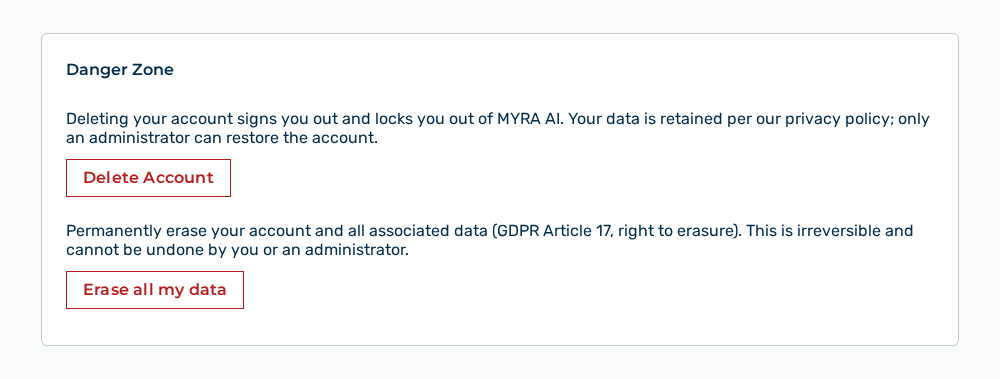
Danger zone section
-
► In the Account area, open the Profile tab.
- ▷ On the start page, click on your name at the bottom of the navigation bar.
- ↳ The user menu opens.
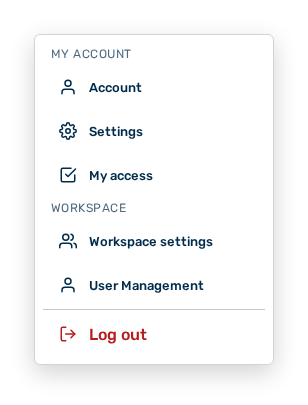
User menu
- ▷ In the My Account group, click on the Account entry.
- ↳ The navigation bar shows the Account area. The Profile tab is open.
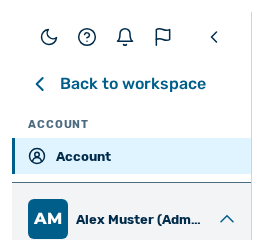
Navigation bar in the Account area
-
► In the Danger Zone section, click on the Delete Account button.
- ↳ The Delete Account dialog opens.
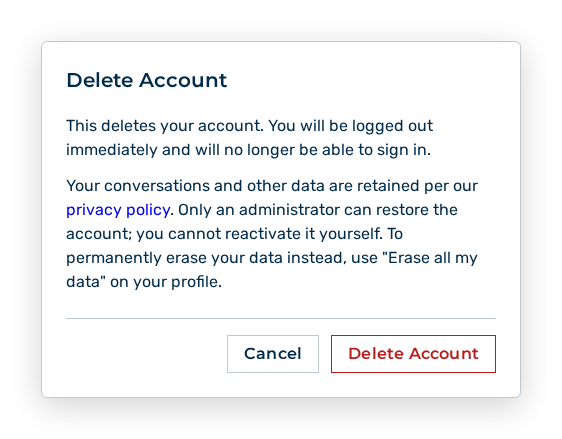
Delete Account dialog
- ► Click on the Delete Account button.
- ➔ Myra AI Workspace signs you out and shows the sign-in.
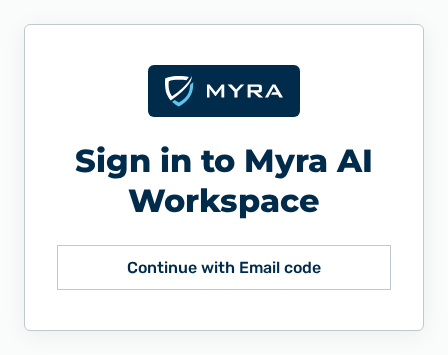
Sign-in
Effects of the deletion of the user account
Delete Account dialog
The Delete Account dialog in the View: My Account section lists the effects of the deletion in detail — on the sign-in, on your data, and on the restore.
Erasing all your data
The erasure of all your data removes the user account and its content permanently.
The following requirements are met:
- ☑ You know the email address of your user account.
Proceed as follows to erase all your data:
Danger zone section
-
► In the Account area, open the Profile tab.
- ▷ On the start page, click on your name at the bottom of the navigation bar.
- ↳ The user menu opens.
User menu
- ▷ In the My Account group, click on the Account entry.
- ↳ The navigation bar shows the Account area. The Profile tab is open.
Navigation bar in the Account area
-
► In the Danger Zone section, click on the Erase all my data button.
- ↳ The Erase all my data dialog opens.
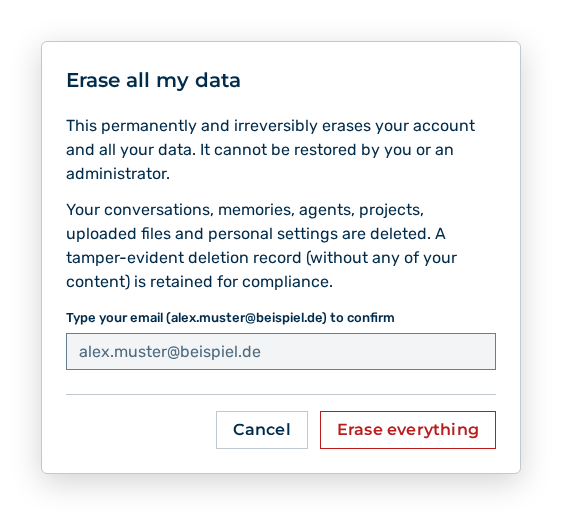
Erase all my data dialog
- ► Enter your email address to confirm.
- ► Click on the Erase everything button.
- ➔ Myra AI Workspace signs you out and shows the sign-in.
Sign-in
Attention
Myra AI Workspace does not undo the deletion under Article 17 GDPR. Users with the Administrator role also do not restore the data deleted. A tamper-evident deletion record without any of your content is retained for compliance.
Note
The Erase all my data dialog in the View: My Account section lists the effects of the erasure in detail — on the user account, on your content, on the deletion record, and on your tokens. Export your data with the Export my data button before you confirm the erasure.