Managing scheduled tasks
A scheduled task runs a prompt on a schedule.
Creating a scheduled task
The following requirements are met:
- ☑ Your user account has the Create and manage own scheduled tasks permission.
Proceed as follows to create a scheduled task:
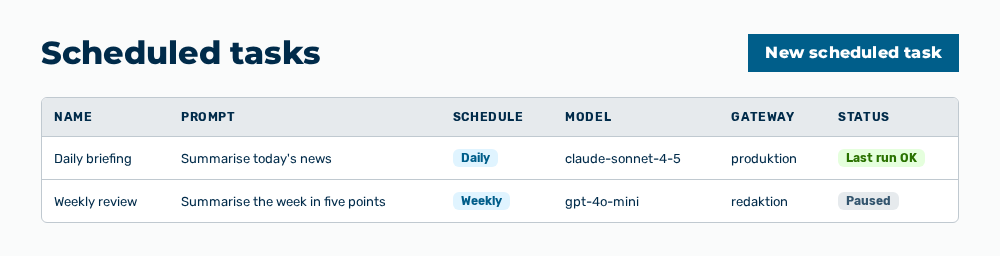
Scheduled view
- ► On the start page, open the Scheduled view in the Workspace work area.
- ► Click on the New scheduled task button.
- ↳ The New scheduled task dialog opens.
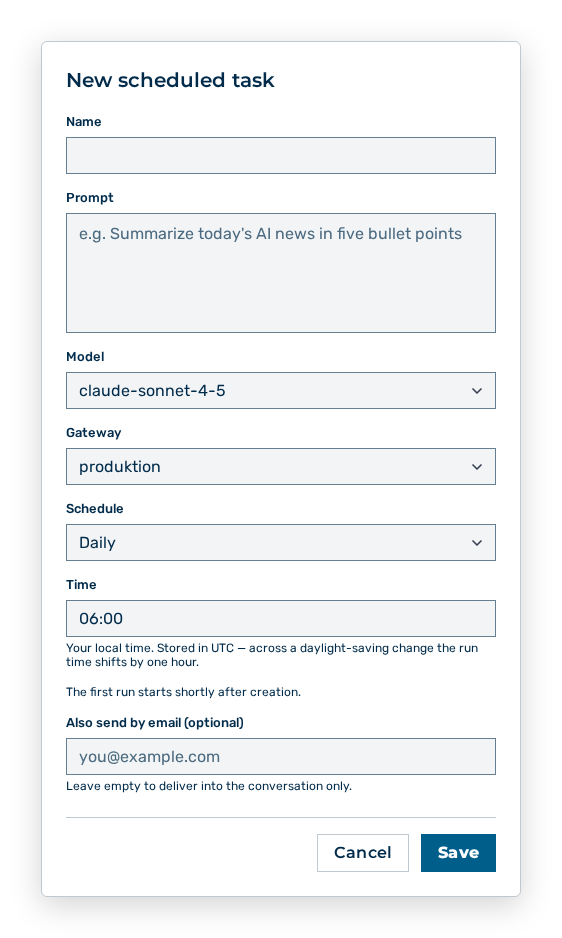
New scheduled task dialog
- ► Enter the prompt.
- ► Set the schedule.
- ► If necessary, switch on the delivery of the result by email.
- ► Save the task.
- ➔ Myra AI Workspace runs the prompt on the schedule. The result appears in a conversation.
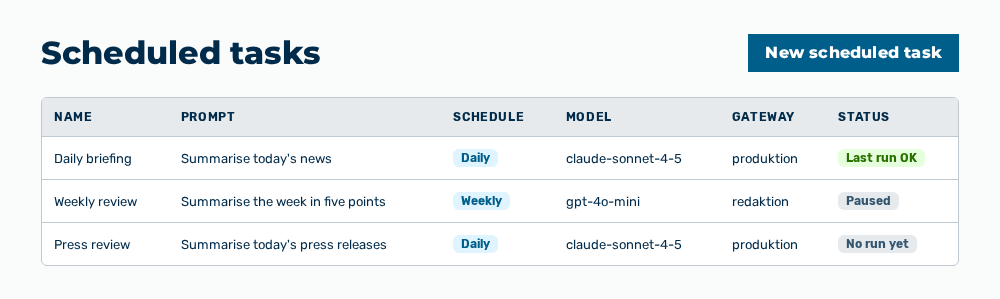
Scheduled tasks view with the new task
Entries in the New scheduled task dialog
New scheduled task dialog
You set the following entries when you create the task:
| Entry | Description |
|---|---|
| Name * | Name of the task in the list of the scheduled tasks. The entry is mandatory. |
| Prompt * | Prompt Myra AI Workspace sends to the model on each run, for example Summarize today's AI news in five bullet points. The entry is mandatory. |
| Model * | Model that answers the prompt. The entry is mandatory. |
| Gateway | Gateway the task runs on. The drop-down list appears only when you create the task and only if more than one gateway is available. |
| Schedule | Daily, Weekly or Interval. The selection decides which further entries the dialog shows. |
| Run every and Unit | Distance between two runs for the Interval selection, in minutes, hours or days. The value lies between one minute and 366 days. |
| Weekday | Weekday of the run for the Weekly selection. |
| Time | Time of the run in the format HH:MM for the Daily and Weekly selections. You enter your local time. Myra AI Workspace stores it in UTC. Across a daylight-saving change the run time shifts by one hour. |
| Also send by email (optional) | Email address Myra AI Workspace sends the result to in addition. If the field stays empty, the result arrives in the conversation only. |
The following options are available in the dialog:
| Option | Description |
|---|---|
| Save button | Creates the task. While the task is saved, the button shows the label Saving…. |
| Cancel button | Closes the dialog without creating the task. |
Note
The first run starts shortly after creation. After that the task follows its schedule.
Note
If an entry is missing or invalid, the dialog shows Please enter a name., Please enter a prompt., Please choose a model., The interval must be at least 1 minute and at most 366 days. or Please enter a time as HH:MM. If the model does not belong to your plan, the dialog shows This model is not available on your plan.
Editing a scheduled task
Proceed as follows to edit a scheduled task:
Scheduled view
- ► On the start page, open the Scheduled view in the Workspace work area.
- ► Open the task.
- ↳ The Edit scheduled task dialog opens.
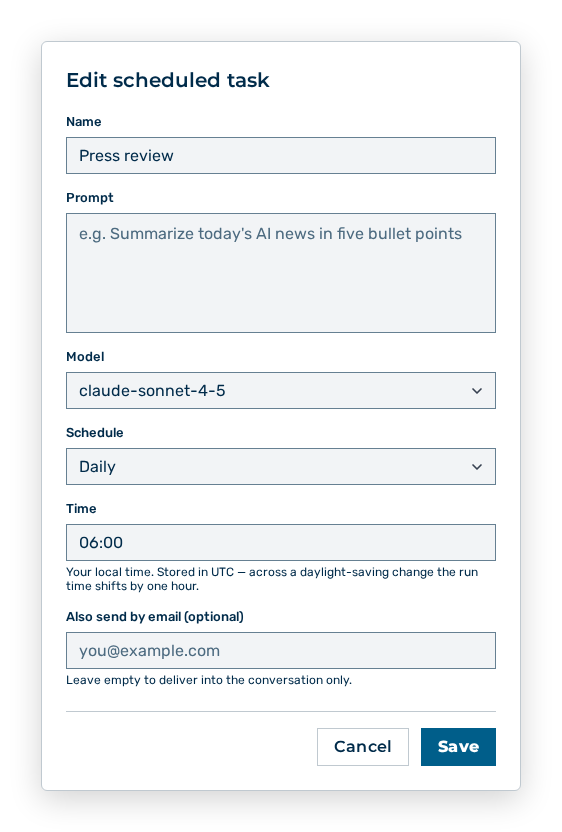
Edit scheduled task dialog
- ► Change the prompt, the schedule, or the delivery.
- ► Save the task.
- ➔ Myra AI Workspace uses the change from the next run.
Scheduled tasks view
Entries in the Edit scheduled task dialog
Edit scheduled task dialog
You change the following entries in the dialog:
| Entry | Effect of the change |
|---|---|
| Name | Changes the name in the list of the scheduled tasks. |
| Prompt | Changes the prompt from the next run on. Results that were already delivered stay unchanged. |
| Model | Changes the model that answers the prompt. |
| Schedule | Changes the kind of the schedule: Daily, Weekly or Interval. Myra AI Workspace calculates the next run again. |
| Run every, Unit, Weekday and Time | Change the time of the next run. |
| Also send by email (optional) | Changes or removes the additional delivery by email. If you clear the field, the result arrives in the conversation only. |
The following options are available in the dialog:
| Option | Description |
|---|---|
| Save button | Applies the changes. Myra AI Workspace uses them from the next run on. |
| Cancel button | Closes the dialog without applying the changes. |
Note
The gateway of an existing task cannot be changed. The Gateway drop-down list appears only when you create the task. If the saving fails, the dialog shows The task could not be saved — please check the fields. or Saving failed. Please try again.
Note
The Pause row action holds the task without changing it. The Resume row action takes it up again. A paused task does not count against the limit of your plan. If the switch fails, the view shows Could not update the task. Please try again.
Deleting a scheduled task
Proceed as follows to delete a scheduled task:
Scheduled view
- ► On the start page, open the Scheduled view in the Workspace work area.
- ► Delete the task.
- ↳ The Delete the scheduled task “
”? It will stop running and this cannot be undone. query opens.
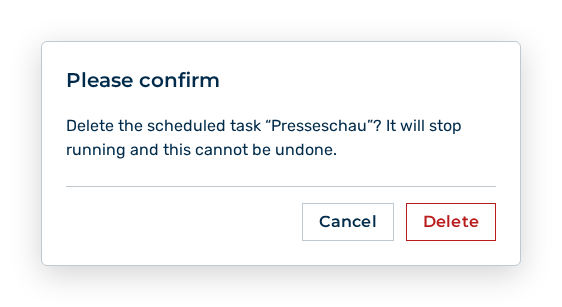
Delete task query
- ► Confirm the query.
- ➔ Myra AI Workspace does not run the task any more. A run that is still due does not occur.
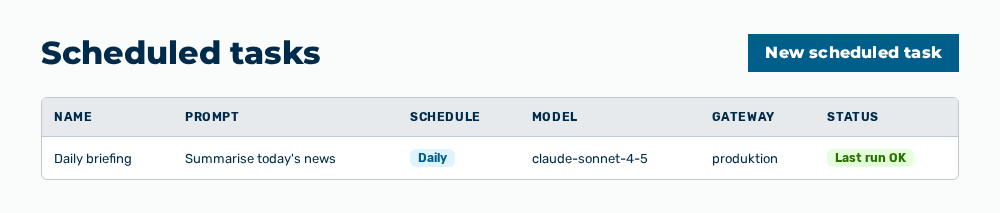
Scheduled tasks view without the task
Effects of the deletion
The deletion has the following effects:
| Object | Effect |
|---|---|
| Scheduled task | Myra AI Workspace removes the task from the list. The deletion cannot be undone. |
| Schedule | A run that is still due is removed. Myra AI Workspace no longer runs the prompt. |
| Results | The results that were already delivered stay in their conversations. |
| Limit of the plan | The deletion frees a slot. You can then create another task. |
Note
If the deletion fails, the view shows Could not delete the task. Please try again.
Note
The Finance role creates no scheduled tasks. The Scheduled view does not appear for it.