Organisation
Organisation view
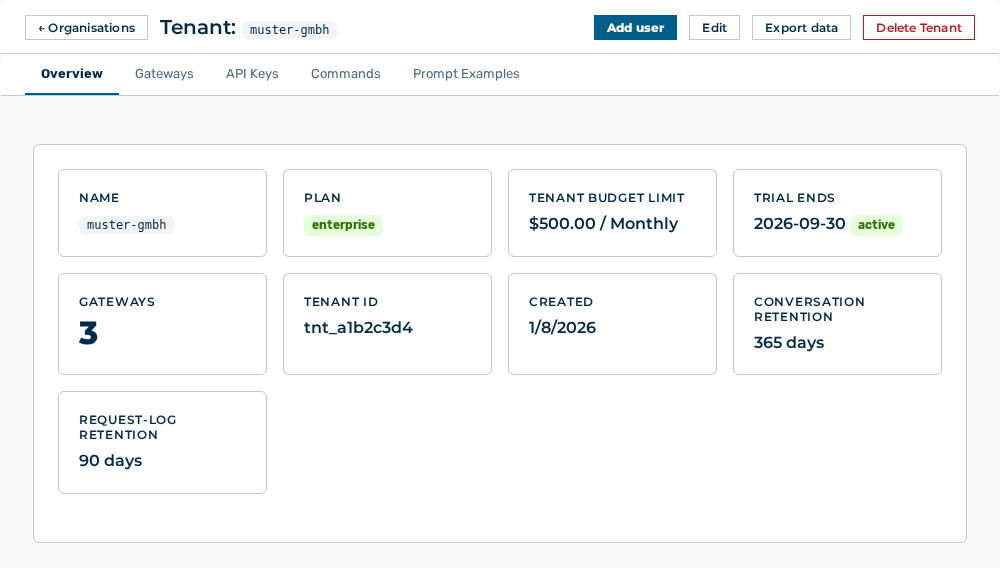
The Organisation view lists the settings of your own tenant. Myra AI Workspace opens the detail view of your tenant immediately. Above the content, the Tenant:
The following information is available:
| Tab | Description |
|---|---|
| Overview | Lists the statistics of the tenant. |
| Gateways | Lists the gateways of the tenant. |
| API Keys | Lists the admin API keys of the tenant. |
| Commands | Lists the shared commands that are available to all users of the tenant in Chat. |
| Prompt Examples | Lists the prompt examples that appear on the home screen. |
The following options are available:
| Option | Description |
|---|---|
| ← Organisations button | Goes to the list of the organisations. For the Tenant Administrator role, Myra AI Workspace opens the detail view of your own tenant again. |
| Edit button | Opens the Edit: |
| Add user button | Opens the dialog that creates a user account in this tenant. After the creation, the view shows User added to this tenant. |
| Export data button | Exports the data of the tenant. While the export runs, the button shows the Exporting… label. |
| Delete Tenant button | Opens the Delete tenant " |
Overview tab
Detail panel of a tenant
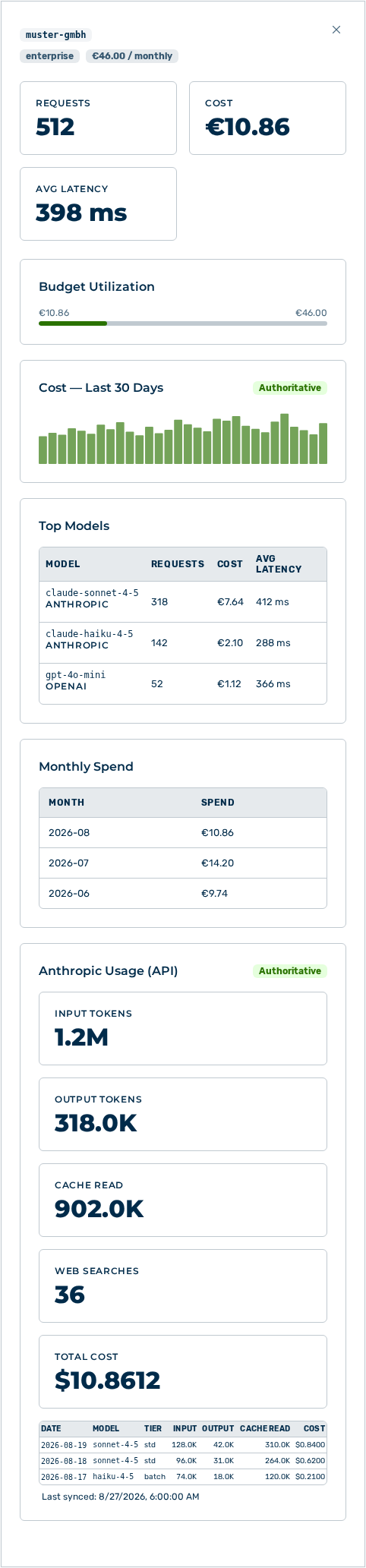
The following statistics are available:
| Statistic | Description |
|---|---|
| Name | Identifier of the tenant. |
| Plan | Plan of the tenant: Free, Standard, or Enterprise. |
| Tenant Budget Limit | Spend cap with its period (Monthly, Daily, or Lifetime). If no budget is set, the unlimited entry appears. |
| Trial ends | Last day of the trial with the active or expired marker. The statistic appears only for a tenant with a trial. |
| Gateways | Number of the gateways of the tenant. |
| Tenant ID | Internal identifier of the tenant. |
| Created | Time at which the tenant was created. |
| Conversation retention | Period in days after which Myra AI Workspace deletes inactive conversations. If no period is set, the Disabled entry appears. |
| Request-log retention | Period in days after which Myra AI Workspace deletes request logs. If no period is set, the Disabled entry appears. |
Gateways tab
Gateways tab
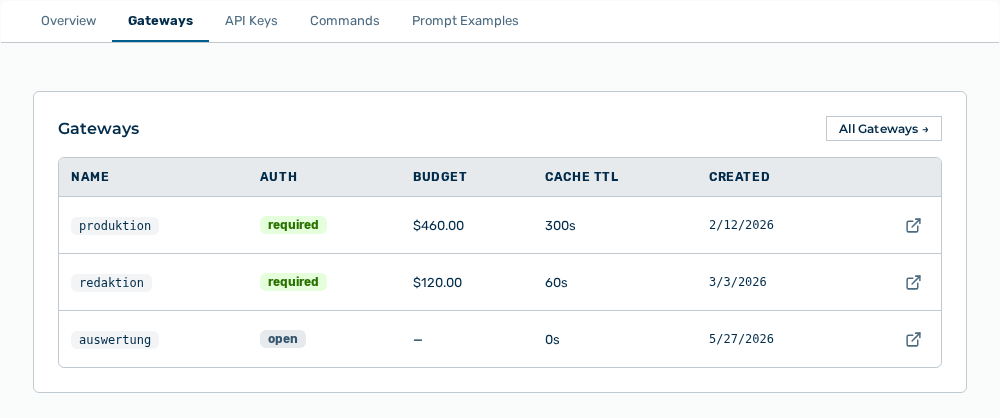
The following information is available:
| Column | Description |
|---|---|
| Name | Identifier of the gateway. |
| Auth | Shows whether a request must carry an authentication token: required or open. |
| Budget | Spend cap of the gateway. |
| Cache TTL | Lifetime of the cache in seconds. |
| Created | Time at which the gateway was created. |
The following options are available:
| Option | Description |
|---|---|
| All Gateways → button | Opens the Gateways view. |
| Open → row action | Opens the detail view of the gateway in the row. |
Note
If no gateway exists yet, the tab shows No gateways yet. With the All Gateways button you create one.
API Keys tab
API Keys tab
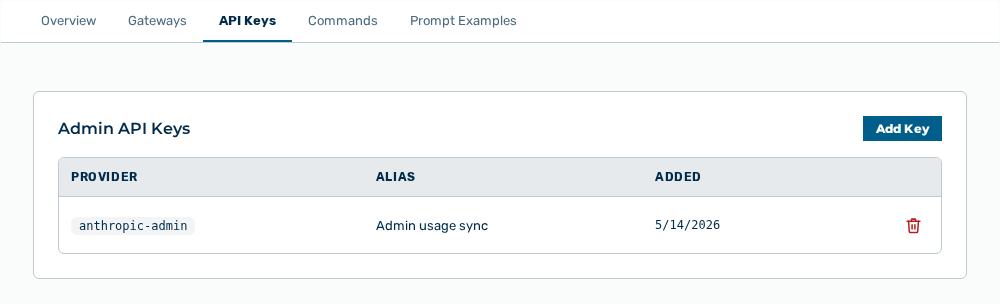
The following information is available:
| Column | Description |
|---|---|
| Provider | Provider to which the key belongs. |
| Alias | Label of the key. |
| Added | Time at which the key was stored. |
The following options are available:
| Option | Description |
|---|---|
| Add Key button | Opens the form for an Anthropic Admin Key. Myra AI Workspace stores the key encrypted and uses it to sync the usage data of the Anthropic Admin API. |
| Save Key button | Stores the key you entered. While the key is stored, the button shows the Saving… label. |
| Remove row action | Opens the Remove |
Note
If no key exists, the tab shows No admin keys configured. Add an Anthropic Admin key (sk-ant-admin01-…) to enable authoritative usage reporting.
Commands tab
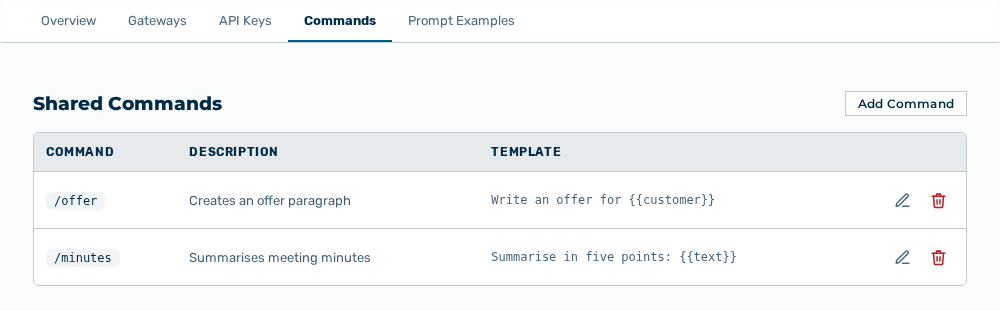
Commands tab
The following information is available:
| Column | Description |
|---|---|
| Command | Shortcut of the command in the form / |
| Description | Short description that appears in the picker in Chat. |
| Template | Text that the command puts into the input field. Placeholders are written in double braces. |
The following options are available:
| Option | Description |
|---|---|
| Add Command button | Opens the Add Shared Command dialog. The dialog expects a Name, a Description, and a Template. |
| Edit row action | Opens the Edit / |
| Delete row action | Opens the Remove this command? prompt. |
Note
If the name is missing, the dialog shows Name is required. If the template is missing, the dialog shows Template is required. If no command exists yet, the tab shows No shared commands yet. Commands defined here are available to all users in this tenant via the /commandname shortcut in Chat.
Prompt Examples tab
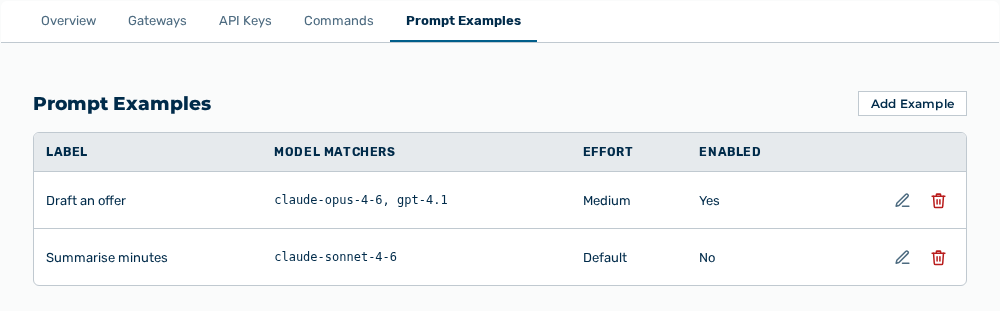
Prompt Examples tab
The following information is available:
| Column | Description |
|---|---|
| Label | Label of the example that appears on the home screen. |
| Model matchers | Ordered list of the preferred models. The first model available to the tenant wins. |
| Effort | Reasoning effort for reasoning models: Default, Low, Medium, High, Extra, or Max. |
| Enabled | Shows whether the example appears on the home screen: Yes or No. |
The following options are available:
| Option | Description |
|---|---|
| Add Example button | Opens the Add Prompt Example dialog with the Content, Steering, and Routing & behaviour sections. |
| Edit row action | Opens the Edit dialog. |
| Delete row action | Opens the Remove this prompt example? prompt. |
Note
If the label is missing, the dialog shows Label is required. If the prompt is missing, the dialog shows Prompt is required. If no example exists yet, the tab shows No prompt examples yet. Examples appear under the Prompt Examples tile on the /easy home screen.
Note
The Add user button needs the Manage tenant users permission. The Delete Tenant button needs the Purge tenants permission. This permission stays with the Administrator role.
Note
The Organisation entry appears for the Tenant Administrator role only. For the AI Manager and Finance roles it does not appear in the Settings area.