Managing governance templates
A governance template maps compliance obligations onto the settings of a gateway.
Creating a governance template
The following requirements are met:
- ☑ Your user account has the Manage governance rules, prompts, and approvals permission.
Proceed as follows to create a governance template:
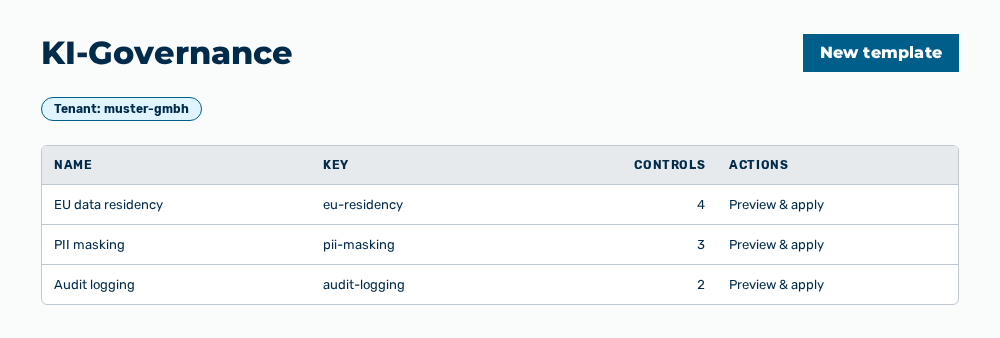
Security view
-
► In the Settings area, open the Security group.
- ▷ On the start page, click on your name at the bottom of the navigation bar.
- ↳ The user menu opens.
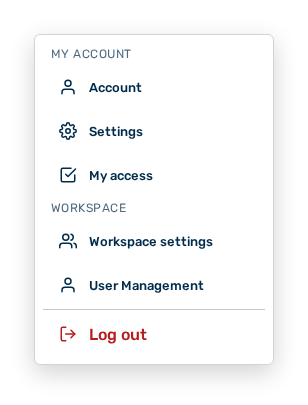
User menu
- ▷ In the My Account group, click on the Settings entry.
- ↳ The navigation bar shows the Settings area.
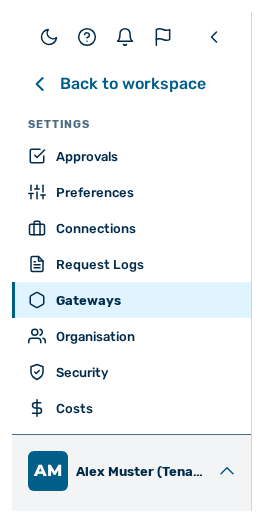
Navigation bar in the Settings area
- ▷ In the navigation bar, click on the Security group.
- ► Click on the New template button.
- ↳ The New governance template dialog opens.
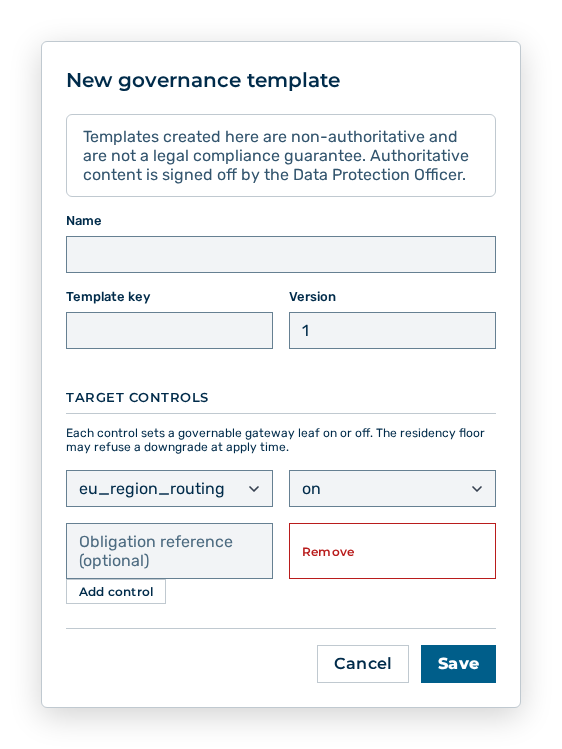
New governance template dialog
- ► Enter the Name, the Template key, and the Version.
- ► Click on the Add control button.
- ► Set the Control, the Value, and, optionally, the Obligation reference.
- ► Save the template.
- ➔ Myra AI Workspace creates the template.
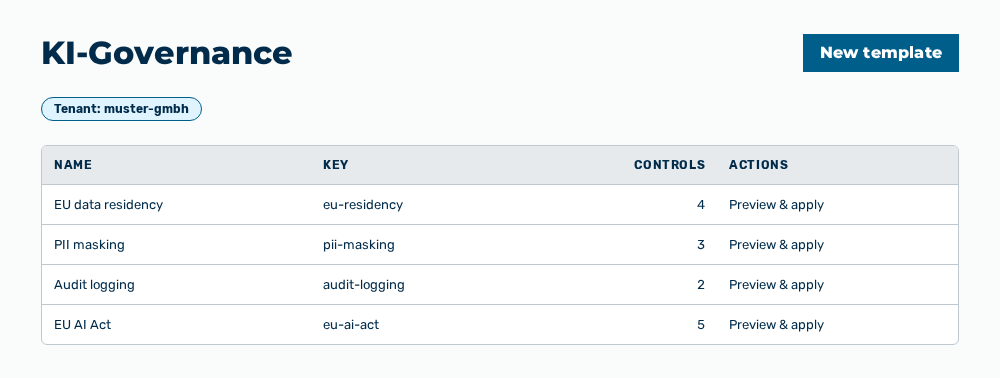
AI governance view with the new template
Entries in the New governance template dialog
New governance template dialog
You set the following entries when you create the template:
| Entry | Description |
|---|---|
| Name | Name of the template in the list. The name holds a maximum of 255 characters. The entry is mandatory. |
| Template key | Technical key of the template, for example gdpr-basic. The key holds a maximum of 190 characters and appears in the Key column. The entry is mandatory. |
| Version | Version of the template as an integer from 1 on. The version appears in the Key column after the key, for example v1. |
| Target controls | List of the controls the template sets on a gateway. Each row carries the Control and Value drop-down lists and the Obligation reference input field. |
| Control | Governable option of the gateway the template sets. |
| Value | State of the option: on or off. |
| Obligation reference | Reference to the compliance obligation this control satisfies, for example the article of a regulation. The entry is optional. |
The following options are available in the dialog:
| Option | Description |
|---|---|
| Add control button | Adds a row for one more control. The button is disabled if no governable option is available. |
| Remove button | Removes the row from the target controls. |
| Save button | Creates the template. The button is disabled while Name or Template key is empty. |
| Cancel button | Closes the dialog without creating the template. |
Note
The dialog states: Templates created here are non-authoritative and are not a legal compliance guarantee. Authoritative content is signed off by the Data Protection Officer. A template created this way carries the Non-authoritative label in the list.
Entries in the Edit governance template dialog
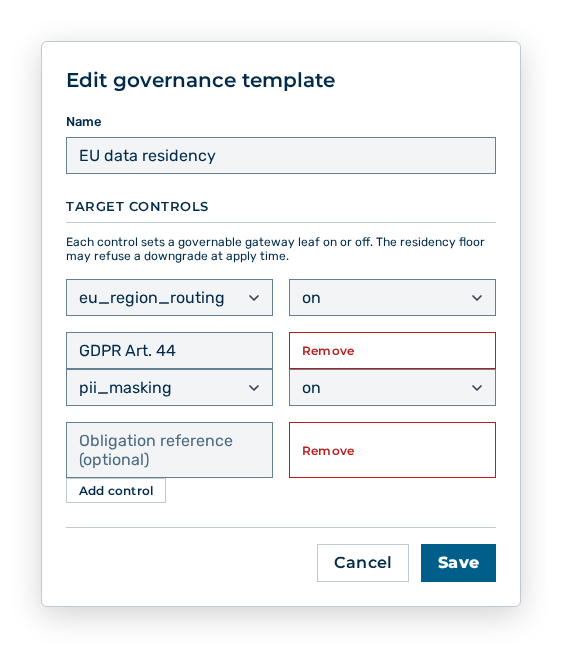
Edit governance template dialog
You change the following entries in the dialog:
| Entry | Effect of the change |
|---|---|
| Name | Changes the name in the list and in the title of the Preview & apply dialog. |
| Target controls | Changes which options the template sets. The change takes effect only when you apply the template to a gateway again. Controls that were applied already stay unchanged on the gateways. |
Note
Template key and Version cannot be changed after the creation. The dialog shows both fields only when you create the template. For an authoritative template the Edit and Delete row actions are disabled and carry the note Authoritative templates are read-only.
Applying a governance template
Proceed as follows to apply a governance template to a gateway:
Security view
-
► In the Settings area, open the Security group.
- ▷ On the start page, click on your name at the bottom of the navigation bar.
- ↳ The user menu opens.
User menu
- ▷ In the My Account group, click on the Settings entry.
- ↳ The navigation bar shows the Settings area.
Navigation bar in the Settings area
- ▷ In the navigation bar, click on the Security group.
- ► Open the template.
- ► Select the gateway.
- ↳ The preview shows which settings of the gateway change.
- ► Apply the template.
- ➔ Myra AI Workspace puts the settings into the gateway.
AI governance view
Note
Myra AI Workspace always enforces the residency minimum. A template does not lower it.
Entries in the Preview & apply dialog
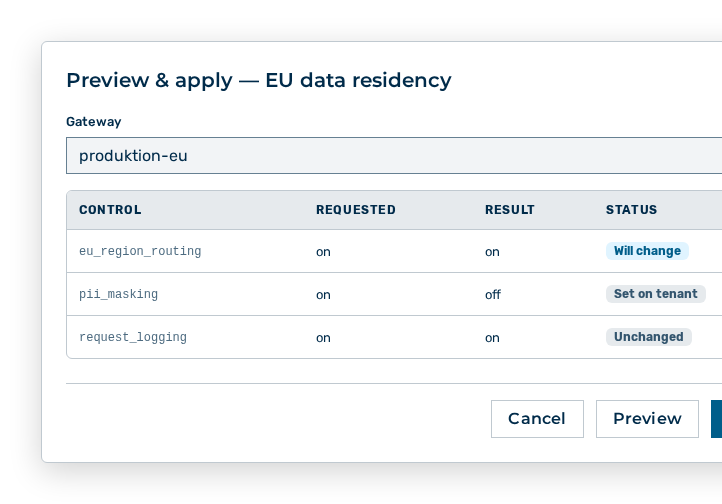
Preview & apply dialog
The Preview & apply —
You set the following entries in the dialog:
| Entry | Description |
|---|---|
| Gateway | Gateway the template acts on. The drop-down list shows the gateways of the selected tenant. While no gateway is selected, the Preview and Apply buttons are disabled. |
The preview shows the following information for each control:
| Column | Description |
|---|---|
| Control | Governable option of the gateway. |
| Requested | Value the template wants to set: on or off. |
| Result | Value the option carries after the apply. |
| Status | Will change, Unchanged, Blocked by residency floor or Set on tenant. |
The following options are available in the dialog:
| Option | Description |
|---|---|
| Preview button | Compares the template with the selected gateway and shows the table of the differences. The gateway does not change. |
| Apply button | Writes the controls to the gateway and shows Template applied. The button is disabled if no control changes the gateway. The button then carries the note Nothing to apply — no control changes the gateway. |
Note
If the template changes nothing, the dialog shows This template changes nothing on the selected gateway. After the apply, the dialog shows Applied to the gateway.
Note
Myra AI Workspace always enforces the residency floor. A downgrade carries the Blocked by residency floor status with the note The tenant residency floor refuses this downgrade — not applied. PII masking carries the Set on tenant status with the note PII masking is set on the tenant, not on a gateway.
Deleting a governance template
Proceed as follows to delete a governance template:
Security view
-
► In the Settings area, open the Security group.
- ▷ On the start page, click on your name at the bottom of the navigation bar.
- ↳ The user menu opens.
User menu
- ▷ In the My Account group, click on the Settings entry.
- ↳ The navigation bar shows the Settings area.
Navigation bar in the Settings area
- ▷ In the navigation bar, click on the Security group.
- ► Delete the template.
- ↳ The Delete the template '
'? query opens.
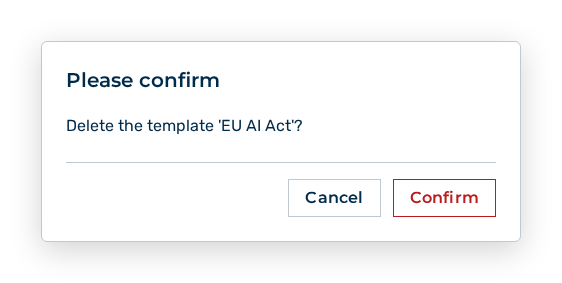
Delete template query
- ► Confirm the query.
- ➔ Myra AI Workspace shows Template deleted. The settings already applied to the gateways stay as they are.
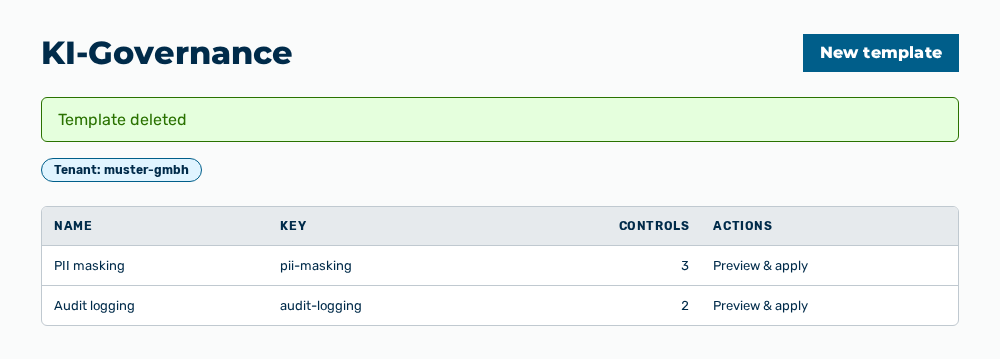
AI governance view with the message
Effects of the deletion
The deletion has the following effects:
| Object | Effect |
|---|---|
| Template | Myra AI Workspace removes the template from the list. The template is no longer available for the preview and the apply. |
| Gateways | The controls that were applied already stay on the gateways. The deletion resets no gateway. |
| Obligation references | The references of the template are removed with it. The record of the mapping no longer exists. |
Note
An authoritative template cannot be deleted. The Delete row action is disabled and carries the note Authoritative templates are read-only.
Note
The Security group does not appear for the Finance role.