Report this response dialog
The dialog reports a response to Myra Security GmbH for review. The dialog carries the Help us improve our models and content filters. Your report goes to Myra Security GmbH for review. hint.
Proceed as follows to report a response:
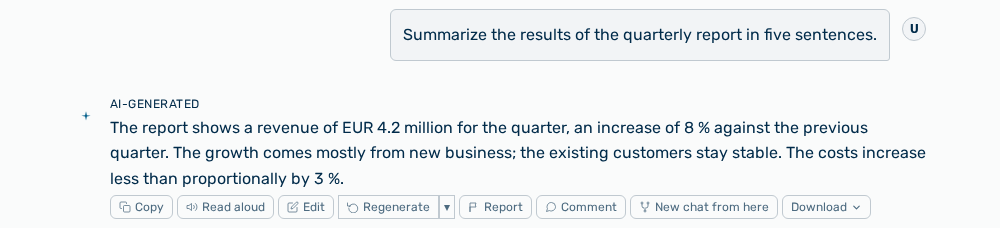
Actions on a response
- ► On the response, click on the Report action.
- ▷ On the start page, open the Chat view in the Workspace work area.
- ↳ The Report this response dialog opens.
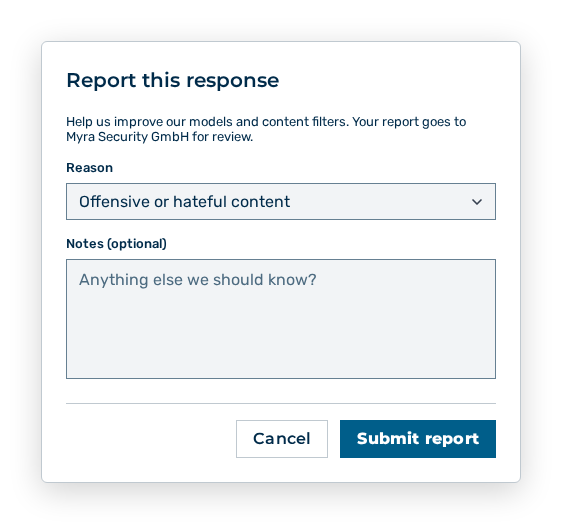
Report this response dialog
- ► In the Reason select field, select the matching reason.
- ► If necessary, describe the case in the Notes (optional) text field.
- ► Click on the Submit report button.
- ➔ Myra AI Workspace states Report submitted.
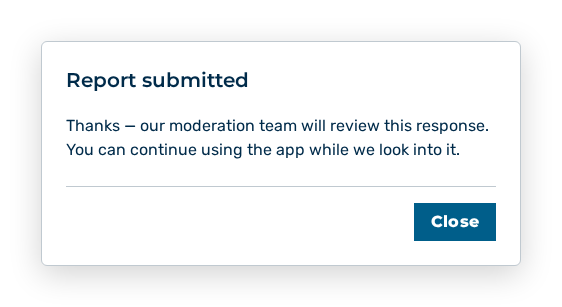
Report submitted dialog
The following entries are available in the dialog:
| Entry | Description |
|---|---|
| Reason | Type of the problem. Offensive or hateful content, Unsafe or dangerous advice, Inaccurate or misleading, and Other are available. |
| Notes (optional) | Free text with the Anything else we should know? placeholder. Describe here what is wrong with the response. |
| Cancel button | Closes the dialog without a report. |
| Submit report button | Sends the report. During the send the button carries the Sending… label. |
Note
If the report cannot be submitted, the dialog states Failed to submit report and stays open with your entries. The reported response appears for the administration in the Reports view.