Managing your own MCP connectors
A connector for the Model Context Protocol (MCP) makes the tools of an external server available to the AI in the chat. A connector that you create yourself is yours alone — other users do not share your tokens.
Creating an MCP connector
The following requirements are met:
- ☑ Your user account has the Create and manage own MCP connectors permission.
- ☑ The address of the MCP server and the related credentials are available.
Proceed as follows to create an MCP connector:
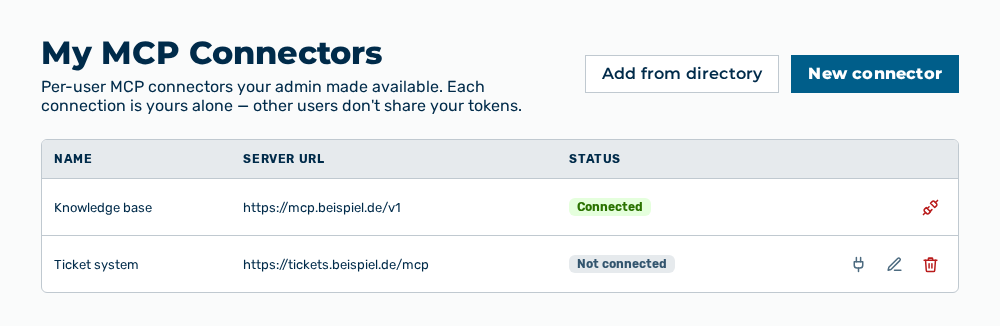
My MCP Connectors view
-
► In the Settings area, open the Connections group.
- ▷ On the start page, click on your name at the bottom of the navigation bar.
- ↳ The user menu opens.
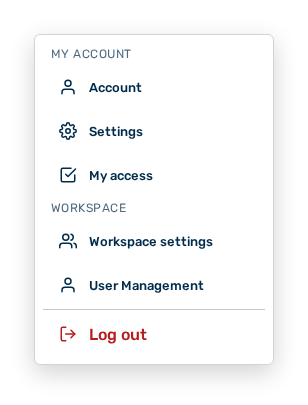
User menu
- ▷ In the My Account group, click on the Settings entry.
- ↳ The navigation bar shows the Settings area.
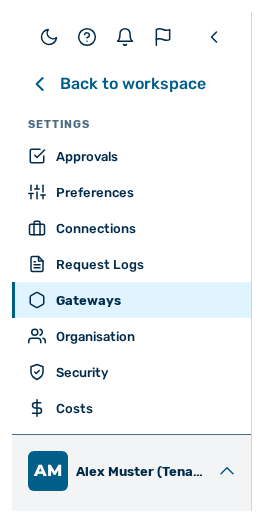
Navigation bar in the Settings area
- ▷ In the navigation bar, click on the Connections group.
- ► Click on the New connector button.
- ↳ The New MCP Connector dialog opens.
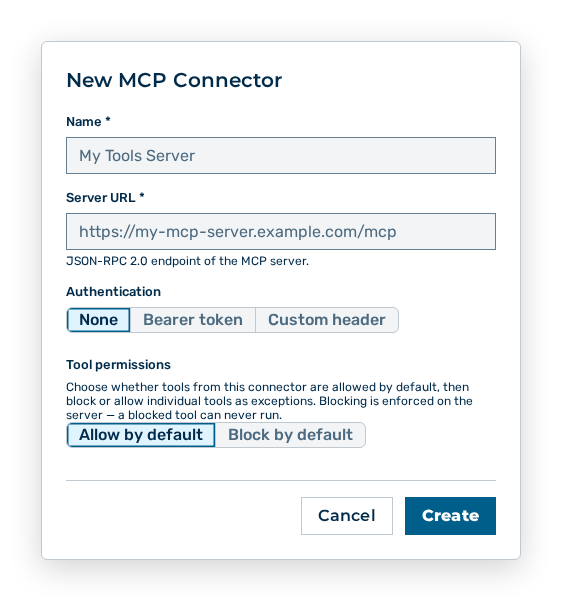
New MCP Connector dialog
- ► Enter the name and the address of the server.
- ► Give the credentials.
- ► Save the connector.
- ➔ Myra AI Workspace creates the connector. The AI calls its tools in the chat.
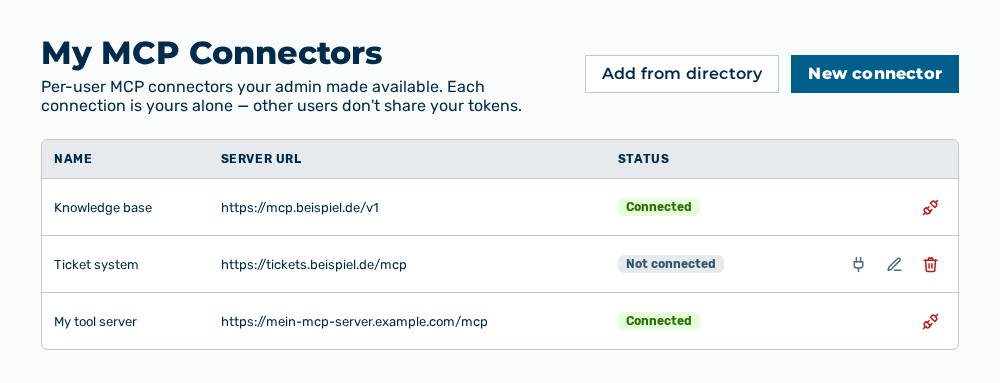
My MCP connectors view with the new connector
Note
A connector that your administration made available can only be connected and disconnected. Edit and delete are available for your own connectors only.
Entries in the New MCP Connector dialog
New MCP Connector dialog
You set the following entries when you create the connector:
| Entry | Description |
|---|---|
| Name | Name of the connector in the list, for example My Tools Server. The entry is mandatory. |
| Server URL | JSON-RPC 2.0 endpoint of the MCP server, for example https://my-mcp-server.example.com/mcp. The entry is mandatory. |
| Authentication | Method with which the connector signs in to the server: None or Bearer token. For your own connector, a custom header is not available, because Myra AI Workspace always sends a personal credential as a bearer token. |
| Tool permissions | Basic rule for the tools of this connector: Allow by default or Block by default. Myra AI Workspace enforces the rule on the server. A blocked tool never runs. |
If you select Bearer token, the OAuth (advanced) area gives you these entries in addition:
| Entry | Description |
|---|---|
| Authorize URL | Address at which you sign in to the provider. |
| Token URL | Address at which the provider issues the tokens. |
| OAuth Client ID | Identifier of the OAuth app at the provider. |
| OAuth Client Secret | Secret of the OAuth app. Myra AI Workspace stores it encrypted and never shows it again. PKCE is always used. For a public client, the field stays blank. |
| Scopes | Space-separated permissions that the sign-in requests. The entry is optional. |
The following options are available in the dialog:
| Option | Description |
|---|---|
| Create button | Creates the connector. While it stores, the button carries the Saving… label. |
| Cancel button | Closes the dialog without creating the connector. |
Note
If a mandatory entry is missing, the dialog shows Name is required or Server URL is required.
Note
The dialog carries the note You'll provide your personal credential after saving — either via Connect (paste a token) or by configuring the sign-in below. The OAuth (advanced) area is the way for a connector with a sign-in at the provider. Without it, you paste your token through the Connect row action.
Editing an MCP connector
Proceed as follows to edit one of your own MCP connectors:
My MCP Connectors view
-
► In the Settings area, open the Connections group.
- ▷ On the start page, click on your name at the bottom of the navigation bar.
- ↳ The user menu opens.
User menu
- ▷ In the My Account group, click on the Settings entry.
- ↳ The navigation bar shows the Settings area.
Navigation bar in the Settings area
- ▷ In the navigation bar, click on the Connections group.
- ► In the row of the connector, click on the Edit button.
- ↳ The Edit MCP Connector dialog opens.
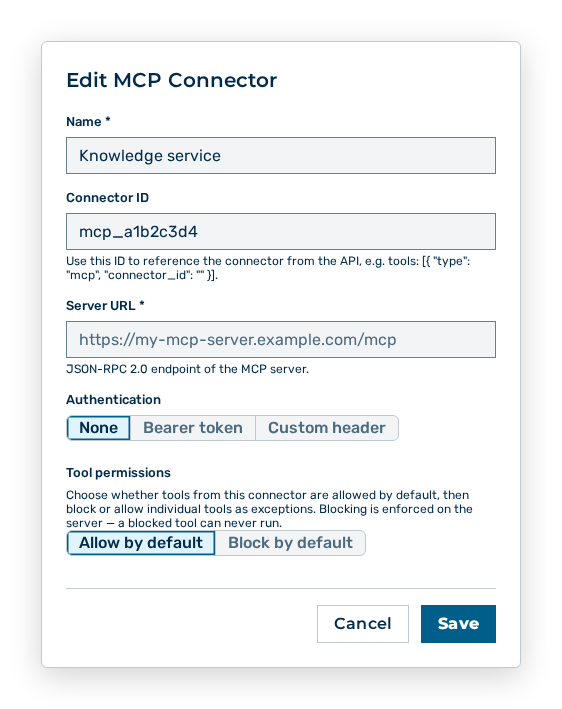
Edit MCP Connector dialog
- ► Change the data.
- ► Save the connector.
- ➔ Myra AI Workspace applies the change.
My MCP connectors view
Note
The field for the stored secret stays empty. Leave it empty to keep the stored secret.
Entries in the Edit MCP Connector dialog
Edit MCP Connector dialog
You change the following entries in the dialog:
| Entry | Effect of the change |
|---|---|
| Name | Changes the name in the list and in the heading of the Connect |
| Server URL | Points the connector at a different server. The AI then calls the tools of this server. If your access token is not valid there, the calls fail and you connect the connector again. |
| Authentication | Changes the sign-in method. On a change, Myra AI Workspace discards the value entered so far. Store your credential again through the Connect row action. |
| OAuth Client Secret | Replaces the stored secret. If you leave the field blank, Myra AI Workspace keeps the stored secret. |
| Tool permissions | Changes which tools the AI calls. The change applies immediately to each new call. A blocked tool never runs. |
The following entry is no longer changeable after the connector is created:
| Entry | Description |
|---|---|
| Connector ID | Identifier of the connector. You address the connector by this identifier from the API. The Copy button puts the identifier on the clipboard. |
Note
The per-tool exceptions appear as soon as the tools of the server are known. While none are known, the Tool permissions area carries the note that you load this connector's tools with the Test connection button and then set per-tool exceptions. For each tool, you then set Allow or Block.
Deleting an MCP connector
Proceed as follows to delete one of your own MCP connectors:
My MCP Connectors view
-
► In the Settings area, open the Connections group.
- ▷ On the start page, click on your name at the bottom of the navigation bar.
- ↳ The user menu opens.
User menu
- ▷ In the My Account group, click on the Settings entry.
- ↳ The navigation bar shows the Settings area.
Navigation bar in the Settings area
- ▷ In the navigation bar, click on the Connections group.
- ► In the row of the connector, click on the Delete button.
- ↳ The Delete "
"? This removes the connector and can't be undone. query opens.
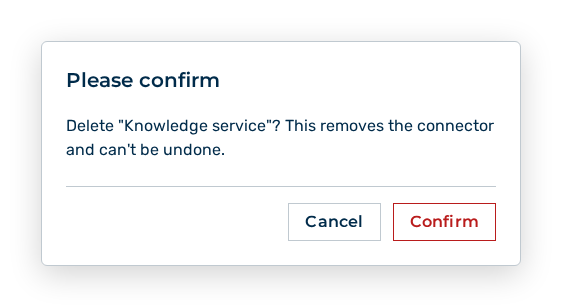
Delete MCP connector query
- ► Confirm the query.
- ➔ Myra AI Workspace deletes the connector.
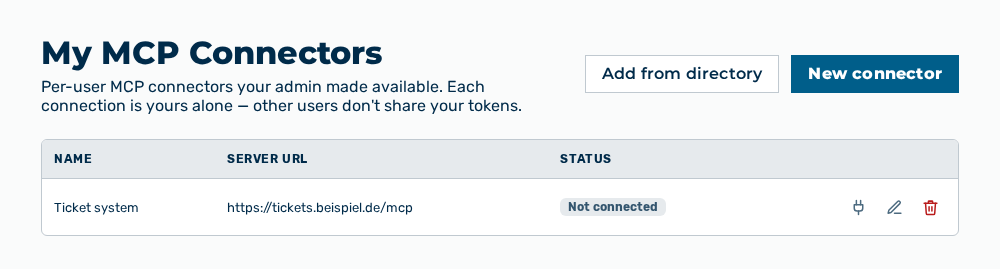
My MCP connectors view without the connector
Effects of the deletion
The deletion has the following effects:
| Object | Effect |
|---|---|
| Connector | Myra AI Workspace removes the connector from the list. The connector cannot be restored. |
| Credential | Myra AI Workspace deletes your stored access token together with the connector. The token at the provider stays. Revoke it there if it is no longer to be valid. |
| Tool permissions | The basic rule and the per-tool exceptions go with the connector. |
| Chat | The AI no longer calls the tools of this server. A task that needs such a tool then fails. |
| Conversations | The answers already produced stay in the conversations. |
| API | Calls that address the connector by its Connector ID no longer find it. |
Note
These tasks describe the personal connectors of the AI Manager role. The Finance role creates no own MCP connectors.