Workspace settings
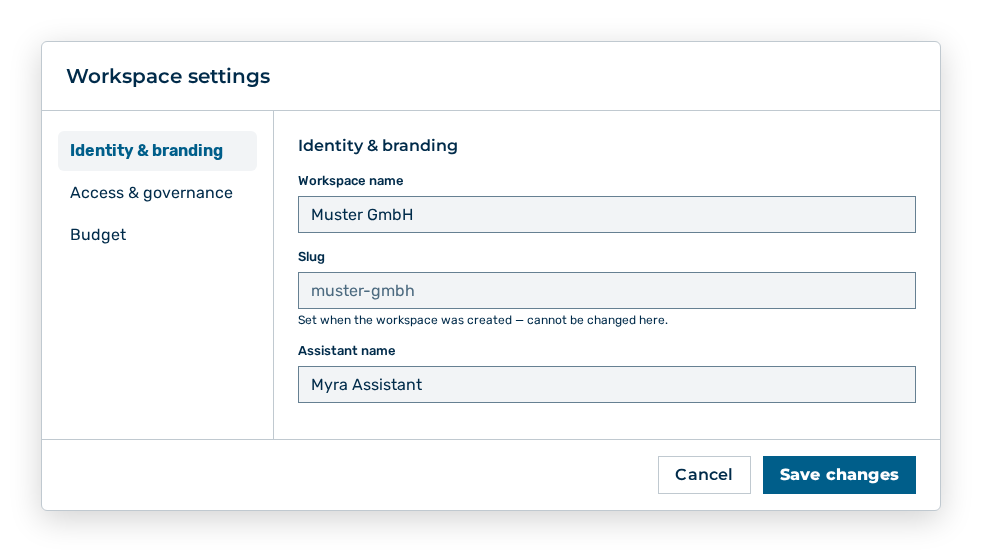
Workspace settings dialog
The Workspace settings dialog holds the basic settings of your workspace. You open it from the Workspace group of the user menu. The dialog saves each section on its own.
The following information is available:
| Section | Description |
|---|---|
| Identity & branding | Workspace name, slug, and assistant name. |
| Access & governance | Sign-in through an identity provider, the default role for new users, and the four-eyes principle. |
| Budget | Monthly budget of the workspace and the platform cap. |
Identity & branding section
The following entries are available:
| Entry | Description |
|---|---|
| Workspace name | Display name of the workspace. Up to 80 characters are permitted. |
| Slug | Identifier of the workspace. The entry is read-only and carries the note Set when the workspace was created — cannot be changed here. |
| Assistant name | Name that the assistant uses in the chat. Up to 80 characters are permitted. |
Access & governance section
The following entries are available:
| Entry | Description |
|---|---|
| Single sign-on (OIDC), SAML 2.0 SSO, and SCIM provisioning | Set up the sign-in and the provisioning of the user accounts through your identity provider. The entries are the same as on the Identity & SSO tab of the tenant administration. |
| Default role for new users | Role that a newly created user account receives. |
| Require a second admin's approval (four-eyes) for tenant-admin changes | Holds the changes of a tenant administrator for approval. The check box carries the note When on, a tenant admin's changes here are held for a platform admin to approve — never applied immediately. |
Budget section
The following entries are available:
| Entry | Description |
|---|---|
| Monthly budget | Spending limit of the workspace for each month. If you keep the field empty, the Unlimited entry applies. |
| Platform cap | Cap that a platform administrator set. The entry is read-only. If no cap exists, the field shows No cap set. |
| Action when the cap is reached | Behaviour when the cap is reached. The drop-down list holds the Reject new requests entry and is disabled. |
The following options are available:
| Option | Description |
|---|---|
| Save changes button | Saves the open section. During the save the button shows Saving…. If the change goes for approval, the button shows Send for approval instead and submits the section. |
| Cancel button | Closes the dialog without a save. |
Note
The button saves the open section only. Save each changed section on its own. If a section carries no change, the dialog shows Nothing to save.
Note
Budget changes of the Tenant Administrator role always go for approval. The section carries the note Budget changes are always sent for a platform admin's approval. After the submission the dialog shows Submitted for approval. A platform admin will review this change.
Note
Myra AI Workspace saves the Identity & branding and Access & governance sections immediately and shows Saved. If the four-eyes principle is on, the button shows Send for approval there too.
Note
If the amount is not valid, the dialog shows Enter a valid amount, or leave it empty for unlimited. If the amount is more than the platform cap, the dialog shows Cannot exceed the platform-admin-set cap of
Note
The Workspace settings entry appears for the Tenant Administrator role only.