List of the agents
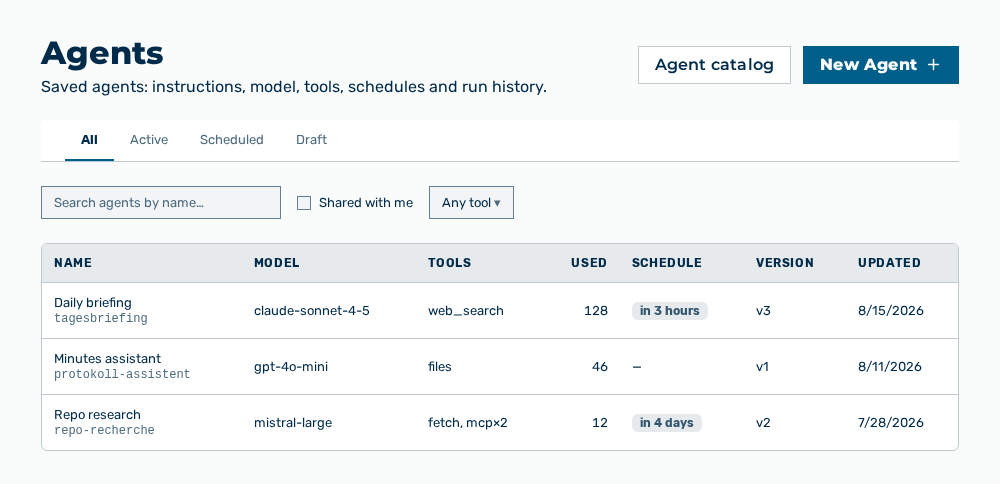
List of the agents
The following information is available:
| Column | Description |
|---|---|
| Name | Name of the agent. The shared label stands for an agent that another person shared with you. |
| Model | Model the agent runs on. If no model is set, then no model appears there. |
| Tools | Tools the agent may use: Web search, Knowledge files, Fetch, and MCP connectors. |
| Used | Number of the previous invocations of the agent. |
| Schedule | Next run as well as the number of the active schedules in the |
| Version | Current version of the agent. |
| Updated | Time of the last change. |
The following options are available:
| Option | Description |
|---|---|
| New Agent button | Opens the New Agent dialog. |
| Buttons below Start from a template: | Open the New Agent dialog with the instructions of the selected template: Daily Brief, Meeting Notes, Web Researcher, PII-Safe Document Q&A, Repo Researcher, Docs Assistant, or GitHub Triage. |
| Access level selection list | Gateway whose agents the list holds. The hint below the selection list describes the selected level. |
| Agent catalog button | Opens the Agent catalog dialog. |
| All, Active, Scheduled, and Draft tabs | Restrict the list to the respective status. |
| Search agents by name… input field | Restricts the list to a search term in the name. |
| Shared with me check box | Restricts the list to the agents that other people shared with you. |
| Filter by tool selection list | Restricts the list to one tool: Web search, Knowledge files, Fetch, or MCP connectors. The Any tool entry removes the restriction. |
| Filter by tag selection list | Restricts the list to one tag. The Any tag entry removes the restriction. |
| Filter by usage selection list | Restricts the list to Used or Never used. The Any usage entry removes the restriction. |
| Sort by selection list | Order of the list: Newest, Recently updated, Name (A–Z), or Most used. |
| Open row action | Opens the detail view of the agent. |
Note
If no agent exists yet, then the view reports No agents here yet. with the Create your first agent button and the Name & instructions, Pick model & tools, and Run or schedule steps. If no agent matches the filters, then the list reports No agents match the current filters. If the loading fails, then the view reports Could not load agents.
The following options are available in the header of the detail view:
| Option | Description |
|---|---|
| ← Back button | Returns to the list of the agents. |
| Edit button | Opens the Edit Agent dialog with the entries of the agent. |
| Share button | Opens the Share " |
| Duplicate button | Opens the Duplicate Agent dialog and creates your own copy. |
| Delete button | Opens the Delete agent " |