Step 9: Send a test request and examine it
The initial setup is complete only when a request has demonstrably gone through the gateway.
The following requirements are met:
- ☑ Step 8 is complete, see Issue a token.
Proceed as follows to send a test request and examine it:
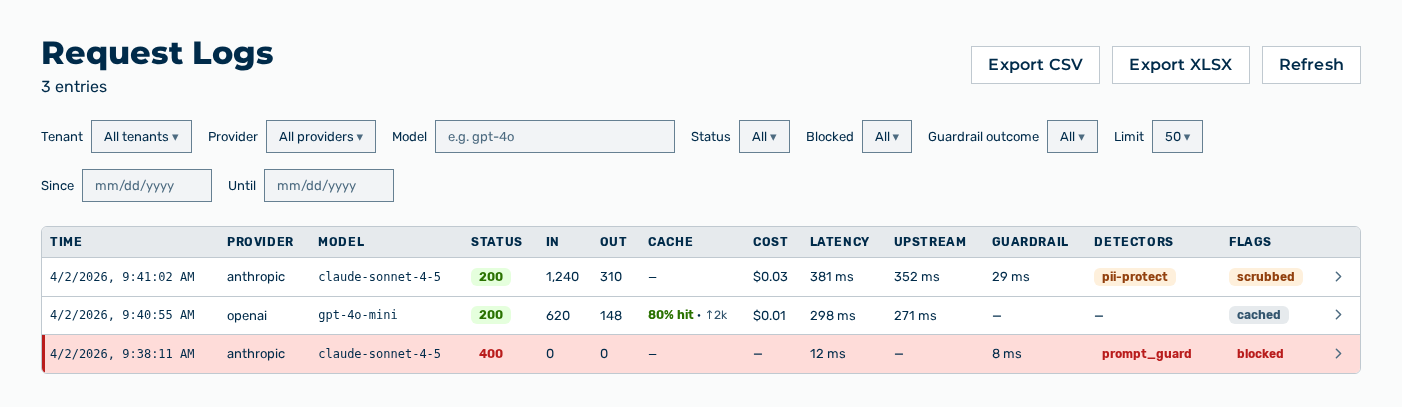
Request Logs view
- ► In the detail view of the gateway, copy the endpoint URL with the Copy button.
- ▷ On the start page, click on your name at the bottom of the navigation bar.
- ▷ In the user menu, click on Settings.
- ▷ Open the Gateways group.
- ▷ Open the gateway with the Open → row action.
- ↳ The address has the form
https://<host>/v1/<tenant>/<gateway>/compat/chat/completions. The selection list is set to compat. This endpoint finds the provider from the name of the model. - ► Send a request to this address with the token from step 8 in the
Authorization: Bearerheader. -
► In the Settings area, open the Request Logs entry.
- ▷ On the start page, click on your name at the bottom of the navigation bar.
- ↳ The user menu opens.
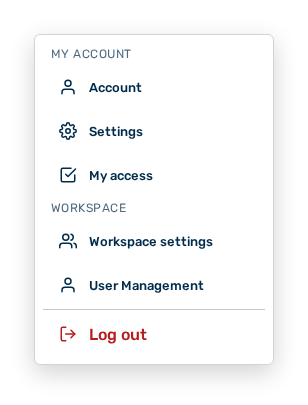
User menu
- ▷ In the My Account group, click on the Settings entry.
- ↳ The navigation bar shows the Settings area.
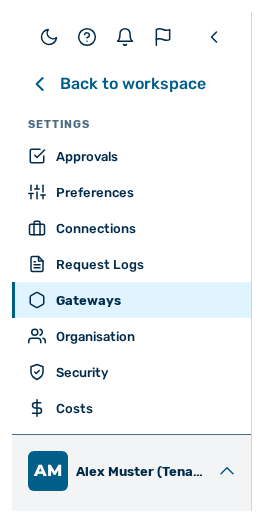
Navigation bar in the Settings area
- ▷ In the navigation bar, click on the Request Logs entry.
- ➔ The request appears in the list with the provider, the model, the number of the tokens, the cost, and the latency.
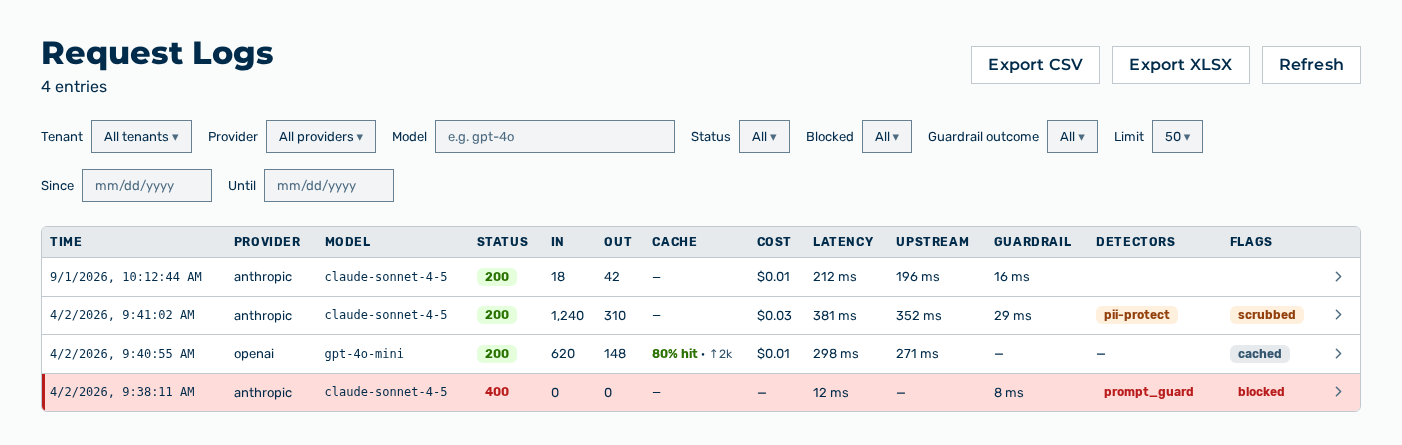
Request logs view with the new request
The request has the following form:
curl -s -X POST \
  "https://<Host>/v1/<Mandant>/<Gateway>/compat/chat/completions" \
  -H 'Content-Type: application/json' \
  -H 'Authorization: Bearer <Token>' \
  -d '{
    "model": "gpt-4o",
    "messages": [{"role": "user", "content": "Hello!"}]
  }'
If the request does not appear, examine the message that the call returned. The sections of the FAQ & Error messages chapter name the causes.