Workflows
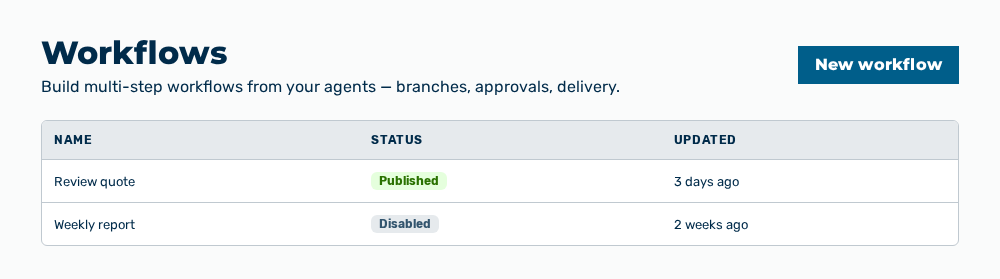
Workflows view
The Workflows view builds multi-step workflows from your agents — with branches, approvals and delivery. The list shows the workflows of the selected access tier.
The following information is available:
| Column | Description |
|---|---|
| Name | Name of the workflow. |
| Status | State of the workflow: Draft, Published or Disabled. Only a published workflow runs. |
| Updated | Time of the last change, as a distance from the present. |
The following options are available:
| Option | Description |
|---|---|
| New workflow button | Opens the New workflow dialog. The button is locked while no access tier is selected. |
| Access tier drop-down list | Selects the access tier whose workflows the list shows. The drop-down list appears only if more than one access tier exists. A hint about the selected tier is shown below it. |
| Open row action | Opens the builder of the workflow. |
| Duplicate row action | Creates a copy of the workflow and opens its builder. |
| Enable row action | Sets a disabled workflow to Published. |
| Disable row action | Sets the workflow to Disabled. Triggers no longer start a run. |
| Delete row action | Opens the Delete this workflow and all its runs? prompt. |
| Create example workflow button | Creates the example workflows and opens the first of them in the builder. The button appears only in the empty list. |
Note
If no workflow exists yet, the view shows No workflows yet with the text Create your first workflow to chain agents, add conditions and deliver results. If no access tier exists, the view shows this instead of the list. If the list cannot be loaded, the view shows Could not load workflows.
Note
The Workflows entry appears only if your administration has enabled the workflows for the workspace. The permission for this is called Enable or disable workflows for the workspace.
Note
For the Finance role, this view is not available. The entry does not appear in the navigation bar.
The following sections describe the view in detail: