Home page and GUI layout
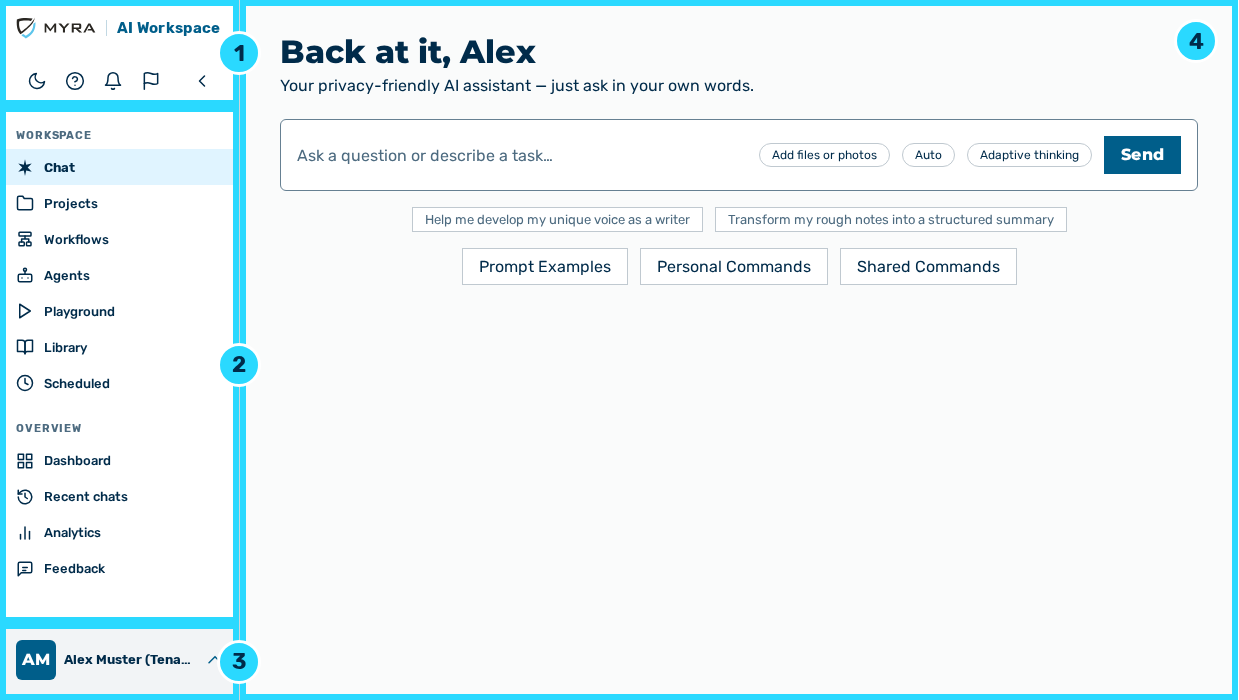
Layout of the interface
The following areas are available:
| No. | Area | Description |
|---|---|---|
| 1 | Header | Shows the logo and holds the Dark mode, Documentation, Notifications, Send feedback, and Collapse buttons. |
| 2 | Navigation area | Lists the entries of the current area, grouped by section. |
| 3 | User block | Shows your name with your role and opens the user menu. |
| 4 | Content area | Shows the selected view. |
The application separates the Workspace area from the areas of the administration. The workspace contains the daily work with the AI. The areas of the administration contain the settings. You move between them through your name at the bottom of the navigation bar. The Back to workspace link at the top of the navigation bar goes from every area of the administration back to the workspace.
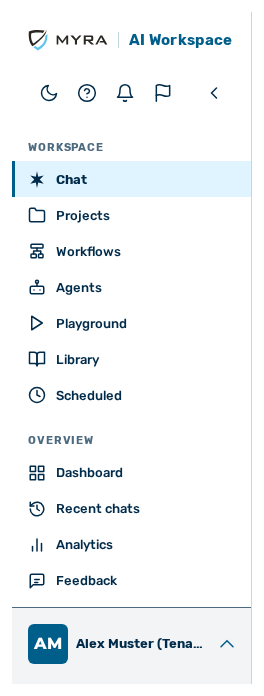
Navigation bar
The following options are available:
| Entry | Description |
|---|---|
| Chat | Opens a conversation with the AI. |
| Projects | Holds related chats, files, and its own instructions together, so that the AI uses the same context for one field of work. |
| Workflows | Creates multi-stage workflows from your agents — with branches, approvals, and delivery. |
| Agents | Lists the agents saved with their instructions, model, tools, schedules, and run history. |
| Playground | Runs a prompt against one or more models and presents the answers side by side. |
| Library | Shows in the Prompts tab the central prompt templates of the organization with categories, search, and versioning. |
| Scheduled | Runs a prompt on a schedule. The results appear in a conversation and, if you want, by email as well. |
| Dashboard | Shows the real-time metrics of Myra AI Workspace. |
| Recent chats | Shows all conversations so far, the most recent first. |
| Analytics | Shows in the Cost Analytics and Live Monitor tabs the analyses of the cost and the operation. |
| Feedback | Shows in the Reports tab the reports of the users about model output that is inappropriate or inaccurate. |
Note
The entries of the navigation bar depend on the role:
- ■ For the AI Manager role, the Feedback entry does not appear.
- ■ For the AI Manager role, the Analytics entry holds the Cost Analytics tab only.
- ■ For the Finance role, the Workflows, Scheduled, Library, Analytics, and Feedback entries do not appear.
- ■ For the Finance role, the Dashboard view has the My usage title.
- ■ The Finance role creates no agents.
Proceed as follows to open an administration area:
- ► On the start page, click on your name at the bottom of the navigation bar.
- ↳ The user menu opens.
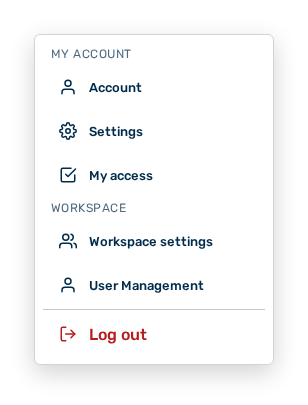
User menu
User menu
The user menu is divided into the My Account and Workspace groups. The Log out entry is below a separator.
The My Account group lists your personal areas.
The following options are available:
| Entry | Description |
|---|---|
| Account | Opens the Account area with your profile. |
| Settings | Opens the Settings area. |
| My access | Shows your role, the roles assigned to you, and your project memberships. |
The Workspace group lists the areas of the workspace.
The following options are available:
| Entry | Description |
|---|---|
| Workspace settings | Opens the Workspace settings dialog with the identity, the access, and the budget of the workspace. |
| User Management | Opens the User Management area. |
Note
The Workspace settings entry appears for the Tenant Administrator role only. For the Finance role, the Workspace group does not appear.
The Log out entry is below the separator. The entry logs you out of Myra AI Workspace.
- ► Click on the entry of the area you want.
- ➔ The navigation bar shows the selected area.
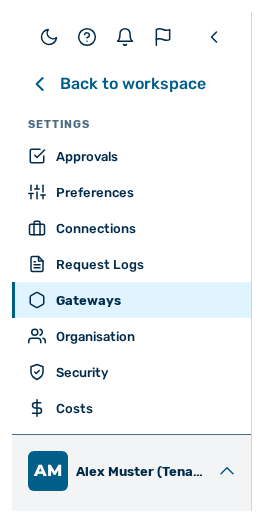
Navigation bar in the Settings area
In the Settings area, the navigation bar shows entries. An entry opens either a view or a view with tabs.
The following options are available:
| Entry | Description |
|---|---|
| Approvals | Processes the open approvals for workflows, agents, tools, and configurations. |
| Preferences | Sets the language, the currency, the chat behaviour, the personal commands, and the masking of personal data. |
| Connections | Manages the MCP connectors and the chat integrations. |
| Request Logs | Shows the request logs and the related traces. |
| Gateways | Manages the gateways, their routing, and their API tokens. |
| Organisation | Opens the detail view of your own tenant with the Overview, Gateways, API Keys, Commands, and Prompt Examples tabs. |
| Security | Manages the governance rules of the workspace. |
| Costs | Shows the cost allocation and the billing settings of the tenant. |
Note
For the AI Manager role, the Request Logs, Gateways, Organisation, and Costs groups do not appear either. For it, the Approvals group processes the approvals for workflows and configurations, and the Connections group manages its personal MCP connectors only. For the Finance role, the Request Logs, Gateways, Organisation, and Security groups do not appear. For it, the Settings area opens directly in the Costs group.
The User Management area shows one entry in the navigation bar. The view is divided into tabs.
The following options are available:
| Tab | Description |
|---|---|
| Members | Manages the users of the tenant and their roles. The list does not show the Administrator and Tenant Administrator roles. |
| Groups | Manages groups and their memberships, to give access by group. |
| Roles & permissions | Shows the system roles managed by Myra with their permissions. |
| Custom roles | Puts your own roles together from a curated set of permissions and assigns them to the users in the workspace. |
You assign the AI Manager, Member, Finance, and Viewer roles. You do not assign the Administrator, Tenant Administrator, and Demo User roles.
Note
For the AI Manager role, the User Management area holds the Groups tab only. The AI Manager role assigns no roles. For the Finance role, the User Management area does not appear in the user menu.
The Account area shows one entry in the navigation bar. The view is divided into tabs.
The following options are available:
| Tab | Description |
|---|---|
| Profile | Shows your profile, your tokens, and the data export. |
If your tenant manages its subscription itself, the Subscription & Billing group also appears in the Account area.
Note
For the Finance role, the Profile tab shows your profile and the data export. This role creates no tokens.