Managing personal commands
A personal command is available as a slash command in the chat.
Creating a personal command
Proceed as follows to create a personal command:
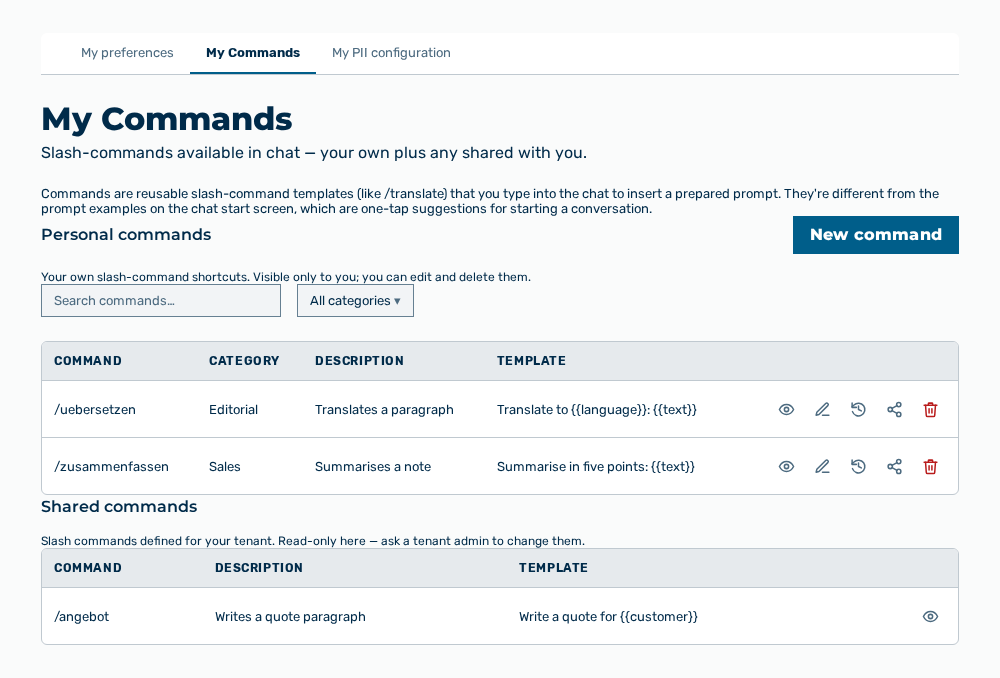
My Commands tab
-
► In the Settings area, open the Preferences group.
- ▷ On the start page, click on your name at the bottom of the navigation bar.
- ↳ The user menu opens.
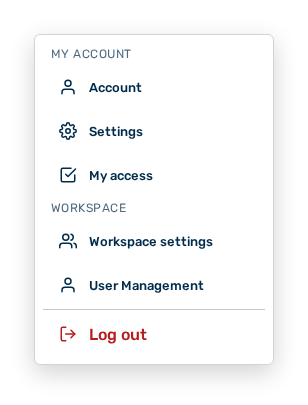
User menu
- ▷ In the My Account group, click on the Settings entry.
- ↳ The navigation bar shows the Settings area.
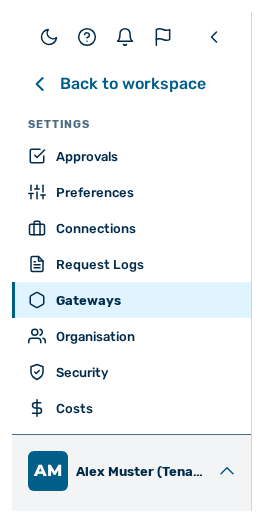
Navigation bar in the Settings area
- ▷ In the navigation bar, click on the Preferences group.
- ► Open the My Commands tab.
- ► In the Personal commands section, click on the New command button.
- ↳ The New Command dialog opens.
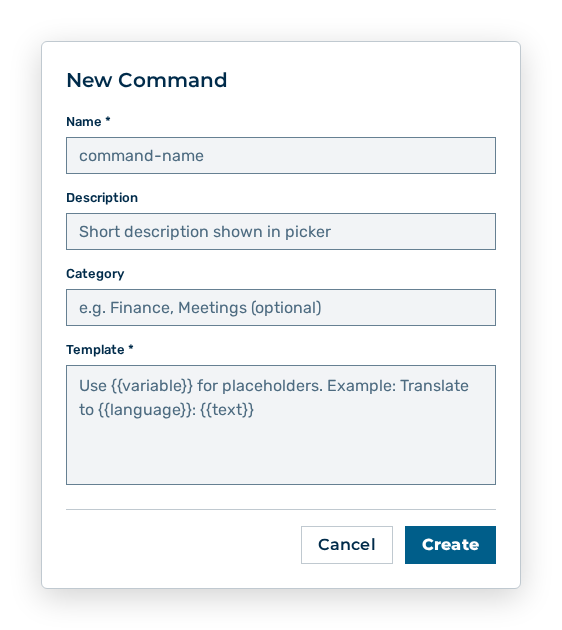
New Command dialog
- ► In Name, enter the name of the command.
- ► In Template, enter the prompt.
- ■ A placeholder of the form
{{variable}}is asked for when the command is used in the chat. - ► Click on the Create button.
- ➔ Myra AI Workspace creates the command in the Personal commands section. The command is available in the chat as a slash command.
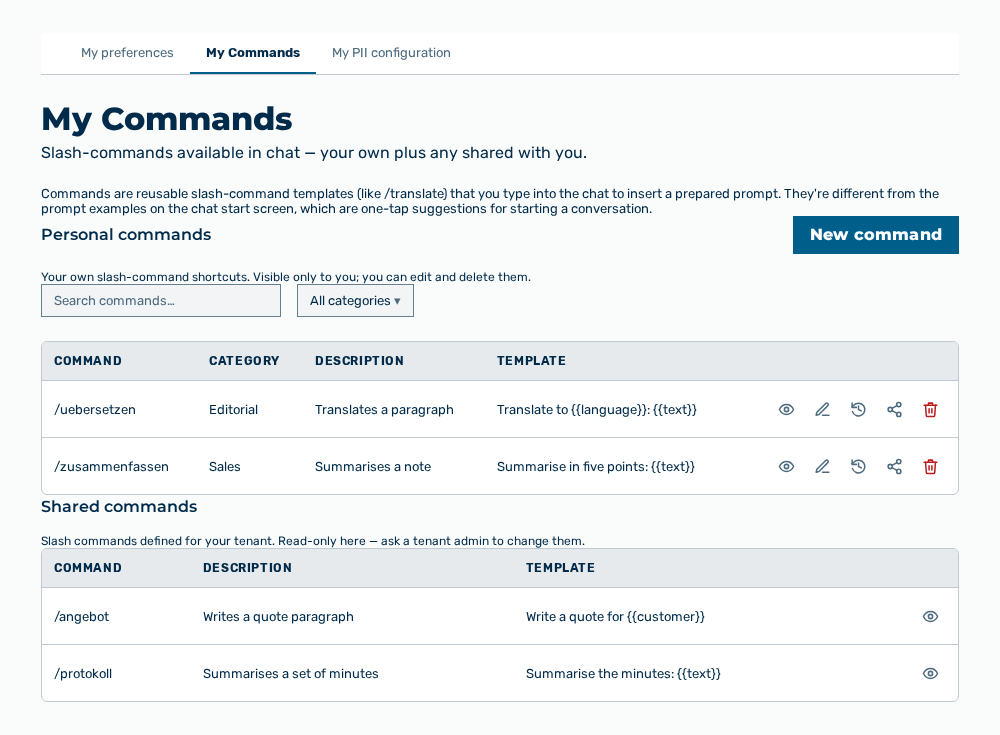
My commands view with the new command
Entries in the New Command dialog
New Command dialog
You set the following entries at creation:
| Entry | Description |
|---|---|
| Name | Name of the command without the leading slash, for example translate. Myra AI Workspace replaces spaces with hyphens. The entry is required. |
| Description | Short description that appears after the command in the picker of the chat. The entry is optional. |
| Category | Category by which the list in the My Commands tab filters. The entry takes at most 64 characters and is optional. |
| Template | Prompt that the command inserts into the chat. A placeholder of the form {{variable}} is asked for on each call. The entry is required. |
The following options are available in the dialog:
| Option | Description |
|---|---|
| Variables detected: display | Lists the placeholders that Myra AI Workspace finds in the template. The display appears as soon as the template contains a placeholder. |
| Create button | Creates the command. While the command is saved, the button has the Saving… label. The button is disabled while Name or Template is empty. |
| Cancel button | Closes the dialog without creating the command. |
Note
The name is unique within your personal commands. If the name is taken already, Myra AI Workspace does not create the command and reports the conflict.
Entries in the Edit Command dialog
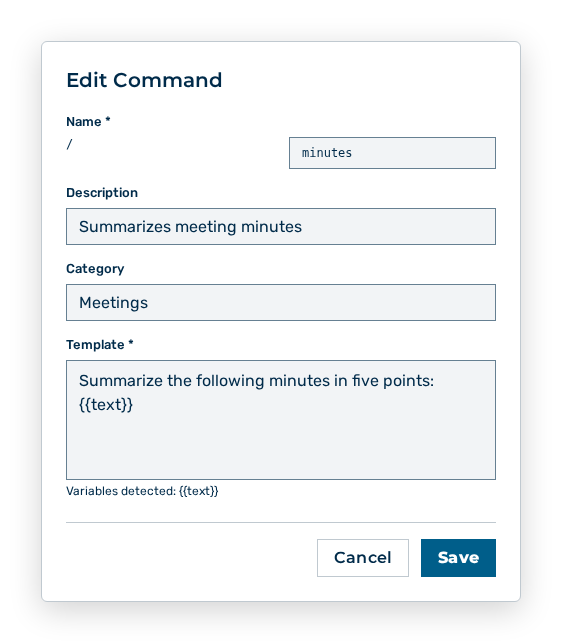
Edit Command dialog
You change the following entries in the dialog:
| Entry | Effect of the change |
|---|---|
| Name | Changes the shortcut with which you call the command in chat. The previous shortcut is no longer available. |
| Description | Changes the text in the picker of the chat. |
| Category | Changes the assignment in the Filter by category drop-down list. |
| Template | Changes the prompt that the command inserts. The change applies from the next call. Messages sent already remain unchanged. If you remove a placeholder, the chat no longer asks for it. |
Note
Myra AI Workspace creates a new version with each save. The Versions row action opens the Version history — /
Note
A command that another person shared with you carries the Shared with you label and cannot be edited. Contact the person who created it, or your tenant administration for a command of the tenant.
Deleting a personal command
Proceed as follows to delete a personal command:
My Commands tab
-
► In the Settings area, open the Preferences group.
- ▷ On the start page, click on your name at the bottom of the navigation bar.
- ↳ The user menu opens.
User menu
- ▷ In the My Account group, click on the Settings entry.
- ↳ The navigation bar shows the Settings area.
Navigation bar in the Settings area
- ▷ In the navigation bar, click on the Preferences group.
- ► Open the My Commands tab.
- ► In the Personal commands section, delete the command.
- ↳ The Delete this command? query opens.
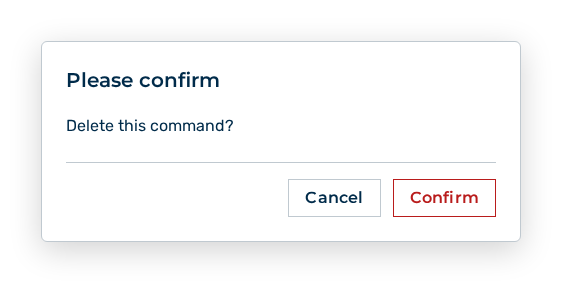
Delete command query
- ► Confirm the query.
- ➔ Myra AI Workspace deletes the command. The command is no longer available in the chat.
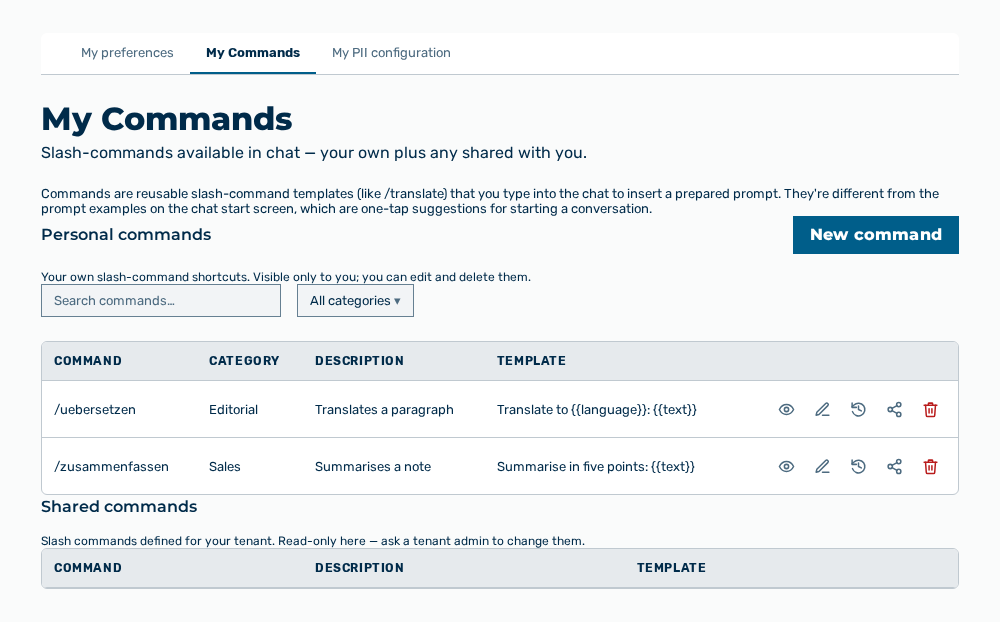
My commands view without the command
Effects of the deletion of a command
The deletion has the following effects:
| Object | Effect |
|---|---|
| Command | Myra AI Workspace removes the command from the Personal commands section. A restore is not possible. |
| Version history | The earlier versions of the command are removed with it. |
| Sharing | The sharing ends. The command is no longer available to the persons with whom you shared it. |
| Chat | The /<name> shortcut is no longer available in the picker. The name is free again for a new command. |
| Conversations | The messages that the command inserted remain in the conversations. |