Costs
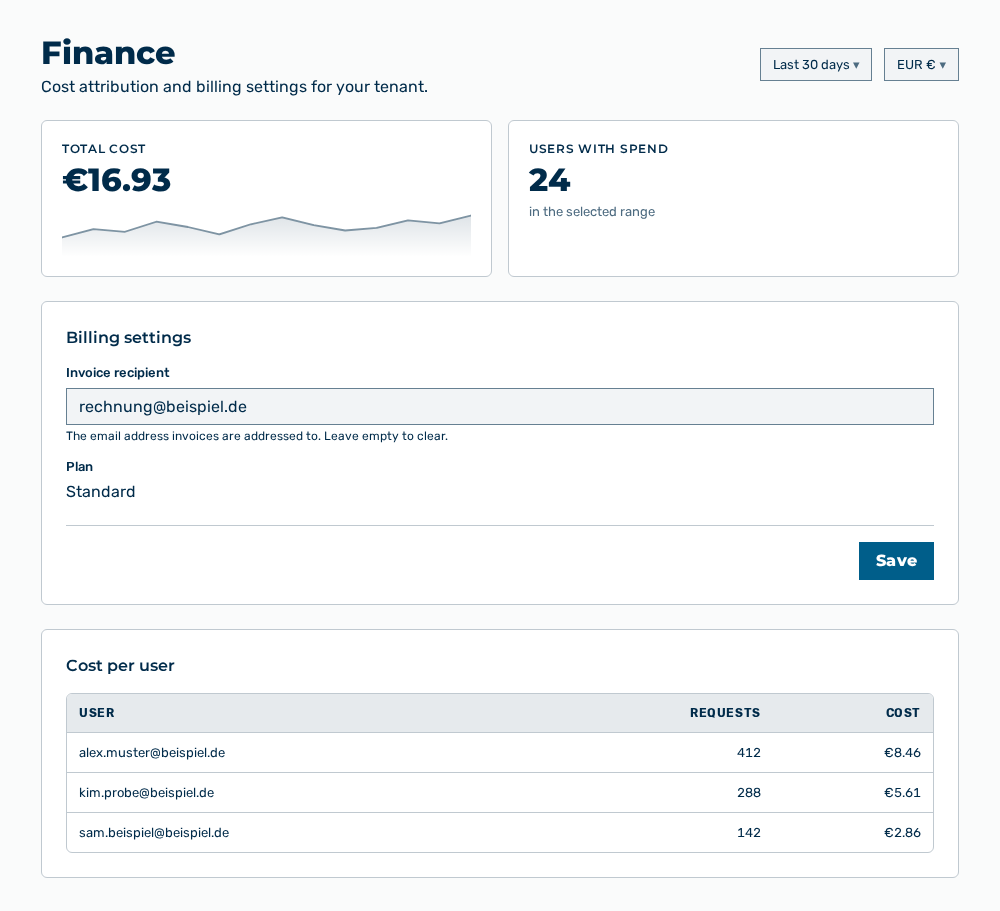
Finance view
The Costs view shows the cost attribution and the billing settings of the tenant in the User Costs tab. The header carries the Cost attribution and billing settings for your tenant. subtitle.
The following information is available:
| Area | Description |
|---|---|
| Total cost | Cost of the tenant in the selected period. Below that, the area shows the daily cost trend as a curve. |
| Users with spend | Number of the users to whom cost is attributed in the selected period. The subline reads in the selected range. |
| Billing settings | Sets the address to which Myra AI Workspace sends the invoices, and names the plan of the tenant. |
| Cost per user | Cost per user with the User, Requests, and Cost columns. The table is sorted by the cost in descending order. |
The following options are available:
| Option | Description |
|---|---|
| Time range selection list | Period of the evaluation: Last 7 days or Last 30 days. |
| Currency selection list | Currency in which the view states the amounts. |
| Invoice recipient input field | Email address invoices are addressed to, for example billing@example.com. If you clear the field, then Myra AI Workspace removes the recipient. |
| Plan entry | Plan of the tenant. You cannot change the entry in this view. |
| Save button | Applies the invoice recipient. While it saves, the button carries the Saving… label, and after that the view reports Saved. |
Note
The Billing settings area appears only for a tenant for which the operator enabled the billing. If the address entered is not a valid email address, then the view reports Enter a valid email address. If the saving fails, then the view reports Could not save. Please try again. If no cost occurred in the period, then the table reports No cost recorded in this range.
Note
For the AI Manager role, the Costs group does not appear. For it, the Cost Analytics view shows the cost breakdown. For the Finance role, the Settings area opens directly in this group.