Groups
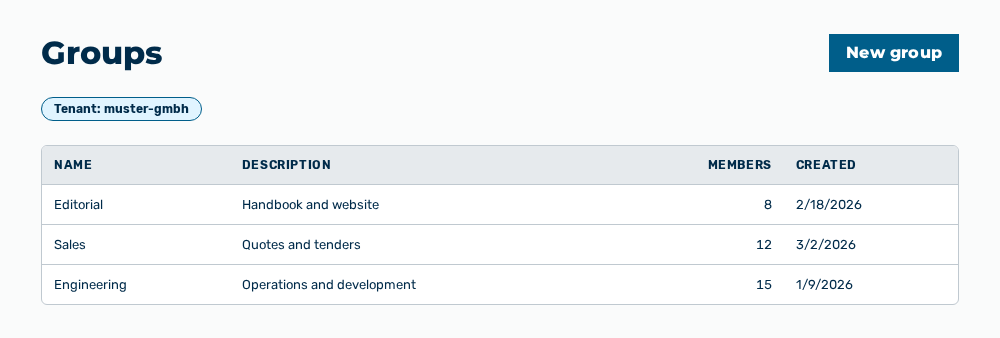
Groups view
The Groups view administers groups and their memberships. Through a group, you grant access to a knowledge space to several users at once. The subtitle of the view gives the number of the groups or the tenant whose groups the list holds.
The following information is available:
| Column | Description |
|---|---|
| Name | Name of the group. |
| Description | Short description of the group. The column stays empty if no description is entered. |
| Members | Number of the users in the group. |
| Created | Time at which the group was created. |
The following options are available:
| Option | Description |
|---|---|
| Tenant list | Selects the tenant whose groups the list holds. Without a selection, the view shows Select a tenant to manage its groups… |
| New group button | Opens the New group dialog. See the Creating a group section. |
| Row of the group | Opens the dialog with the data, the members, and the grants of the group. |
| Delete row action | Deletes the group after the Delete the group "<name>"? Its memberships and grants are removed. confirmation. |
Note
If no group exists yet, the view shows No groups yet. Create one to grant access by group.
Group dialog
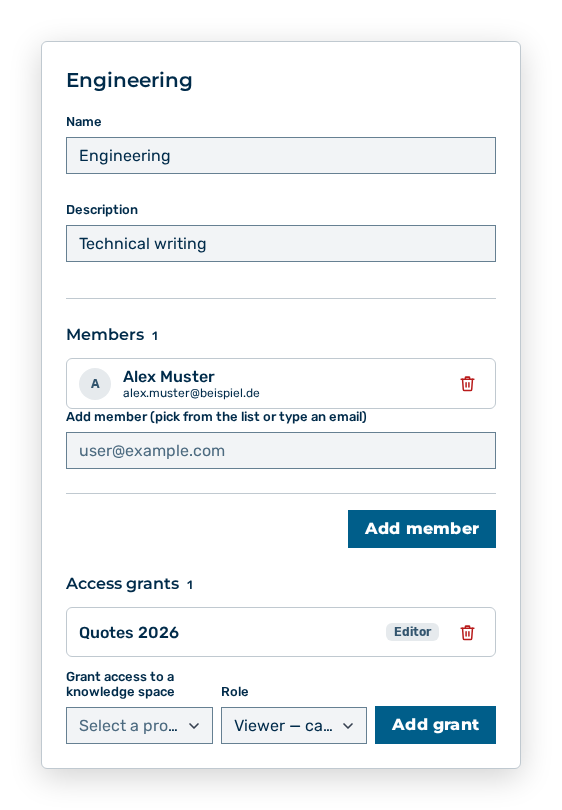
Dialog of a group
The dialog carries the name of the group and administers its data, its members, and its grants.
The following options are available in the dialog:
| Option | Description |
|---|---|
| Name field | Changes the name of the group. |
| Description field | Changes the short description of the group. |
| Save button | Applies the changed data. |
| Cancel button | Closes the dialog without applying the changes. |
The Members area lists the users of the group with their email address and gives their number.
| Option | Description |
|---|---|
| Add member (pick from the list or type an email) list | Selects the users that the group takes in. |
| Add member button | Takes the users in. After the addition, the dialog shows EMAIL added to the group. |
| Remove row action | Removes the member after the Remove NAME from this group? They lose the access this group grants. confirmation. |
The Access grants area lists the knowledge spaces that the group has access to and gives the role granted for each.
| Option | Description |
|---|---|
| Grant access to a knowledge space list | Selects the project that the group receives access to. |
| Role list | Selects the role of the grant: Viewer — can read and chat, Editor — can add knowledge files, or Owner — full control. |
| Add grant button | Grants the access to all members of the group. |
| Remove row action | Revokes the access after the Revoke this group's access to NAME? Every member of the group loses it. confirmation. |
Note
If the group holds no member yet, the dialog shows No members yet. If the group holds no grant yet, the dialog shows No grants yet.
Note
For the Finance role, the User Management area does not appear in the user menu.