Step 8: Issue a token
An authentication token identifies an application to the gateway. Without a token, a gateway whose Require auth token check box is set refuses every request.
The following requirements are met:
- ☑ Step 7 is complete, see Create the groups.
Proceed as follows to issue a token:
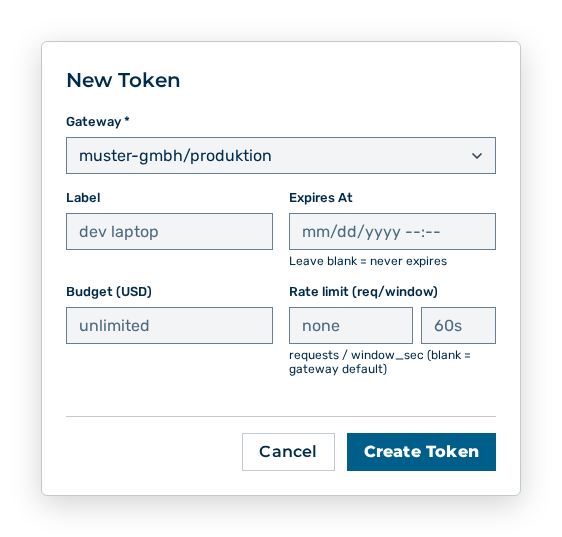
New Token dialog
-
► In the Account area, open the Profile tab.
- ▷ On the start page, click on your name at the bottom of the navigation bar.
- ↳ The user menu opens.
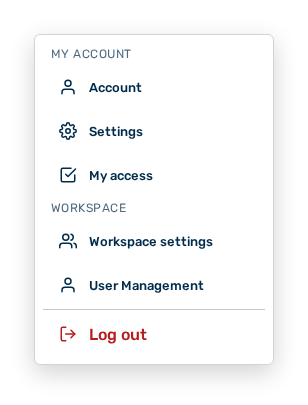
User menu
- ▷ In the My Account group, click on the Account entry.
- ↳ The navigation bar shows the Account area. The Profile tab is open.
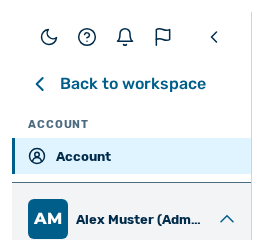
Navigation bar in the Account area
-
► In the Tokens section, click on the New Token button.
- ► Select the gateway from step 1.
- ► Enter a label that names the purpose, for example ci-pipeline.
- ► Click on the Create Token button.
- ➔ Myra AI Workspace creates the token and shows it one time.
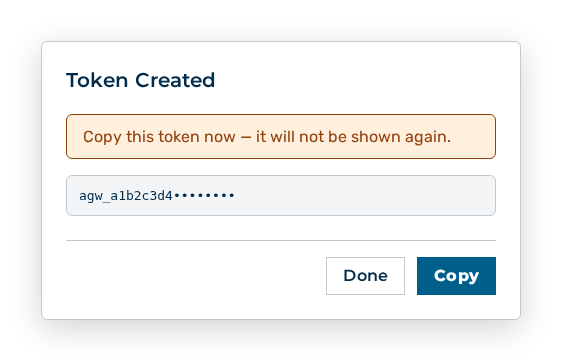
Token Created dialog
Copy the token immediately. The token cannot be shown again later. See the Creating a token section.