Cost Analytics tab
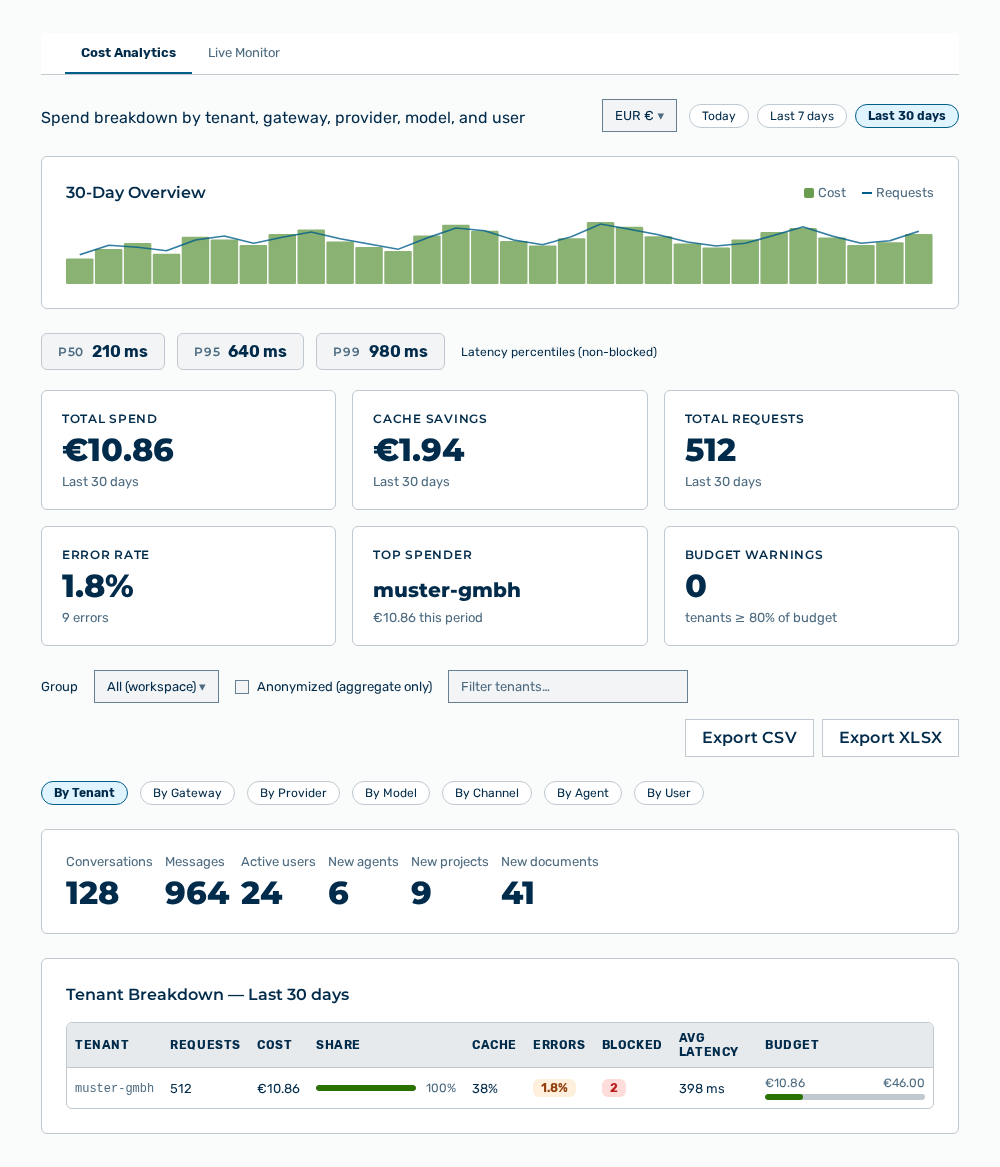
Cost Analytics tab
The Cost Analytics tab breaks the spend down by tenant, gateway, provider, model, channel, agent, and user. The header holds the selection list of the currency and the tabs of the period.
The following metric areas are available:
| Metric | Description |
|---|---|
| Total Spend | Cost of all requests of the selected period. |
| Cache Savings | Amount that the hits in the prompt cache saved. |
| Total Requests | Number of the requests of the selected period. |
| Error Rate | Share of the failed requests. The subline names the number as |
| Top Spender | Tenant with the highest cost. The subline names its cost with the this period addition. If no data is available, then the area shows No data. |
| Budget Warnings | Number of the tenants that reached 80% of their budget. The subline reads tenants ≥ 80% of budget. |
Below the metric areas, the tab shows the 30-Day Overview chart with the cost and the requests per day, and the latency percentiles p50, p95, and p99 with the Latency percentiles (non-blocked) label.
The following activity counters are available:
| Counter | Description |
|---|---|
| Conversations | Number of the chat sessions of the period. |
| Messages | Number of the messages sent. |
| Active users | Number of the people with at least one request. |
| New agents | Number of the agents newly created. |
| New projects | Number of the projects newly created. |
| New documents | Number of the documents newly created. |
The following options are available:
| Option | Description |
|---|---|
| Currency selection list | Currency in which the view states the amounts. |
| Today, Last 7 days, and Last 30 days tabs | Period of the evaluation. The period applies to the metric areas, the activity counters, and all breakdowns. |
| Group selection list | Restricts the evaluation to one group. The All (workspace) entry removes the restriction. |
| Anonymized (aggregate only) check box | If the check box is selected, then the breakdown by user shows no email addresses, and the export contains no personal rows. The check box is selected by default. |
| Filter rows input field | Restricts the rows of the selected breakdown to a search term. The |
| Export CSV button | Downloads the rows of the selected breakdown as a CSV file. |
| Export XLSX button | Downloads the rows of the selected breakdown as an Excel file. |