Files tab
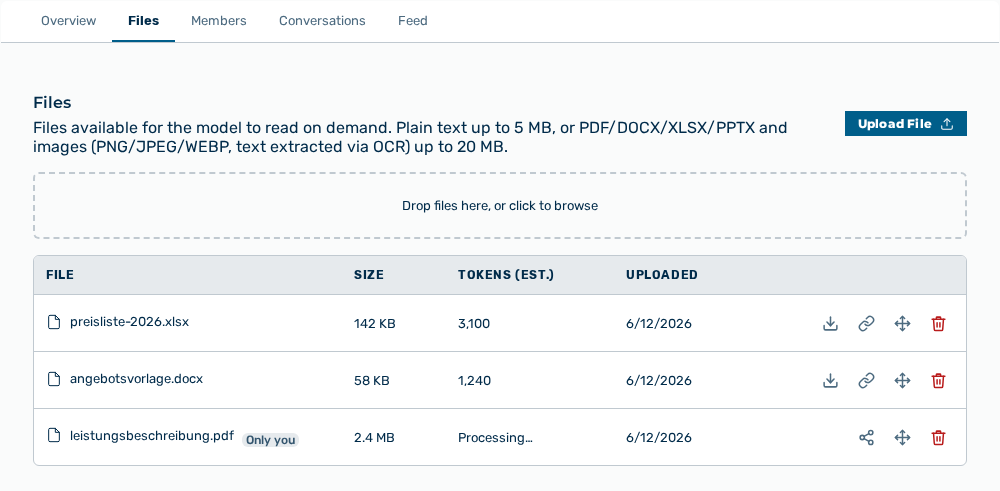
Files tab
The Files tab contains the files available for the model to read on demand:
- ■ plain text up to 5 MB
- ■ PDF, DOCX, XLSX, and PPTX up to 20 MB
- ■ images (PNG, JPEG, WEBP — text extracted via OCR) up to 20 MB
The following information is available:
| Column | Description |
|---|---|
| File | Name of the file. The Only you addition marks a file that only its creator can see until that person shares the related chat into the project. |
| Size | Size of the file. |
| Tokens (est.) | Estimated number of the tokens that the content of the file occupies in the context of the model. |
| Uploaded | Time of the upload. During the processing, the Processing… status appears. After an error, the Extraction failed status appears. |
The following options are available:
| Option | Description |
|---|---|
| Upload File button | Opens the file selection. As an alternative, drag the files onto the Drop files here, or click to browse area. |
| Download file icon | Downloads the file in its original form. |
| Copy reference URL icon | Copies the address that references the file in a conversation. |
| Move to folder icon | Opens the Move "<name>" dialog with the Folder field. An empty field moves the file to the top level. Use "/" to nest folders. |
| Remove file icon | Removes the file from the project after a confirmation. |
| Share this chat button | Shares the chat that generated the file into the project. Its files and messages become visible to project members. |
Note
If no file was uploaded yet, the tab shows No knowledge files yet. If a file exceeds the limit, the tab shows NAME exceeds LIMIT limit. If a file is already in the project, the tab shows NAME is already in this project.